Get started with calls
This guide covers the prerequisites and technical requirements you need to know before implementing Calls in your Conversations contact center. Review these requirements carefully to ensure optimal call quality and performance.
Prerequisites
To start using the Calls channel properly, you need to fulfill a few prerequisites:
- Create a user
- Assign Conversations roles
- Configure your call center (choose at least one of the following):
Call features overview
| Call features | Phone calls | WebRTC calls |
|---|---|---|
| Queues | ✔ | ✔ |
| Routing | ✔ | ✔ |
| Automatic agent assignment | ✔ | ✔ |
| Working hours | ✔ | ✔ |
| Waiting strategy | ✔ | ✔ |
| Recording | ✔ | ✔ |
| Make a call | ✔ | ✔ |
| Receive a call | ✔ | ✔ |
| Call wrap-up | ✔ | ✔ |
| Video | N/A | ✔ |
| Screen share | N/A | ✔ |
| Dialpad DTMF inputs | ✔ | N/A |
| Transfer calls | ✔ | ✔ |
| Hold | ✔ | ✔ |
Technical requirements
Below you can find all the technical requirements you need to know before you start using the Conversations Call Center solution.
| Requirement | Specification |
|---|---|
| Operating system | 64-bit (Windows, macOS, Linux, or Chrome OS) |
| RAM | 4 GB minimum (8 GB recommended) |
| Processor | Dual-core minimum |
| Bandwidth | 5 Mbps minimum for agents |
| Packet loss | Under 1% |
| Latency | Less than 150 ms one-way |
| Browsers | Chrome, Firefox, Edge, Safari, Opera (5 most recent versions) |
System requirements
Audio and video call quality can be very low and unsatisfactory if agents do not have the necessary computing power. Therefore, for a smooth experience, we recommend that the agents' computer has at least the following specifications:
- 64-bit operating system
- 4 GB RAM minimum (8 GB RAM recommended)
- Dual-core processor
Operating systems [#operating-systems-system-requirements]
Conversations is a cloud-based application that runs in your web browser, so it can be used on any desktop operating system that supports a compatible browser, such as:
- Windows
- macOS
- Linux
- Chrome OS
Peripheral devices [#peripheral-devices-system-requirements]
To make or receive calls, agents need the following equipment:
- Headphones or speakers
- Microphone
- A camera that your browser can recognize as a video device (for video calls)
Media link quality [#media-link-quality-system-requirements]
It is also quite important that you have a solid internet connection for optimal media experience, considering latency and packet loss can negatively impact call quality.
- Packet loss is under 1%
- One-way latency less than 150 ms
Network topology variants [#network-topology-variants-system-requirements]
When calculating internet speed requirements, take the following into account:
- Where are the agents located?
- Do you have BYOC (Bring Your Own Carrier) or are you using Infobip voice connection?
The table below covers the audio portion only and assumes that offices use the same internet link for BYOC, SIP trunk to Infobip, and SIP trunk to telecom:
| Agent location | Trunk | Required office bandwidth per call | Agent home bandwidth |
|---|---|---|---|
| Home | IB | N/A | 5 Mbit for conversations, after that approximately 50 kbps for audio |
| Office | IB | 5 Mbit for conversations, after that approximately 50 kbps for audio | N/A |
| Office | BYOC | 2x100 Kbps for BYOC g711 audio (mandatory packet loss less than 1%) | 5 Mbit for conversations, after that approximately 50 kbps for audio |
| Office | BYOC | 2x100 Kbps for BYOC g711 audio (mandatory packet loss less than 1%). 5 Mbit for conversations, after that approximately 50 kbps for agent audio. | N/A |
Data centers [#data-centers-system-requirements]
Calls in Conversations are relayed to Infobip data centers. To minimize latency, use the nearest data center that matches your agents' physical location.
| DC | Location | Info |
|---|---|---|
| Frankfurt | EU | Full solution |
| Mumbai | India | Full solution |
| New York | US | Full solution |
| Sao Paolo | Brazil | Media only |
Codecs in use [#codecs-in-use-system-requirements]
| Audio | Video |
|---|---|
| OPUS, PCM | VP8, H.264 |
Browser compatibility (web) [#browser-compatibility-web-system-requirements]
We support up to 5 most recent versions (unless otherwise indicated) of the most commonly used browsers:
| Google Chrome | Mozilla Firefox | Safari* | Microsoft Edge** | Opera | Internet Explorer | |
|---|---|---|---|---|---|---|
| Linux | ✔ | ✔ | N/A | N/A | ✔ | N/A |
| MacOS | ✔ | ✔ | ✔ | ✔ | ✔ | N/A |
| Windows | ✔ | ✔ | N/A | ✔ | ✔ | N/A |
*WebRTC support in Safari started with version 11.
**WebRTC support in Microsoft Edge started with Chromium-based version 79. Only Chromium-based Microsoft Edge versions for Windows are supported for InfobipRTC.
Browser compatibility (mobile) [#browser-compatibility-mobile-system-requirements]
For mobile, we support the following browsers for WebRTC calls via call link:
| Google Chrome | Mozilla Firefox | Safari* | Microsoft Edge** | Opera | Internet Explorer | |
|---|---|---|---|---|---|---|
| Android | ✔ | ✔ | N/A | ✔ | ✔ | N/A |
| iOS*** | ✔ | ✔ | ✔ | ✔ | ✔ | N/A |
***WebRTC support in browsers other than Safari started with iOS version 14.3.
Media stream requirements
It is worth noting that media streams are generally symmetric, meaning what you send is roughly equal to what you receive. However, exceptions may occur if the network link is asymmetric.
The initial download size of the Conversations web page is approximately 11 MB, which means the first load may be slow if bandwidth is limited. To ensure smooth and uninterrupted use of the Conversations web application, a minimum bandwidth of 5 Mbps is recommended for agents.
Additional bandwidth requirements by media stream type are outlined below:
| Media type | Details | Required bandwidth |
|---|---|---|
| Standard audio quality | Narrowband to wideband | 50 Kbps |
| High audio quality | Up to fullband, stereo | 100 Kbps |
| Low-resolution video | 240x180 | 180 Kbps |
| SD video | 640x480 | 600 Kbps |
| HD video | 1280x720 | 1500+ Kbps |
Additional requirements
JavaScript has to be enabled. Also, you need to grant permission to use the microphone and camera (for video calls).
Agent requirements for receiving calls
To be able to receive calls, agents:
- Must be in one of the statuses from the available status group
- Must be assigned to the queue that the call is routed to (note that by default, calls are routed to the Default queue)
The queue that the call is routed to needs to have automatic agent assignment turned on. Calls cannot be manually assigned. By default, automatic agent assignment is turned off for all queues, including the Default queue.
Microphone and camera permissions
When an agent initiates or receives the call for the first time, they will be prompted (by a browser pop-up notification) to allow Conversations access to the device's microphone and camera. If the pop-ups are blocked, you will have to manually enable these settings.
If you have denied the permissions, the call will be rejected showing the following error: Permission to use camera and microphone denied.

If you are experiencing permission issues, see the Troubleshoot calls guide for detailed instructions on enabling microphone and camera in different browsers.
Device settings
In their everyday work and while handling calls, agents need to be able to configure the desired input and output devices (camera, microphone, and speakers), as well as the ringtone volume, quickly and effortlessly for both voice and video calls.
Audio and video settings
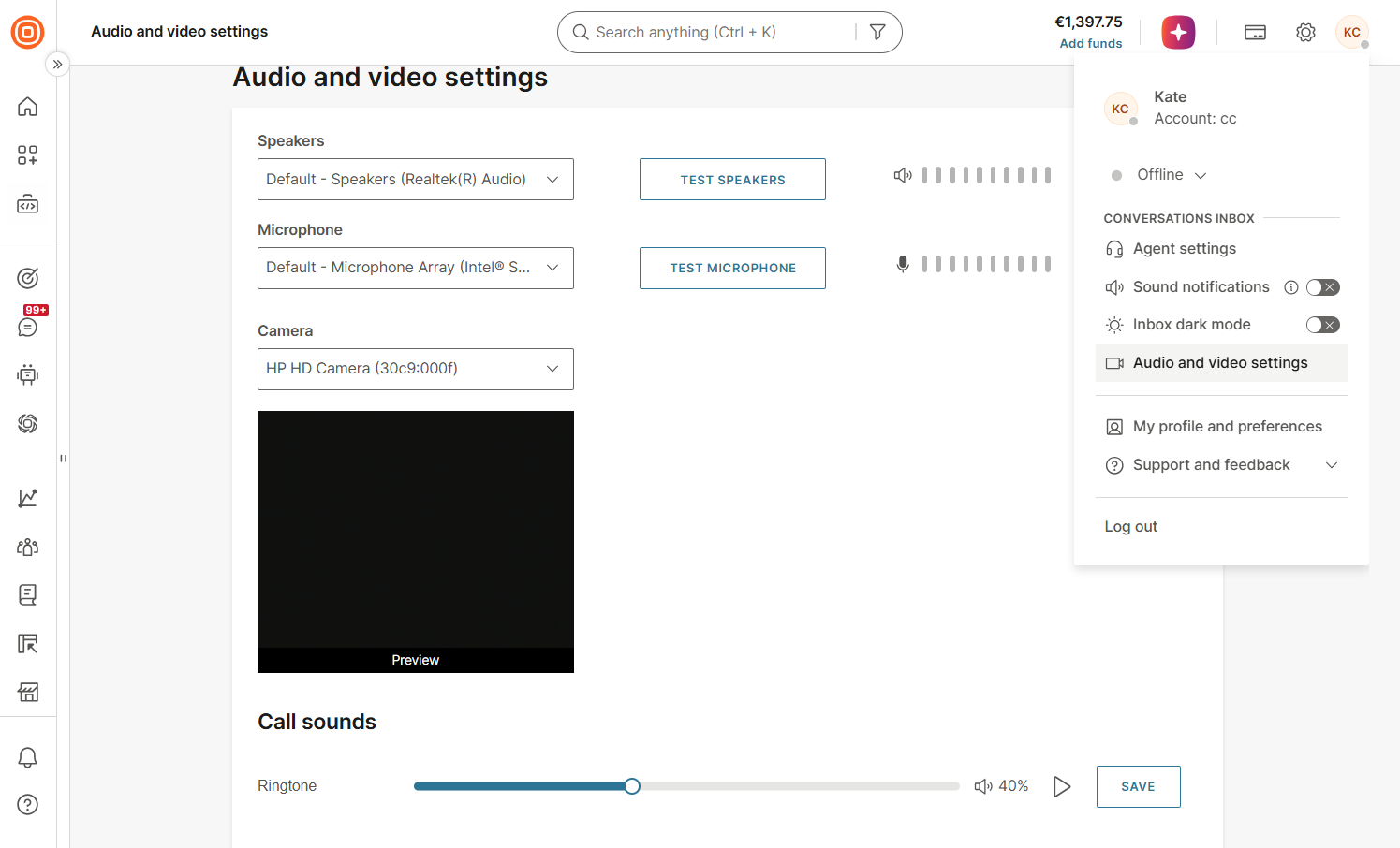
Select your profile icon and choose the Audio and video settings option.
The device configuration that you create on the audio and video settings is sticky and will be preserved in the browser. You can choose one of the recognized devices from the drop-down lists for both audio and video input devices.
Here, you can confirm that the devices are functioning properly:
- Select Test speakers to test the sound. The system will play music for 5 seconds.
- Select Test microphone to test the microphone. The system will wait for the sound and animate the volume bar accordingly, showing that the microphone is working fine.
The video stream from the selected camera will be automatically shown in the preview window. If available, the devices that you select will be used for the new calls.
Ringtone volume [#ringtone-volume-device-settings]
Under Call sounds, adjust the Ringtone slider to set the volume of the incoming call ringtone.
Select the play icon next to the slider to preview the sound, then select Save to apply the change.

Voice numbers
Voice numbers are phone numbers with the capability to receive incoming calls. They can also be used as the Caller ID for outgoing calls.
To set up a Voice communication and receive incoming calls for your business needs, first, you must lease a Voice number from Infobip.
Refer to the Voice numbers section for detailed instructions.
Bring Your Own Carrier
Bring Your Own Carrier or BYOC is a feature that allows our customers to use our platform, regardless of who is the owner of the DID number and connection towards the operator.
This solution provides flexibility by defining SIP trunking between existing customer connection (voice provider) and Infobip platform.
Depending on the use case and client requirements we can provide both inbound and outbound configurations. For any clients that require enhanced security, we can set up additional encryption options: encryption per call or encryption of tunnels between two data centers.
Next steps
Now that you understand the technical requirements and have completed the prerequisites, you can:
- Configure your call center: Set up call links, recording, routing, and more
- Learn the agent guide: Understand how agents make and receive calls
- Set up WhatsApp Calling: Enable WhatsApp business calls
- Set up Viber Calling: Enable Viber business calls