WhatsApp Business Calling
Incorporating the WhatsApp Business Calling capability into your communication strategy allows agents to efficiently manage both inbound and outbound calls directly through this popular platform. This integration offers a seamless and cost-effective solution for engaging with customers, enhancing their experience by connecting on a platform they already use and trust.
By utilizing WhatsApp Business Calling, you can significantly improve customer interactions while reducing communication expenses, particularly for international calls.
Check the video below to learn more.
Configure WhatsApp Business Calling
To enable WhatsApp Business Calling in Conversations, complete the following steps:
- Obtain a WhatsApp number - Ensure the number supports call functionality.
- Configure the route - To separate agents handling calls from those handling messages, create a route with the channel type set to WhatsApp and the Communication field set to Calls. If you would rather have both under the same route and queue, simply set the channel type to WhatsApp without specifying the Communication field.
- Add the route to a queue - This determines where incoming WhatsApp calls are directed.
- Complete standard setup - Configure queue settings such as agent assignment, waiting strategy, working hours, and other relevant features. It is recommended to set up a waiting strategy. Without a waiting strategy, inbound WhatsApp Business Calling may be answered silently, with the caller hearing no audio (not even ringing tones). This can create confusion or lead the user to believe the call has failed. We strongly recommend always configuring a waiting strategy for inbound WhatsApp Business Calling to ensure a clear and consistent caller experience. For guidance, refer to the Waiting strategy section.
WhatsApp business call permission and contact policy
Use the Create WhatsApp Template API endpoint to create a callPermissionRequest template, and make sure the template includes the required callPermissionRequest element.
A call can only be placed after the user responds to a call permission request (reject, temporarily accept, or permanently accept). Requests and calls are rate-limited, and permission is revoked after too many unanswered calls. See Call permission rules for the exact limits.
Start a new WhatsApp business call
To start a new WhatsApp business call, select the plus (+) button inside the My Work panel and specify the following:
- Conversation topic (optional).
- In the From field, select one of the available WhatsApp numbers.
- In the To field, specify the contact you want to call. You can either select an existing contact from the drop-down menu or add a new number.
- In the Communication type, select Call. Before placing the call, you must send a message template to request the customer's consent, unless prior consent has already been obtained. If the customer agrees, you have a limited window to initiate the call, as outlined above.
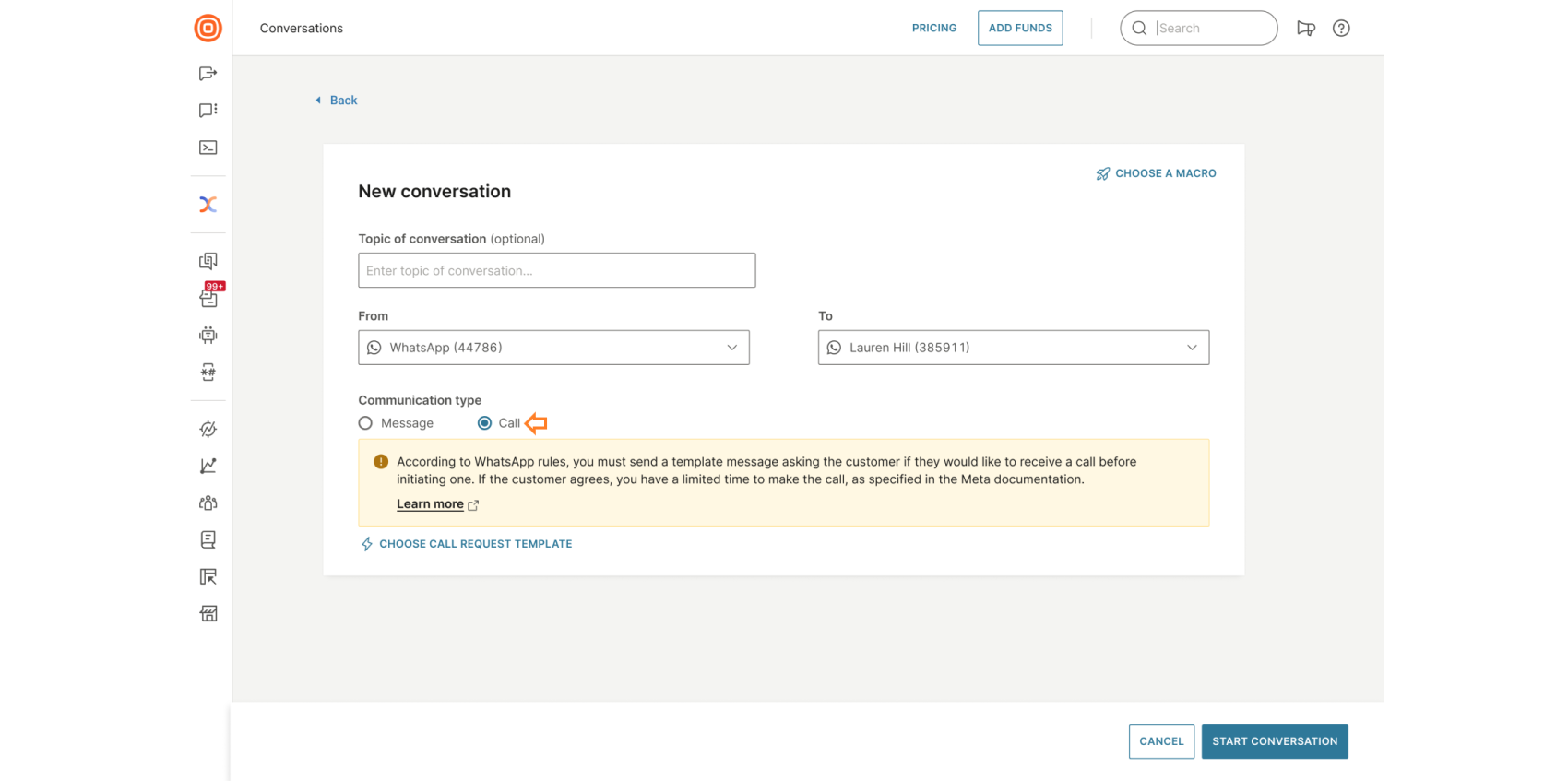
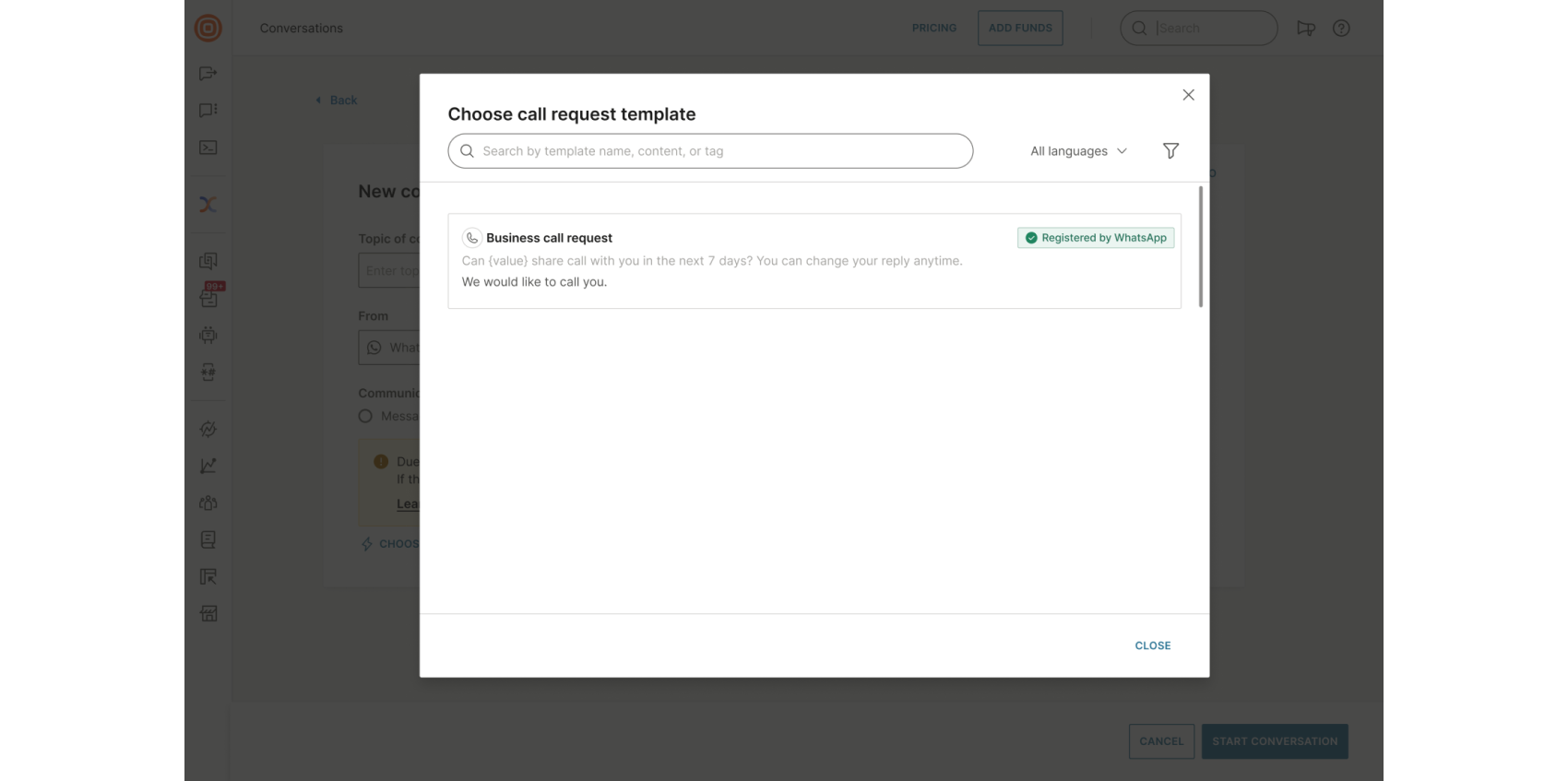
- Use the search bar to find and select a call request template by name, content, or tag.
- After selecting the template, you can adjust additional details such as forms, tags, priority, status, queue, and more. A message preview will also appear.
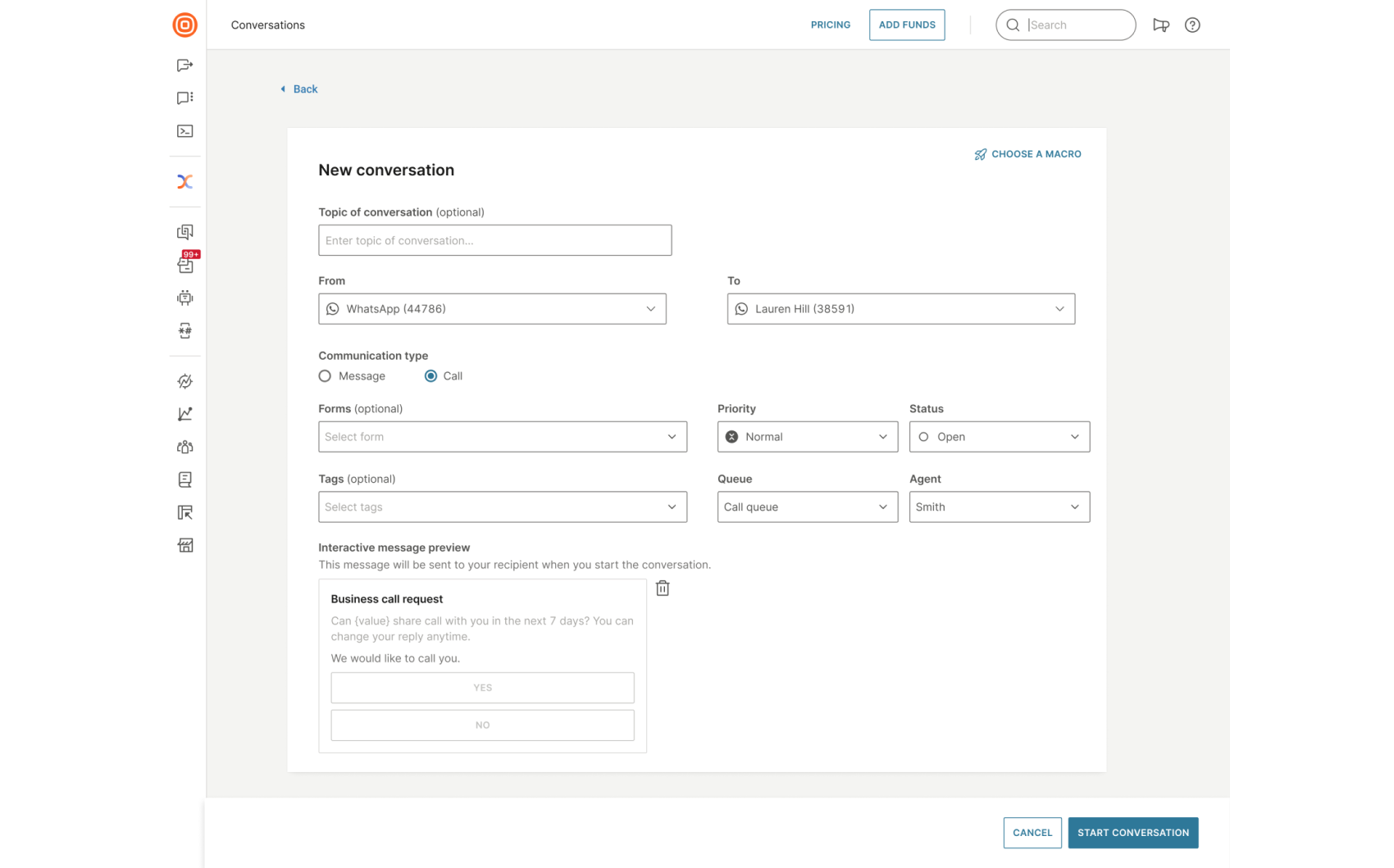
- When everything looks correct, select Start Conversation to send the business call request.
If a call request has already been made, you will see a warning when trying to create a new conversation. Additionally, if a conversation with the customer already exists, you will see a note with a link to open the existing conversation and continue from there.
What happens after sending the WhatsApp call request [#what-happens-after-sending-the-whatsapp-call-request-start-a-new-whatsapp-business-call]
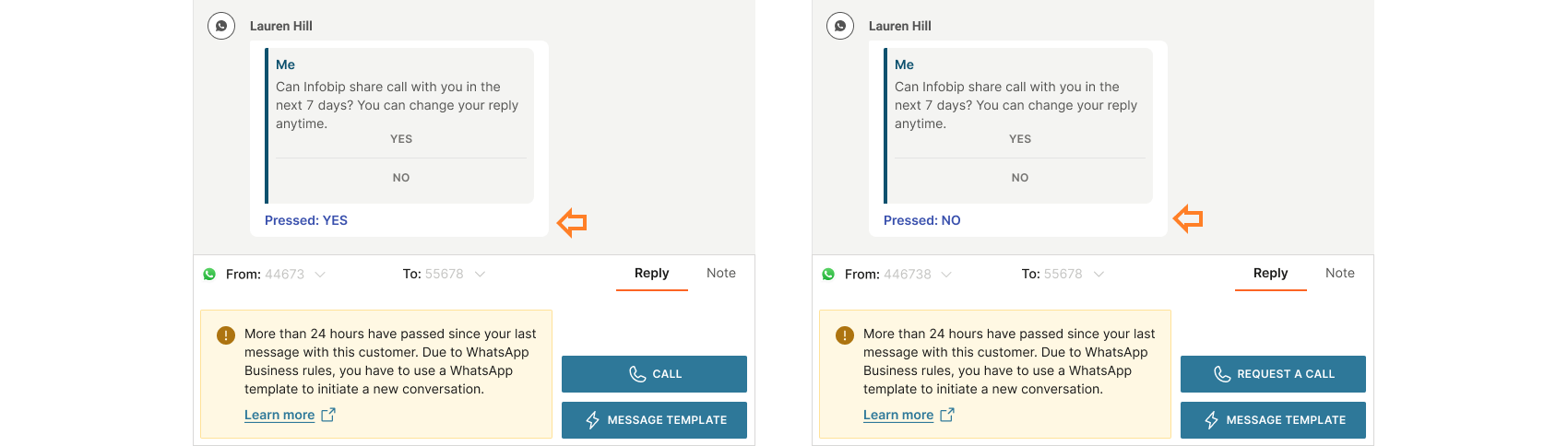
The customer receives a message and can reply Yes or No to accept or decline the call. They can change their response at any time.
The Request a call button becomes disabled once a request is sent or when the limit for making another request has been reached. If the customer agrees, the call must be placed within 7 days.
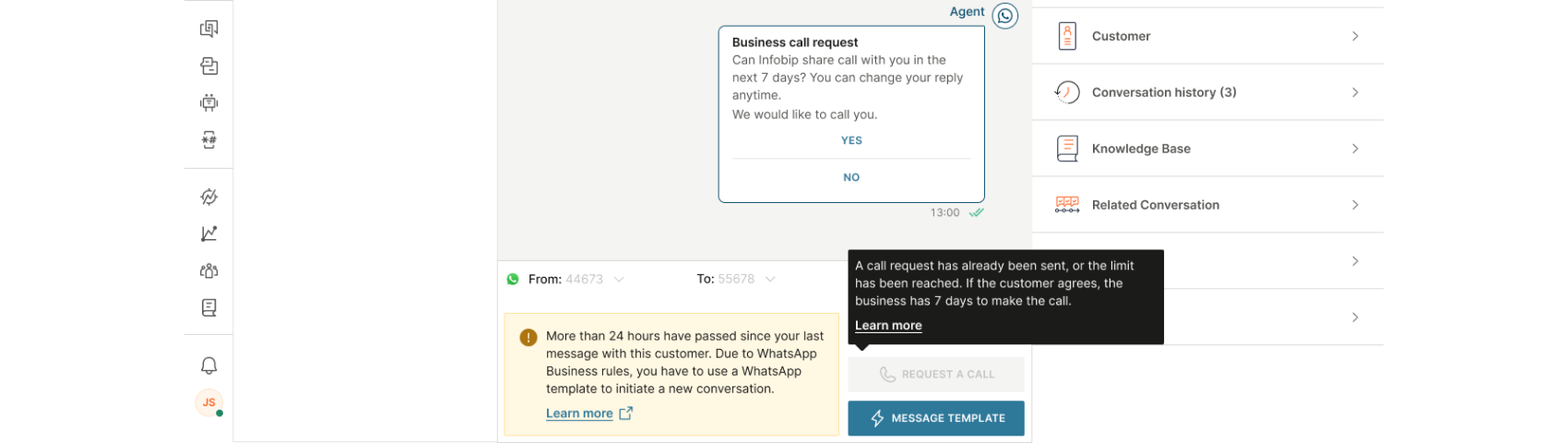
Customer's response after sending the WhatsApp call request [#customers-response-after-sending-the-whatsapp-call-request-start-a-new-whatsapp-business-call]
After sending the call request, you will see the customer's response when they reply. If the reply is Yes, the Call button becomes available, allowing you to place the call.
If the reply is No, and only one request has been sent so far, you can send another request after 24 hours. Once two requests have been sent within 7 days, you will need to wait until the 7-day limit resets before sending another.
Inbound and outbound WhatsApp calls
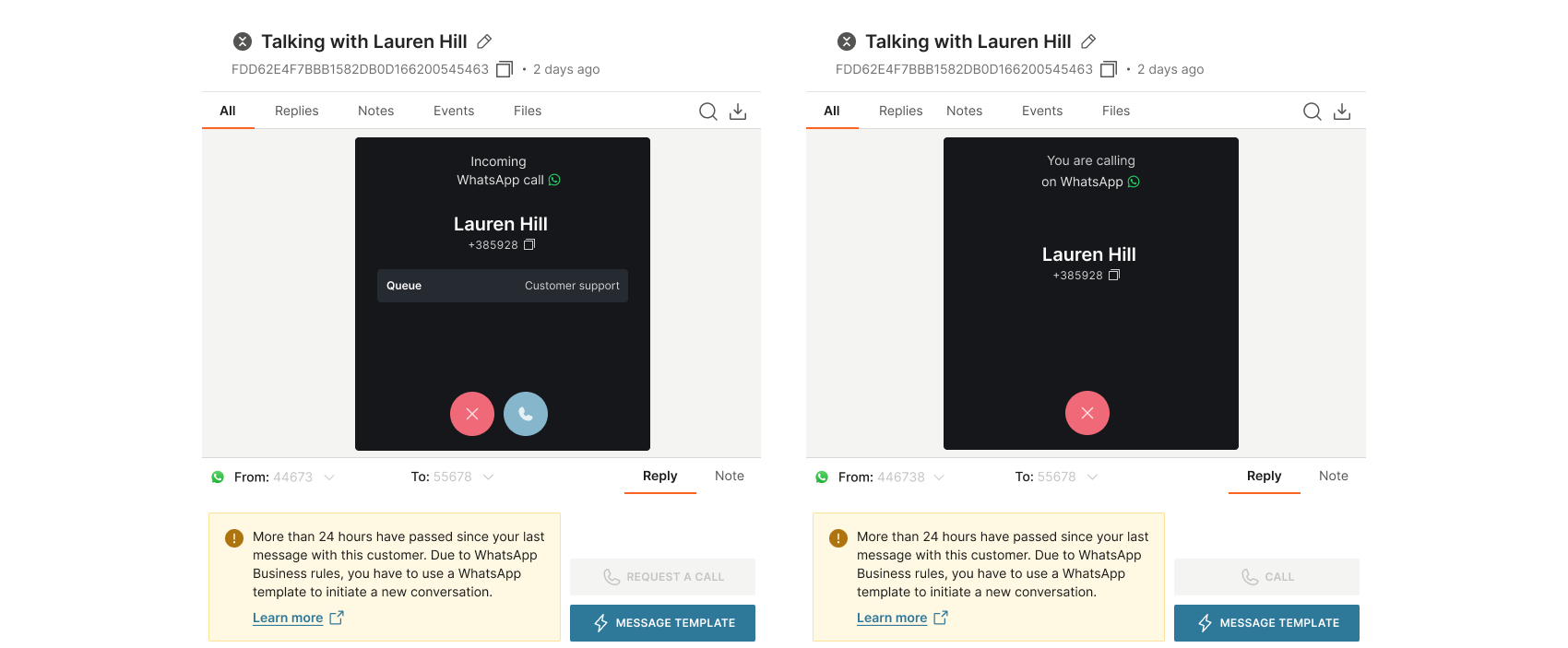
WhatsApp calls in Conversations can be inbound or outbound. When a call is routed to you, you will hear a ringing sound and see an incoming call pop-up window.
The pop-up window allows you to answer or decline the call. It also provides key information that may be the first insight you have about the customer before answering. This includes:
- Inbound or outbound call type
- Channel the call is coming from (WhatsApp)
- The customer's full name and phone number
- The assigned queue
Additionally, you can copy the phone number with one click and use it as needed, for example, pasting it into notes, sharing it with a colleague, or entering it into a third-party CRM for record-keeping.
Refer to the video tutorials below to learn more about inbound and outbound WhatsApp calls.
Interactive WhatsApp call button
The interactive WhatsApp call button enables you to create a message that allows customers to initiate a voice call directly from the chat. With a single tap, the conversation can shift from messaging to voice, without requiring customers to leave the WhatsApp app.
This option is available only for conversations within the open 24-hour messaging window.
To use the feature, you need a WhatsApp sender supporting both chat and calls.
To create an interactive call message within an existing WhatsApp chat:
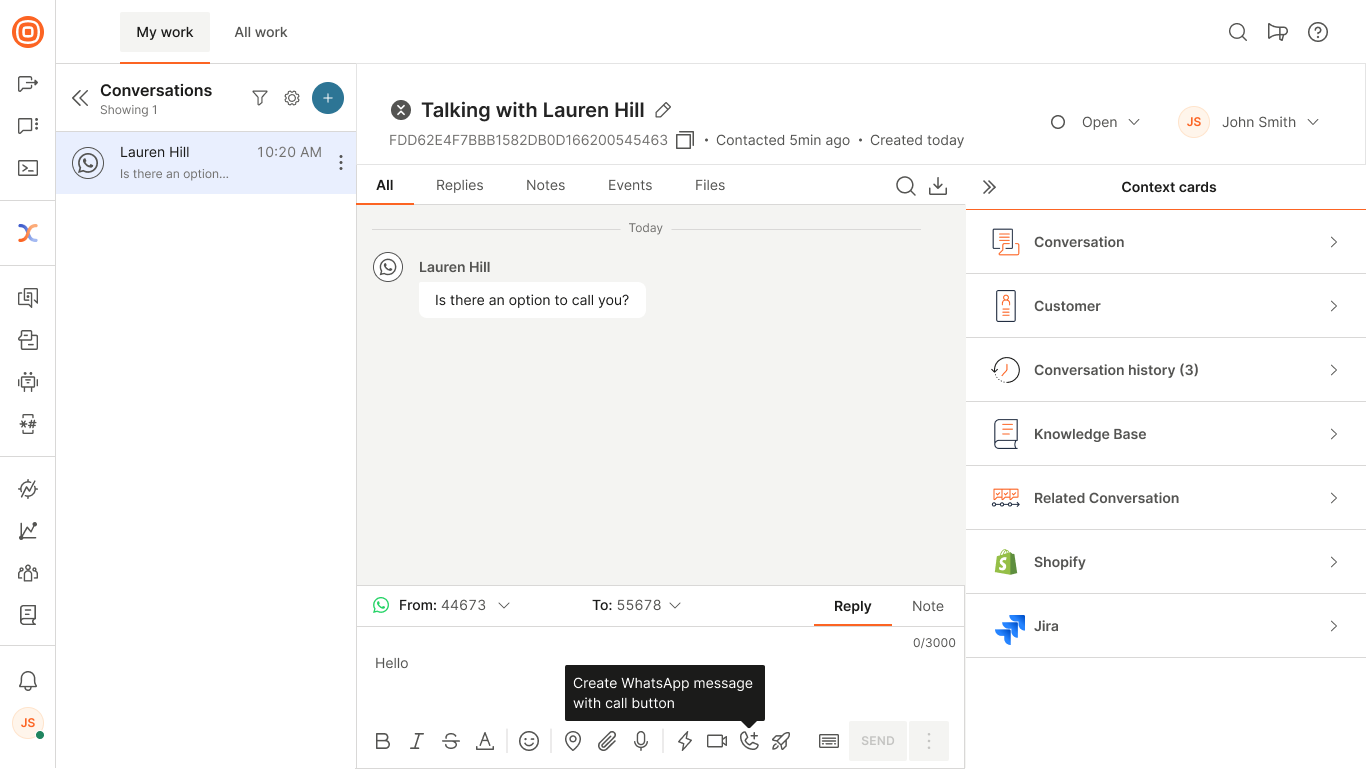
- Select the Create WhatsApp message with call button icon.
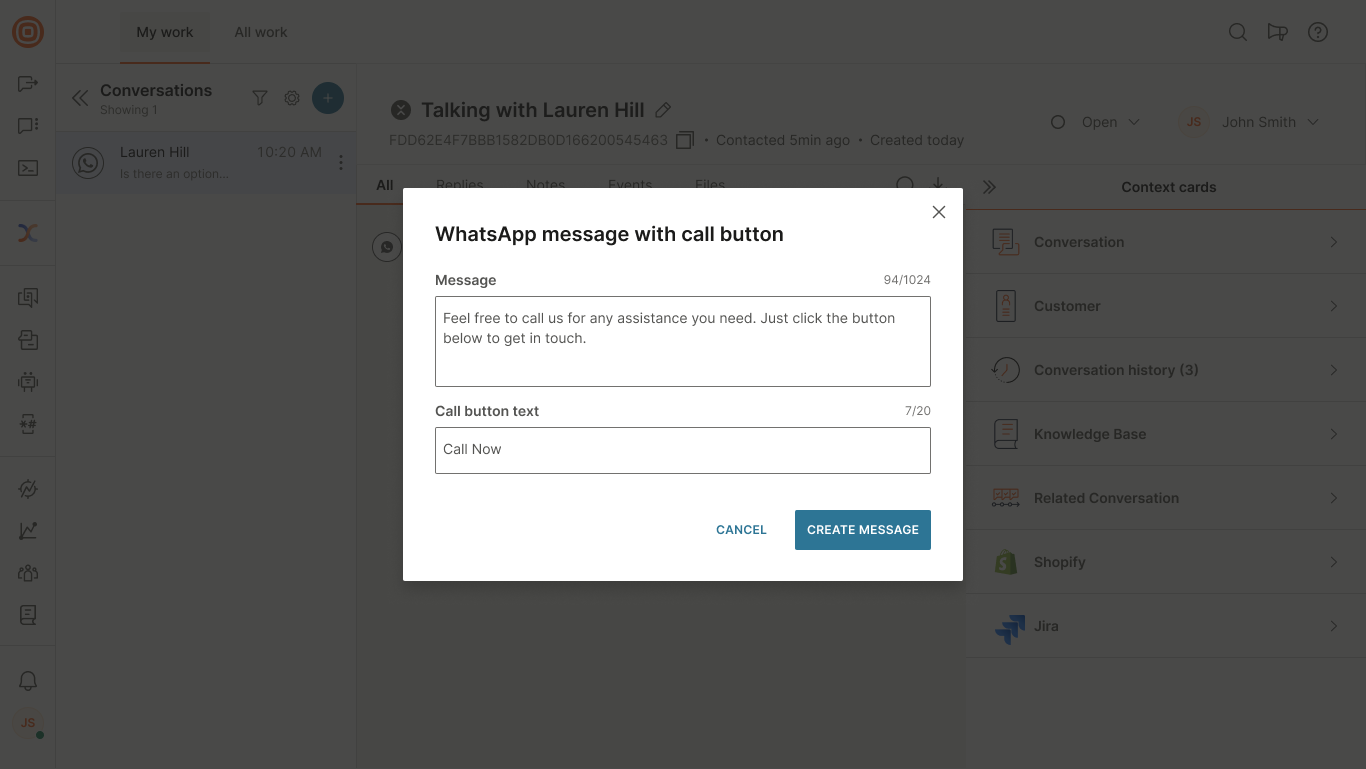
- In the pop-up, enter the message text and the call button label that will be shown to the customer.
- Select Create message.
- The interactive message box appears in the message area, where you can edit or delete it if needed.
- Once you confirm the content is correct, select Send.
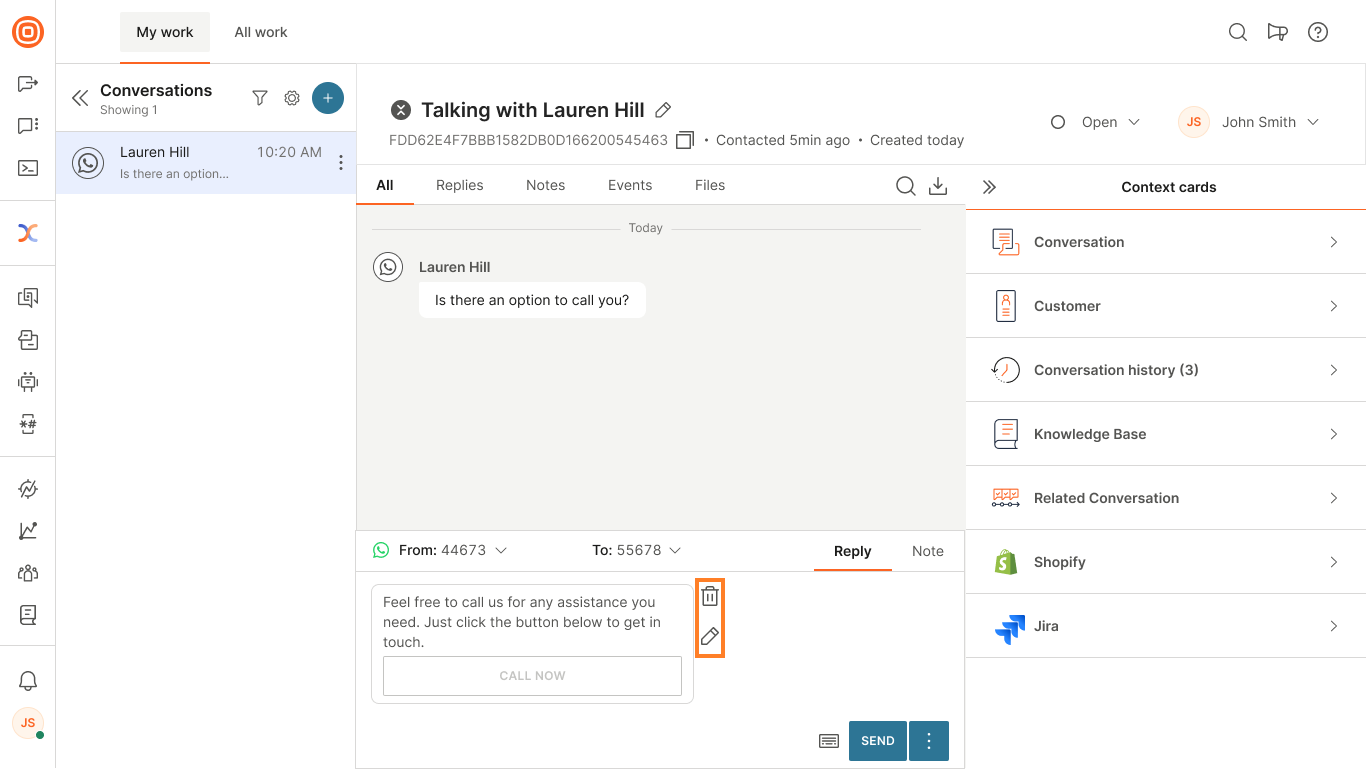
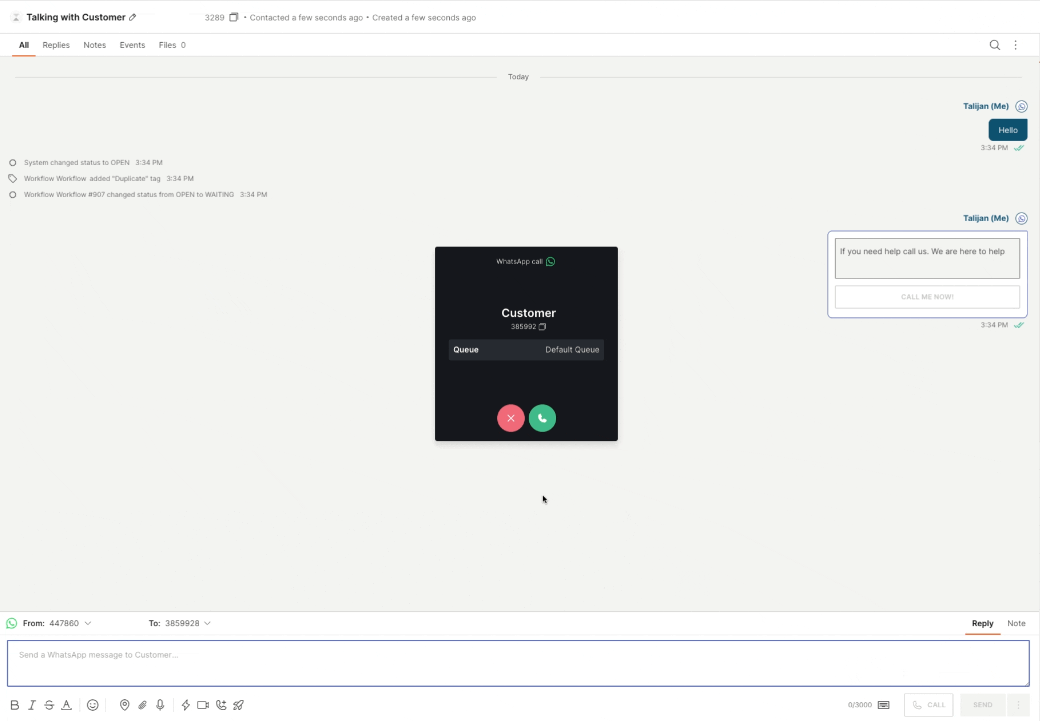
- The interactive call message will appear in the chat thread. When the calling icon is shown in the WhatsApp chat user interface, the user can initiate the call. Read more about the calling icon in the chat interface.
- When the customer taps the call button, a call pop-up appears and you can take the call directly.
For more details about the WhatsApp channel, see our WhatsApp product documentation.