Viber Business Calling
Integrating Viber Business Calling into your communication strategy makes it easy for agents to manage both incoming and outgoing calls right from an app your customers already know and trust. This approach provides a seamless and cost-effective way to stay connected without asking them to switch platforms.
Using Viber for calls enhances customer engagement and helps reduce communication costs, especially for international interactions.
Configure Viber Business Calling
To enable Viber Business Calling in Conversations, complete the following steps:
- Obtain a Viber number - Ensure the number supports call functionality.
- Configure the route - To separate agents handling calls from those handling messages, create a route with the channel type set to Viber and the Communication field set to Calls. If you would rather have both under the same route and queue, simply set the channel type to Viber without specifying the Communication field.
- Add the route to a queue - This determines where incoming Viber business calls are directed.
- Complete standard setup - Configure queue settings such as agent assignment, waiting strategy, working hours, and other relevant features.
Start a new Viber business call
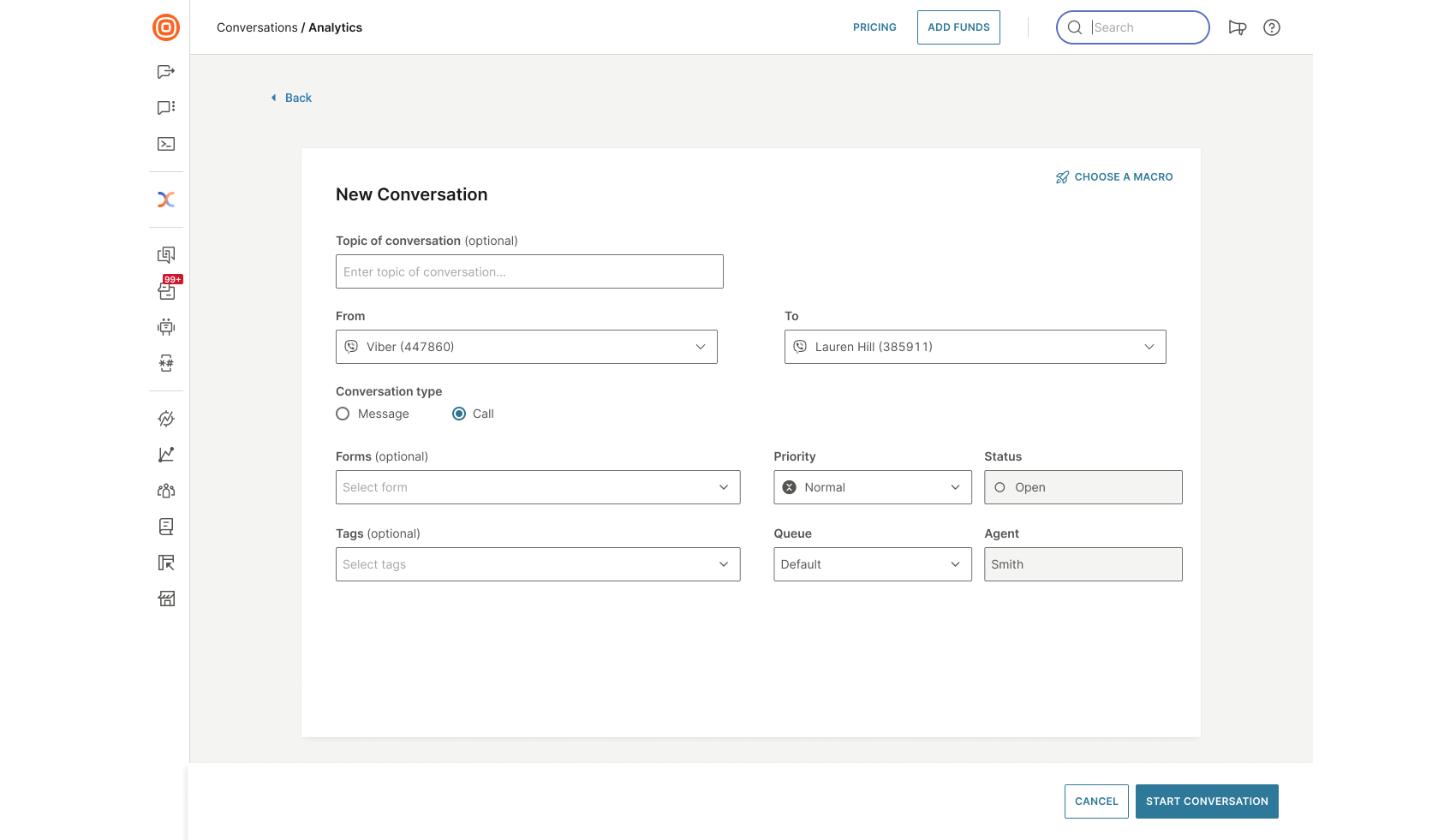
To start a new Viber business call, select the plus (+) button inside the My Work panel and specify the following:
- Conversation topic (optional).
- In the From field, select one of the available Viber numbers.
- In the To field, specify the contact you want to call. You can either select an existing contact from the drop-down menu or add a new number.
- In the Conversation type, select Call.
- Optionally, you can adjust additional details such as forms, tags, priority, status, queue, and more.
- Select Start Conversation.
Inbound and outbound Viber calls
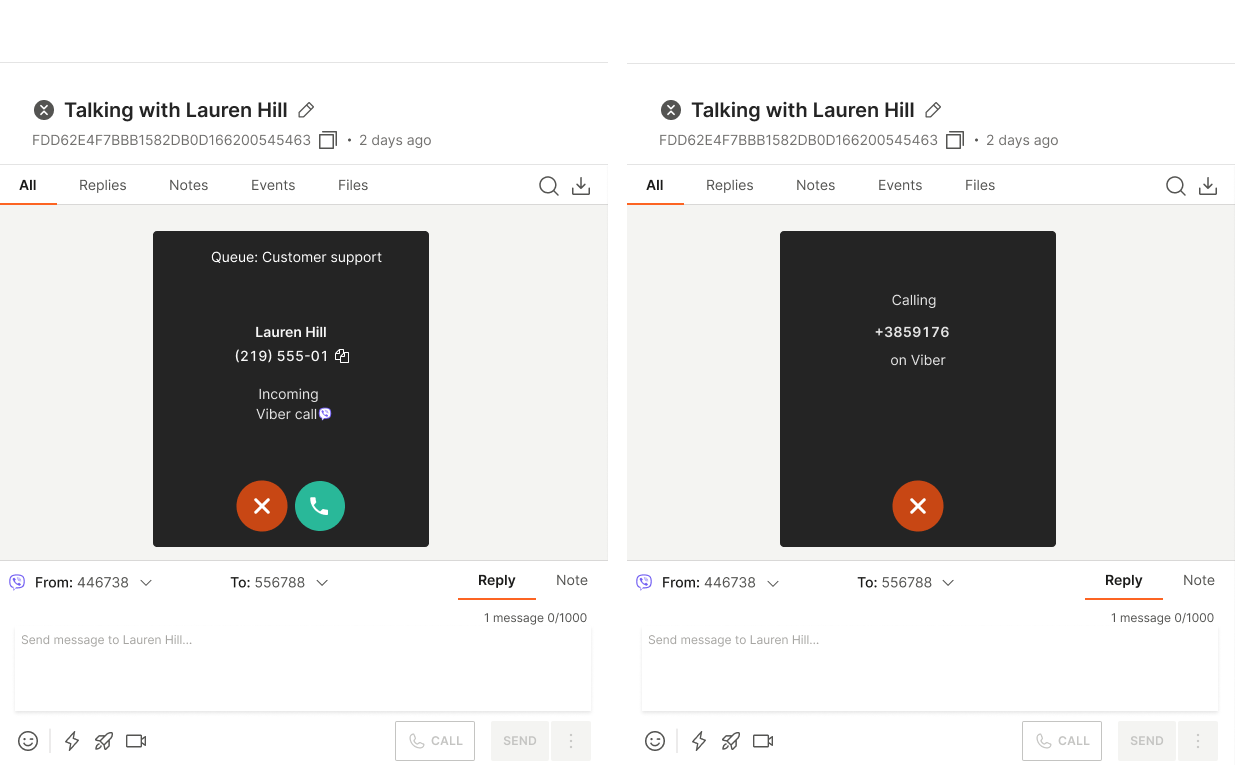
Viber calls in Conversations can be inbound or outbound. When a call is routed to you, you will hear a ringing sound and see an incoming call pop-up window.
The pop-up window allows you to answer or decline the call. It also provides key information that may be the first insight you have about the customer before answering. This includes:
- The assigned queue
- The customer's full name and phone number
- Inbound or outbound call type
- Channel the call is coming from (Viber)
Additionally, you can copy the phone number with one click and use it as needed, for example, pasting it into notes, sharing it with a colleague, or entering it into a third-party CRM for record-keeping.
For more details about the Viber channel, see our Viber product documentation.