Send your first WhatsApp message
To use WhatsApp on the Infobip platform, you need to meet the following requirements:
- Create an Infobip account (if you do not already have one) by completing the platform onboarding.
- Register a WhatsApp sender.
Start your free trial
Each channel has its own free trial. During the WhatsApp free trial, you are assigned a shared sender. A shared sender refers to an Infobip-branded phone number you can use for WhatsApp communication.
The length of the WhatsApp free trial depends on your account type:
- Self-signup accounts: 14 days. The trial starts when you create your account, if you select WhatsApp during sign-up, or when you add WhatsApp to your account.
- Managed accounts: 30 days. You can start the WhatsApp free trial on your own by adding WhatsApp to your account. For more information, see Free trial for managed accounts.
Limitations:
- Your free trial includes 100 free WhatsApp messages.
- You can only send messages to verified numbers.
- If you want to start sending live traffic, you will need to register a dedicated WhatsApp sender during your onboarding on our web interface. You can register a sender during the free trial.
The free trial ends when you exit the free trial for WhatsApp or when it expires. WhatsApp then moves to production mode.
Upgrade to a paying account
When ready, you can upgrade to a paying account. Select the Add funds option at the top of the page and choose a billing option.
Adding funds does not end the WhatsApp free trial. To send messages to unverified recipients, exit the free trial for WhatsApp. If your free trial has expired, WhatsApp is already in production mode. Add funds to continue sending messages.
Start using WhatsApp
Once you have registered for an Infobip account and started your free trial, you can send your first WhatsApp message! 
-
Get started with WhatsApp on our web interface
At the top of the page, select whether you are a business user or a developer:
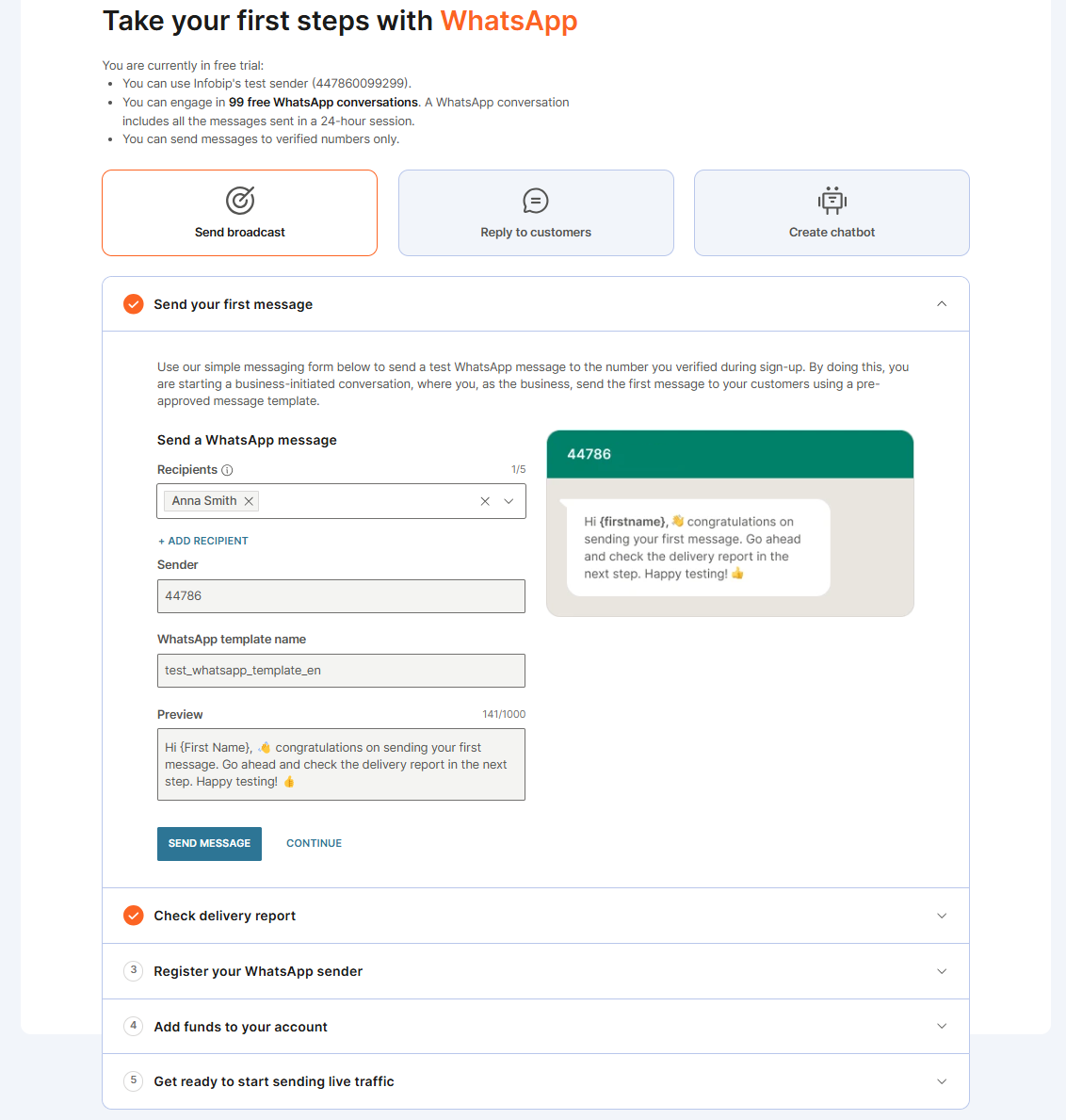
- Business users can test messages directly in the web interface.
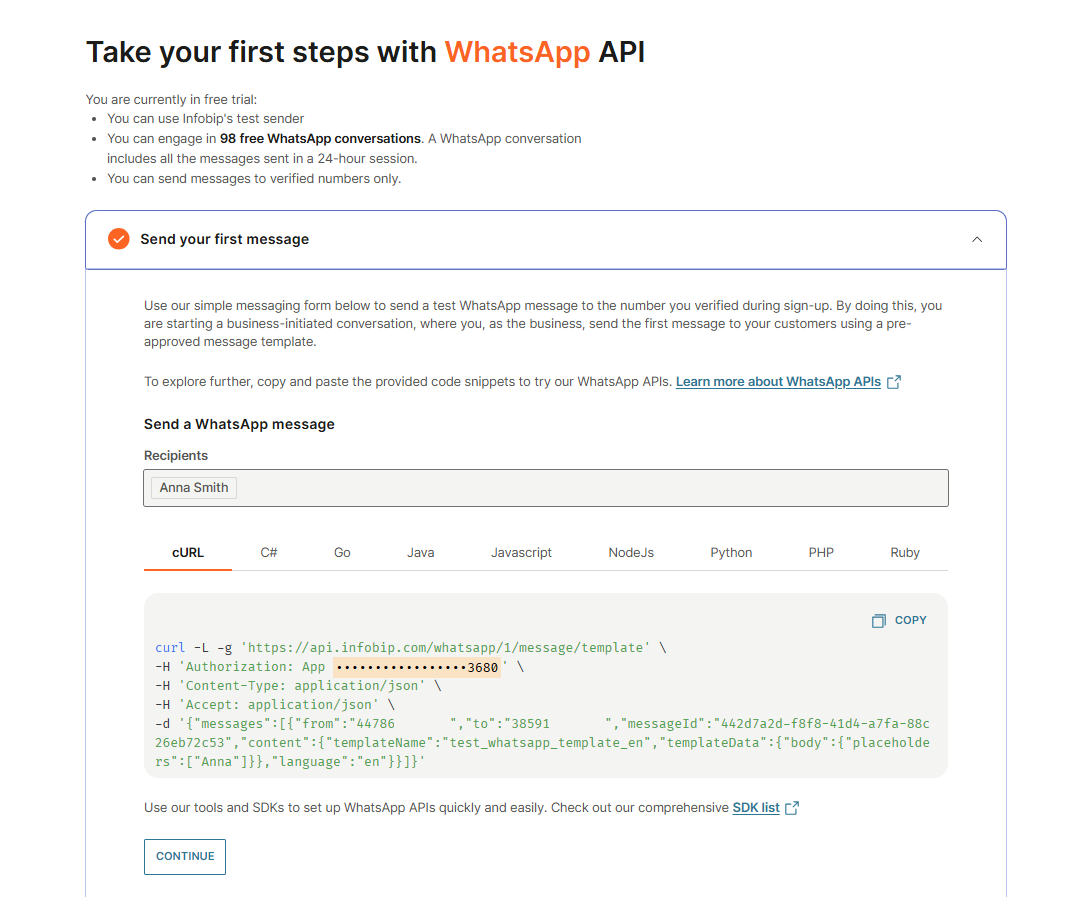
- Developers can send test messages using the ready-made API request.
Business user experience
Developer experience
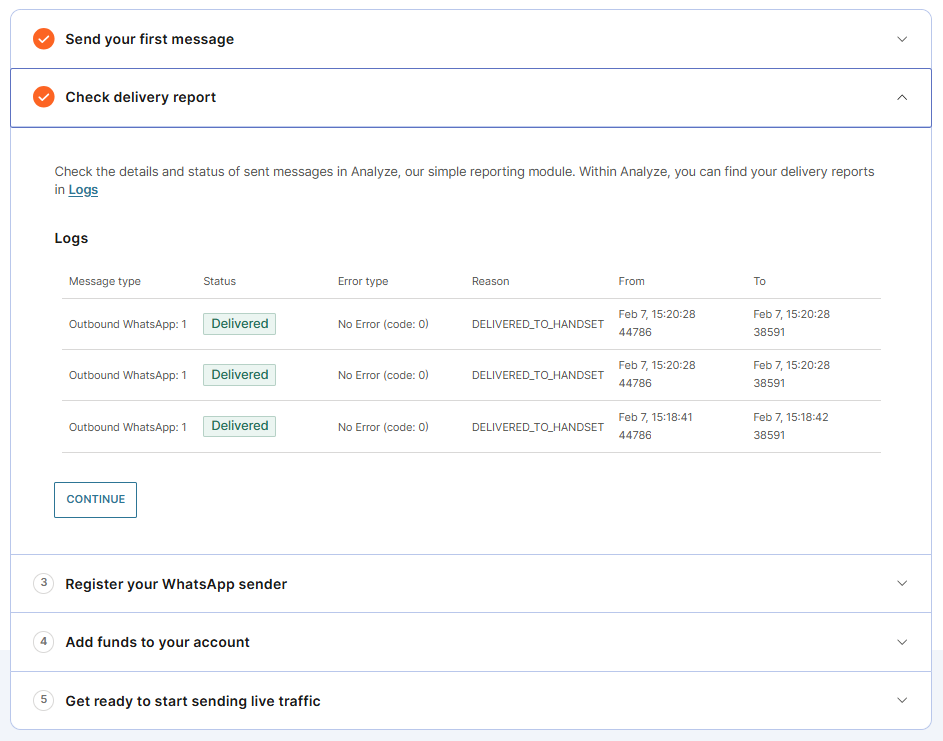
- After sending a test message, check the delivery report to confirm successful delivery. If delivery fails, review the response status and error codes to identify the issue.
-
Register a WhatsApp sender
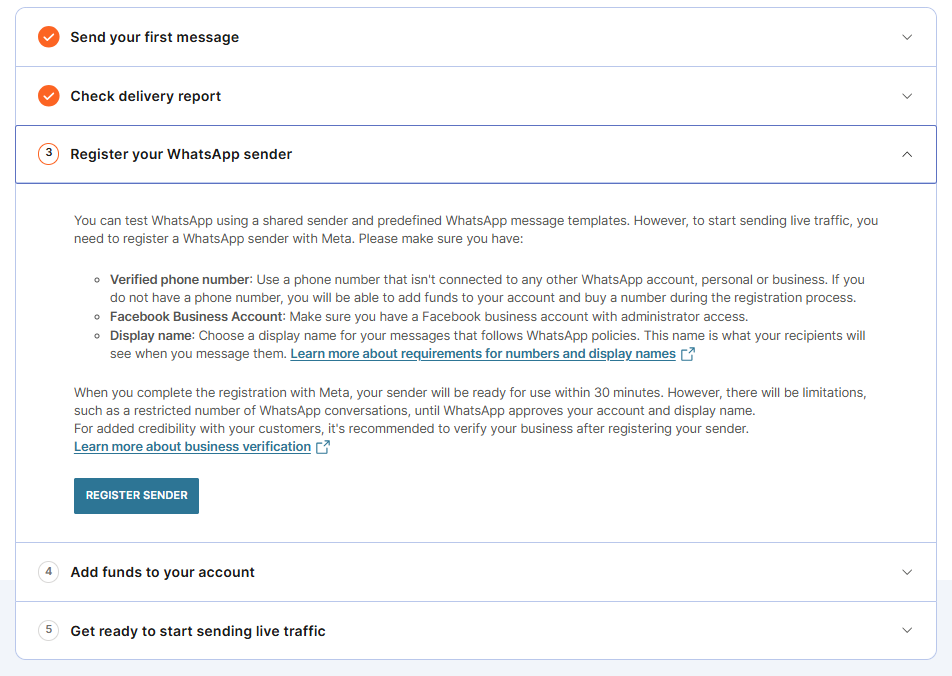
- To start sending live messages to customers, you must register a WhatsApp sender:
- Select Register sender now, or
- Go to Channels and Numbers > Channels > WhatsApp, then select Register sender.
Follow our step-by-step guide for detailed instructions.
- To start sending live messages to customers, you must register a WhatsApp sender:
-
(Optional) Upgrade your account
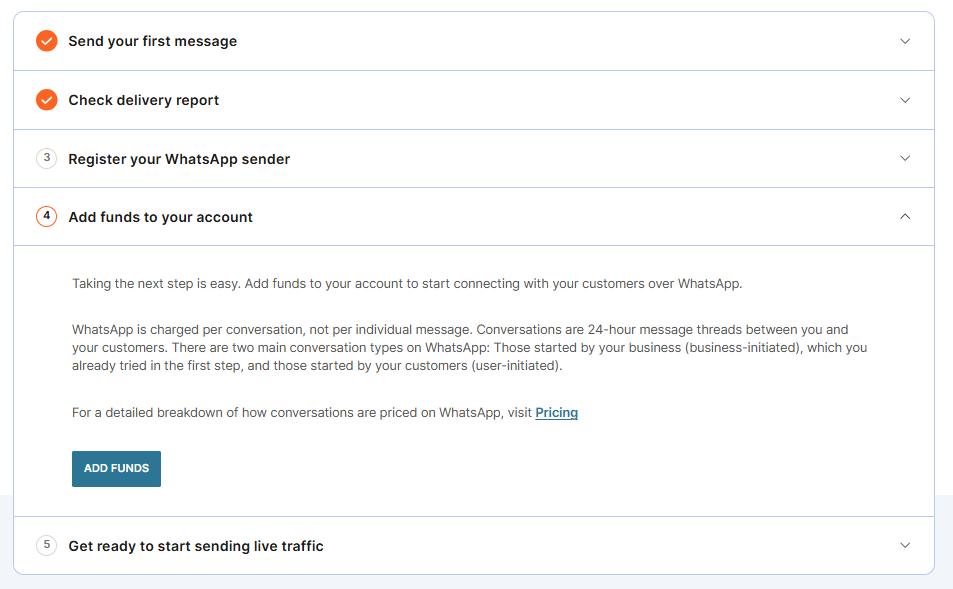
- To upgrade your account now, select Add funds and follow the steps to become a paying account.
- To upgrade your account at a later time, select Add funds at the top of the web interface.
You are now ready to explore the Infobip platform and leverage WhatsApp for customer communication! 
Register your WhatsApp sender
Follow the step-by-step guide to register and verify your WhatsApp sender.
WhatsApp message types and templates
Explore supported formats including text, media, interactive buttons, and lists.
Send WhatsApp messages in Infobip solutions
Send messages through Broadcast, Moments, Conversations, or the API.
Was this page helpful?