Domain reputation
Monitor your sender domains, track reputation scores, and identify potential deliverability issues before they impact your email campaigns. View detailed domain health metrics.
To access Domain reputation:
- Log in (opens in a new tab) to your Infobip account.
- Go to Analyze → Email deliverability center → Domain reputation.
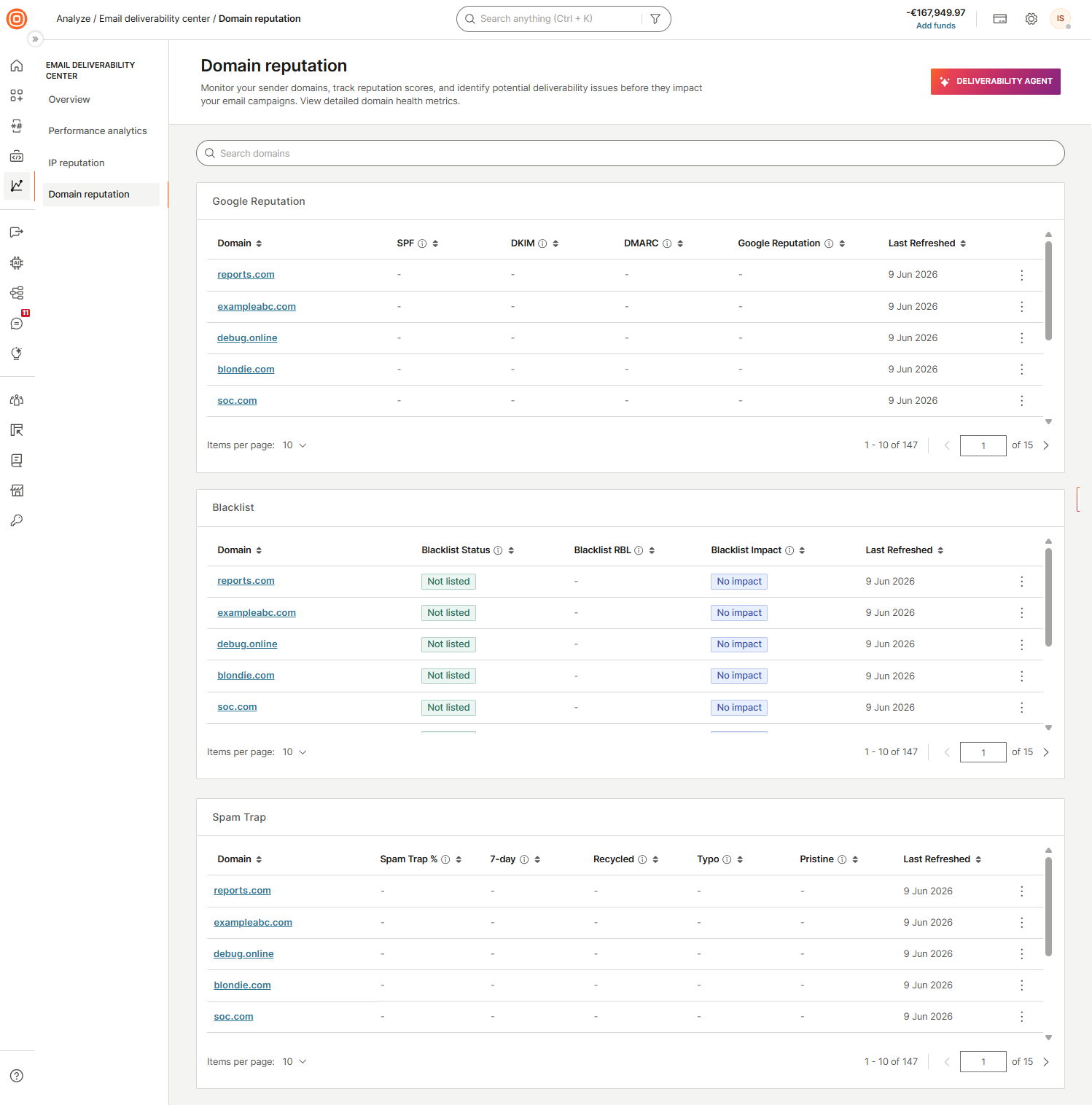
Use the Search domains bar to find a specific domain. Select a domain name to open its detail panel. Select the three-dot menu on any row to access additional actions.
Google reputation
The Google reputation table shows the authentication and reputation status of your sender domains as reported by Google Postmaster Tools. For instructions on setting up SPF, DKIM, and DMARC records, see Set up your domain.
The table includes the following columns:
| Column | Description |
|---|---|
| Domain | The sender domain. Select the domain name to open the domain detail panel. |
| SPF | The percentage of emails that successfully authenticated with SPF vs. all emails that attempted to authenticate with SPF. If no data is shown, enable Infobip access in Google Postmaster Tools. |
| DKIM | The percentage of emails that successfully authenticated with DKIM vs. all emails that attempted to authenticate with DKIM. If no data is shown, enable Infobip access in Google Postmaster Tools. |
| DMARC | The percentage of emails that passed DMARC alignment checks vs. all emails received from the domain that successfully authenticated with either SPF or DKIM. If no data is shown, enable Infobip access in Google Postmaster Tools. |
| Google reputation | The Gmail rating of your domain or IP based on user engagement and spam rates. High means inbox delivery, Low means the spam folder, and Unknown indicates insufficient sending history. If no data is shown, enable Infobip access in Google Postmaster Tools. |
| Last refreshed | The date the data was last updated. |
Selecting the three-dot menu on a row provides the following options:
- Enable Google Postmaster metrics: Connect Google Postmaster Tools for this domain to start receiving reputation data.
- View performance by provider: Go to Performance analytics filtered by this domain and grouped by email provider.
- View performance by recipient domain: Go to Performance analytics filtered by this domain and grouped by recipient domain.
Blocklist
The Blocklist table shows whether your sender domains are listed on any real-time blocklists.
The table includes the following columns:
| Column | Description |
|---|---|
| Domain | The sender domain. |
| Blocklist status | Whether your domain or IP is on email blocklists that block spam. Major impact means severely reduced deliverability; Minor impact has a limited effect. |
| Blocklist RBL | The blocklist provider where the IP or domain is listed. |
| Blocklist impact | The severity of blocklisting based on provider importance. |
| Last refreshed | The date the data was last updated. |
Selecting the three-dot menu on a row provides the following options:
- View performance by provider: Go to Performance analytics filtered by this domain and grouped by email provider.
- View performance by recipient domain: Go to Performance analytics filtered by this domain and grouped by recipient domain.
Spam trap
The Spam trap table shows spam trap hits for your sender domains, broken down by trap type.
The table includes the following columns:
| Column | Description |
|---|---|
| Domain | The sender domain. |
| Spam trap % | The percentage of emails hitting spam trap addresses out of total traffic sent. Lower is better. |
| 7-day | The 7-day spam trap trend. |
| Recycled | Count of emails sent to abandoned addresses repurposed as spam traps. Indicates poor list hygiene from not removing inactive subscribers. |
| Typo | Count of emails sent to misspelled addresses (for example, @gmial.com). Indicates poor data collection from not validating emails at signup. |
| Pristine | Count of emails sent to addresses created solely to catch spammers. Indicates purchased or scraped lists and risks immediate blocklisting. |
| Last refreshed | The date the data was last updated. |
Selecting the three-dot menu on a row provides the following options:
- View performance by provider: Go to Performance analytics filtered by this domain and grouped by email provider.
- View performance by recipient domain: Go to Performance analytics filtered by this domain and grouped by recipient domain.
Domain detail panel
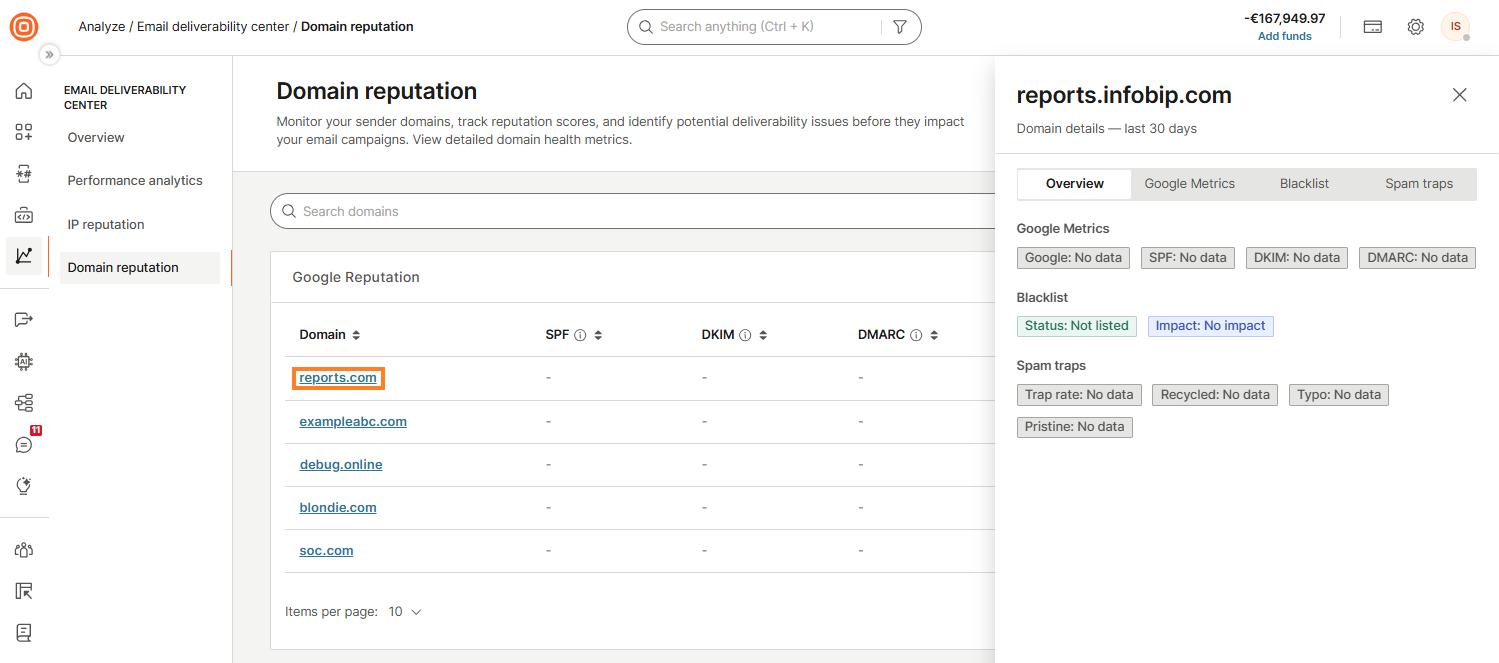
Select the linked domain name in any table to open the domain detail panel. The panel shows a summary of domain health data for the last 30 days across four tabs:
- Overview: A snapshot of all health indicators, including Google Metrics (Google, SPF, DKIM, DMARC status), blocklist (status and impact), and spam traps (trap rate, recycled, typo, pristine).
- Google metrics: Detailed Google Postmaster Tools data for the domain.
- Blocklist: Detailed blocklist status and history for the domain.
- Spam traps: Detailed spam trap hit data broken down by trap type.
Set up your domain
Configure SPF, DKIM, and DMARC authentication records for your sending domains.
IP and domain warmup
How warming up domains affects reputation and inbox placement.
Understand email deliverability
Core concepts behind deliverability, reputation, and inbox placement.