RCS behaviour and guidance
This page provides best practices for designing effective RCS messages and explains platform-specific behaviour across Android and iOS. It includes troubleshooting guidance for common issues.
Best practices
Message types
Choose the appropriate message type based on your use case:
- Basic text messages: Use for simple communications like OTPs, confirmations, and notifications. Text messages have the highest compatibility across all devices.
- Rich messages: Use rich cards and carousels for promotional content, product showcases, and interactive experiences. Rich messages provide better engagement but require careful design.
Understanding your user base
Consider these factors when designing RCS messages:
- Device compatibility: Not all devices support all RCS features. Always provide fallback options.
- Platform differences: iOS and Android handle RCS features differently. Test messages on both platforms.
- User preferences: Respect user opt-outs and message frequency preferences.
Hyperlinks
Android: URLs in text messages and rich card descriptions are clickable.
iOS: URLs in rich card and carousel descriptions are not clickable and appear as plain text. Use suggested actions with OPEN_URL type instead. See URLs in rich cards and carousels for details.
Rich cards
Vertical orientation:
- Best for: Single-column layouts with prominent media
- Recommendation: Use vertical tall height for consistent display across platforms
- iOS consideration: iOS renders all vertical heights the same way. Choosing "tall" ensures Android users see maximum image area while iOS users see standard height. See Media preview - vertical card orientation for details.
Horizontal orientation:
- Android: Works as expected with image on left or right
- iOS: Can cause image truncation and video display issues
- Recommendation: Use vertical tall setup for cross-platform compatibility
Media specifications
Images:
- Use high-quality images with appropriate aspect ratios
- Test image display on both Android and iOS
- For carousels, ensure images work well when cropped
Videos:
- Keep videos short and engaging
- Test video playback on both platforms
- Note: Horizontal card orientation can cause videos to display vertically on iOS
GIFs:
- GIFs work when sent as files
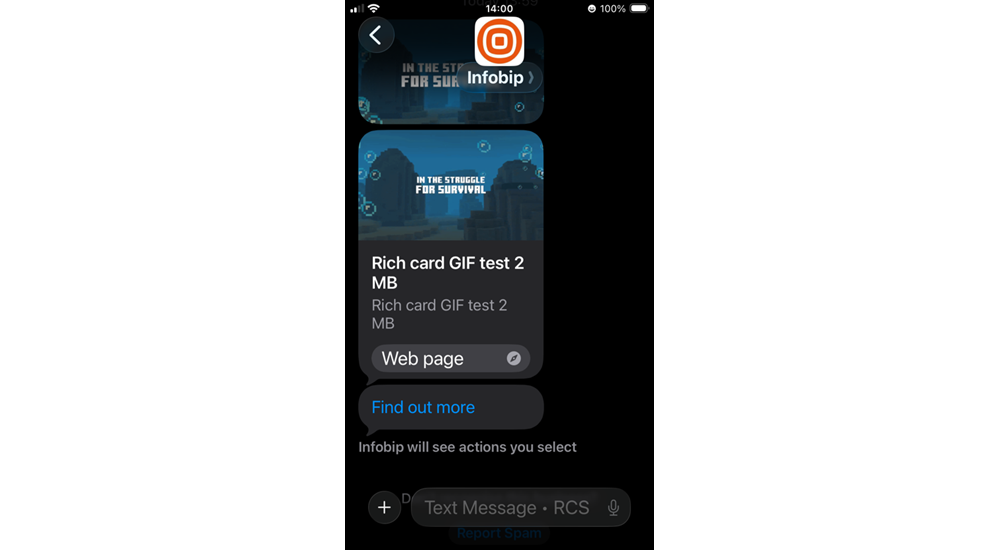
- GIFs in rich cards and carousels display as static images on iOS (see GIFs in rich cards and carousels for details)
- Use video format for animated content in rich messages
Carousels
- Use a maximum of 10 cards per carousel
- Keep titles and descriptions to a maximum of 3 lines each
- Use a single call-to-action (CTA) per card
- Use up to 3 suggested replies
- Recommendation: Use medium media width with medium media height to prevent image cropping on iOS
Content suggestions
- Keep text concise and scannable
- Use clear, action-oriented CTAs
- Avoid lengthy descriptions that may get truncated
- Test character limits across platforms
Media cropping with large text
iOS prioritizes rendering title and action elements over description text and media. This can result in image cropping when users have large text sizes enabled.
Prevention:
- Limit titles and descriptions to 3 lines maximum
- Use single CTAs
- Limit suggested replies to 3
- Use medium media dimensions
Suggested actions
Android:
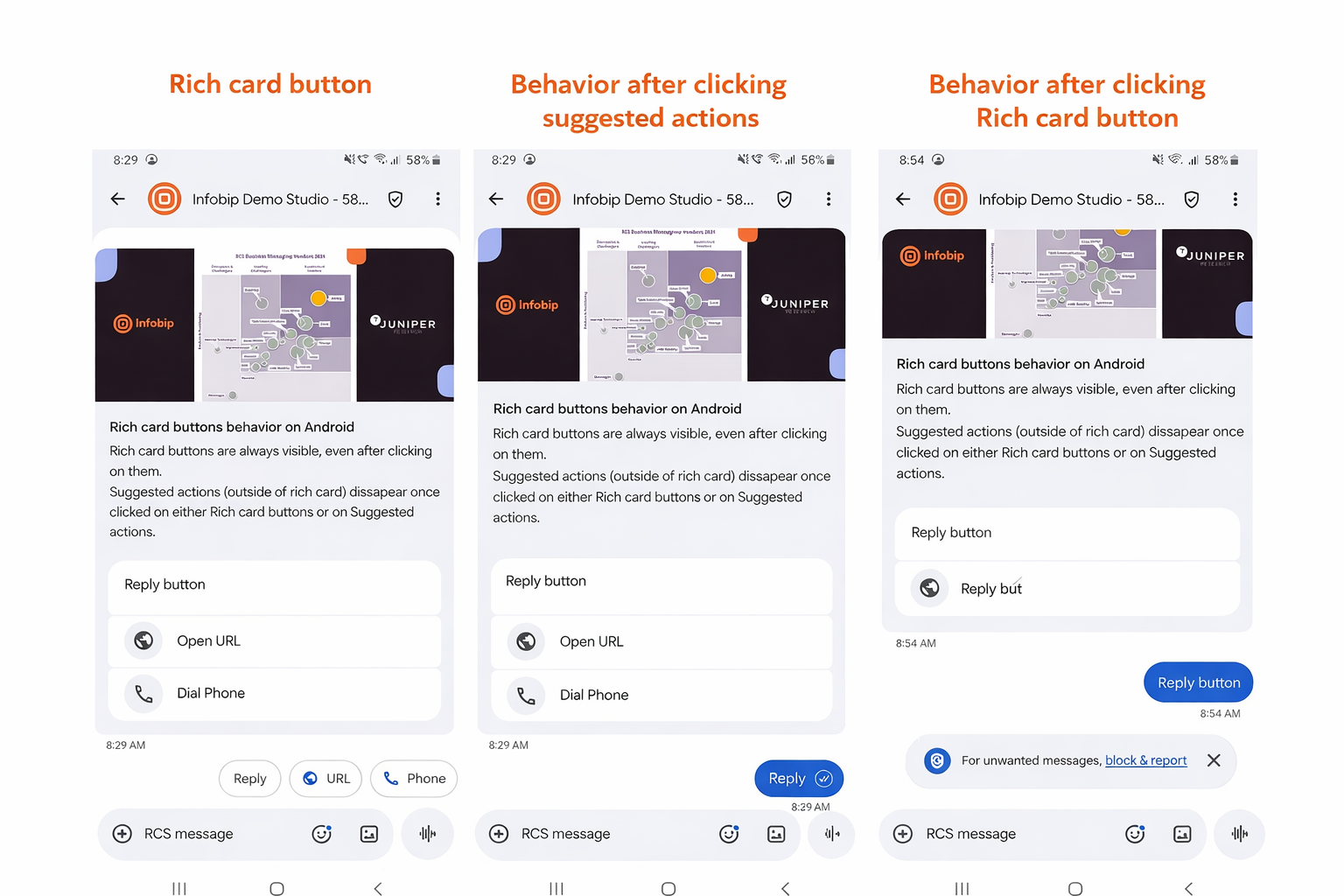
- Rich card buttons remain visible after clicking
- Suggested actions (outside rich cards) disappear after clicking
- Both button types work as expected
iOS:
- Rich card buttons and suggested actions outside rich cards remain visible after clicking
- Suggested replies may appear in incorrect order
- Suggested actions inside and outside cards may group together
Best practices:
- Design for both persistent and disappearing button behaviors
- Test action sequences on both platforms
- Provide clear visual feedback for user actions
OTPs and sensitive information
- Send OTPs in basic text messages, not in rich card titles or descriptions
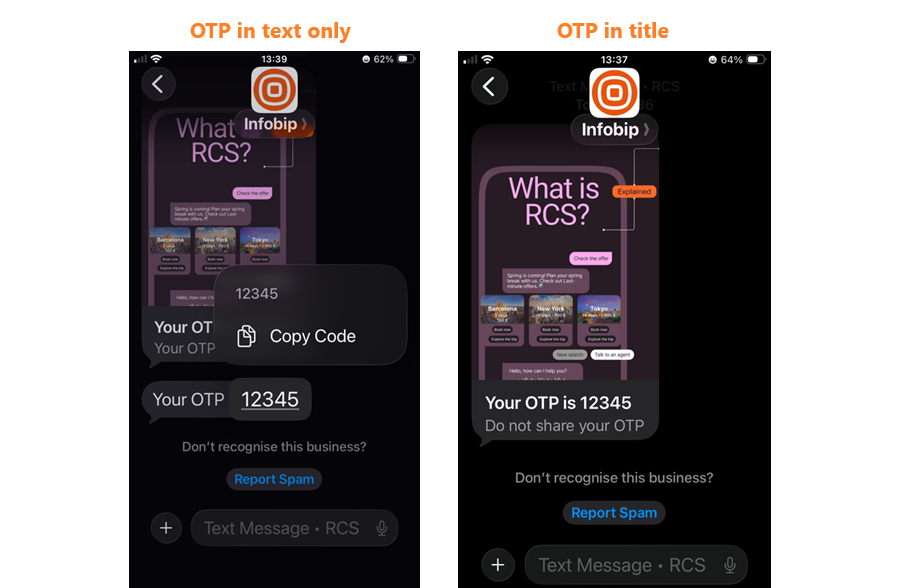
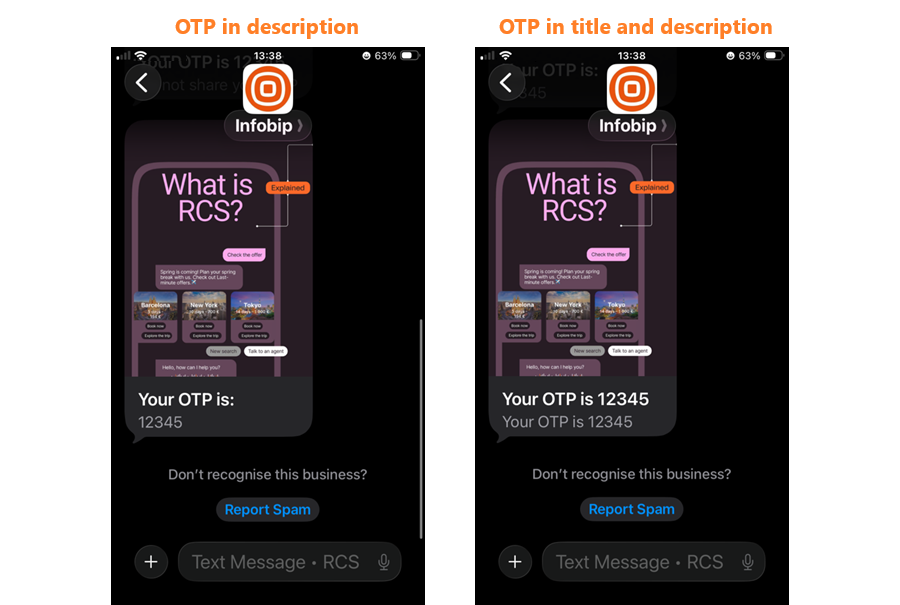
- On iOS, OTPs in rich card text cannot be copied (see OTPs for details)
- Use text-only messages for information users need to copy
Platform-specific behaviour
Understanding platform differences helps design better cross-platform experiences:
| Feature | Android | iOS |
|---|---|---|
| URL clickability in descriptions | ✓ Clickable | ✗ Plain text only |
| Privacy policy in agent preview | ✓ Visible | ✗ Not visible |
| Agent banner | ✓ Visible | ✗ Not visible |
| Multiuse label | ✓ Visible | ✗ Not visible |
| Card height variations | ✓ Supported | ✗ Single height only |
| GIFs in rich cards | ✓ Animated | ✗ Static images |
| Button persistence | Buttons hide after click | Buttons remain visible |
Troubleshooting
Android troubleshooting
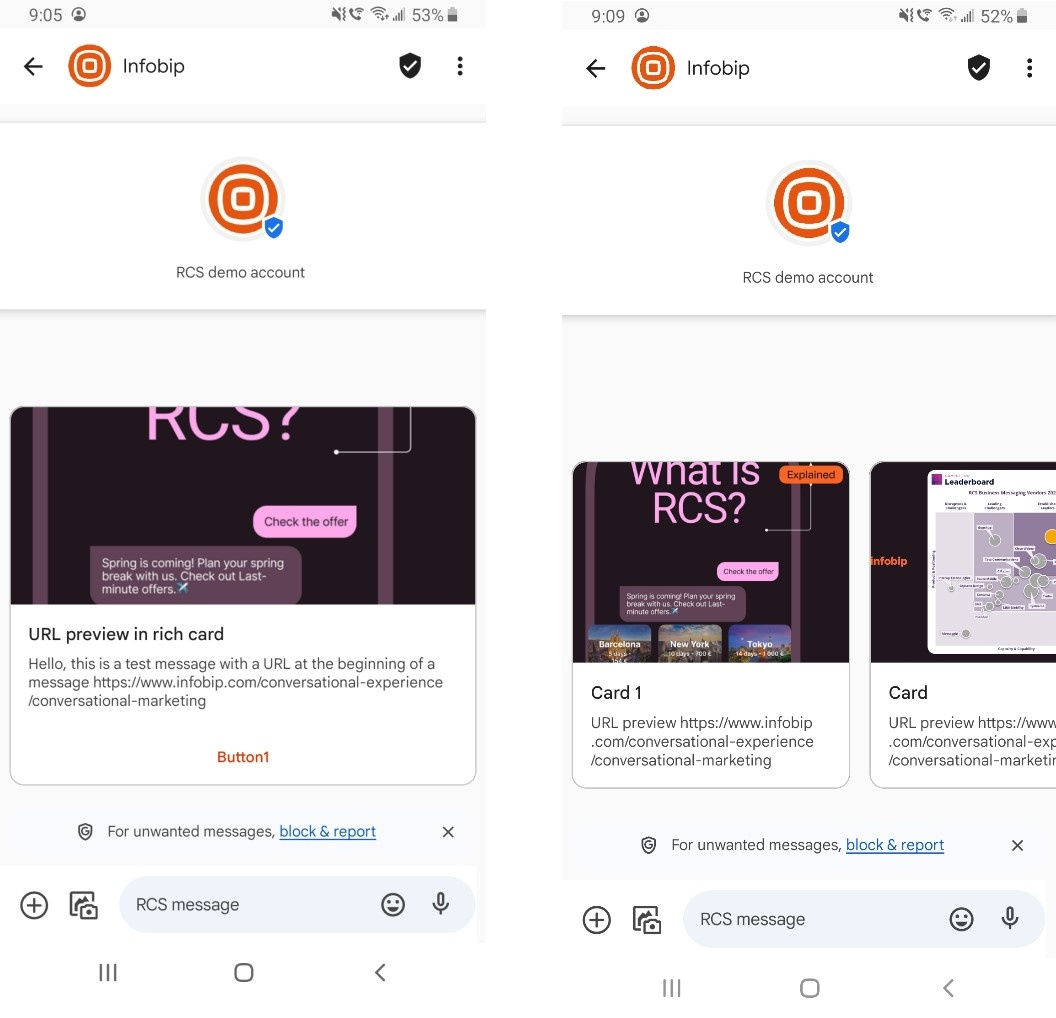
URL previews in rich cards and carousels
Issue: URL previews do not function in rich cards and carousels.
Solution:
Use selection suggestions with the type OPEN_URL, which redirects you to the specific web page.
Agent preview changes
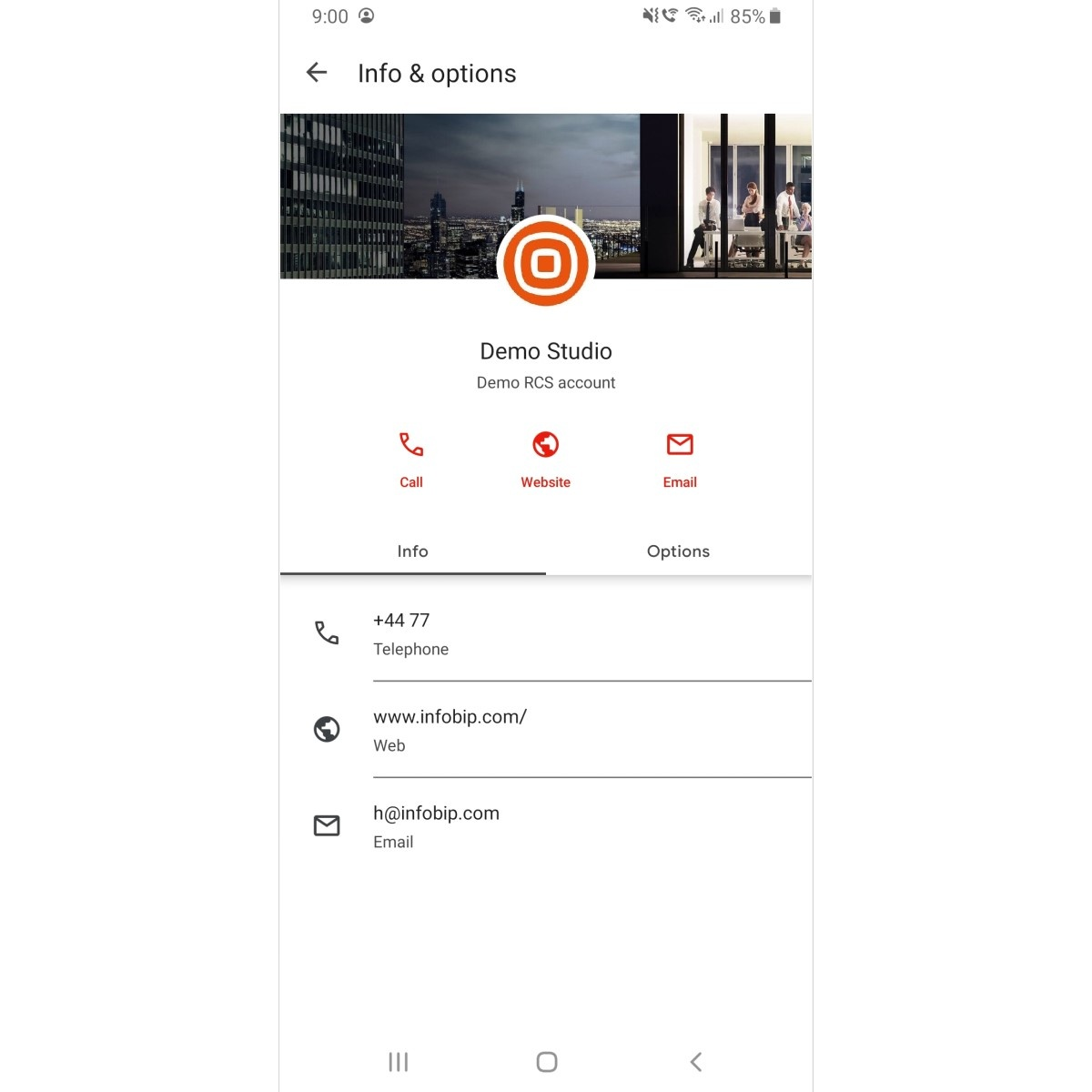
Issue: Changes made to the agent are not visible in the message thread, even after deleting the message thread and closing the messaging app. The agent preview displays information from the first message or conversation.
Solution: In the messaging app, clear the cache, data storage, and restart the device which will resolve this issue.
Rich card, carousel buttons, and suggested actions behavior
Issue: Rich card buttons are always visible, even after clicking on them or on Suggested actions. Suggested actions (outside of the Rich card) disappear once clicked on either the Rich card buttons or the suggested actions.
iOS troubleshooting
The table below shows iOS issues and the iOS versions where these bugs and errors may occur.
| Description | iOS 18.5 | iOS 26 |
|---|---|---|
| Agent preview changes | TRUE | TRUE |
| Agent preview - use case label | TRUE | TRUE |
| Agent preview - privacy policy | TRUE | TRUE |
| Agent details - multiuse label not visible | TRUE | TRUE |
| Agent details - Android and iOS | TRUE | TRUE |
| Media preview - vertical card orientation | TRUE | TRUE |
| Image preview - horizontal card orientation | TRUE | TRUE |
| Video preview - horizontal card orientation VIDEO | TRUE | TRUE |
| URLs in rich cards and carousels | TRUE | TRUE |
| GIFs in rich cards and carousels | TRUE | TRUE |
| OTPs cannot be copied from rich card and carousel text | TRUE | TRUE |
| Carousels image cropping | TRUE | TRUE |
| Rich card and carousels - text description and font color | TRUE | TRUE |
| Rich cards and carousels - truncated titles | TRUE | TRUE |
| Rich card and Suggested actions behavior | TRUE | TRUE |
| Suggested actions - rendering issue | TRUE | TRUE |
| Unknown Senders filter | FALSE | TRUE |
Agent preview changes
Issue: New changes made to the Agent are not visible in the message thread, even after deleting the message thread and closing the messaging app in the background. The agent preview always shows from the first message or conversation.
Solution: Perform a factory reset on the device. This clears the device's cache and forces it to retrieve the most current chatbot information.
Agent preview – use case label
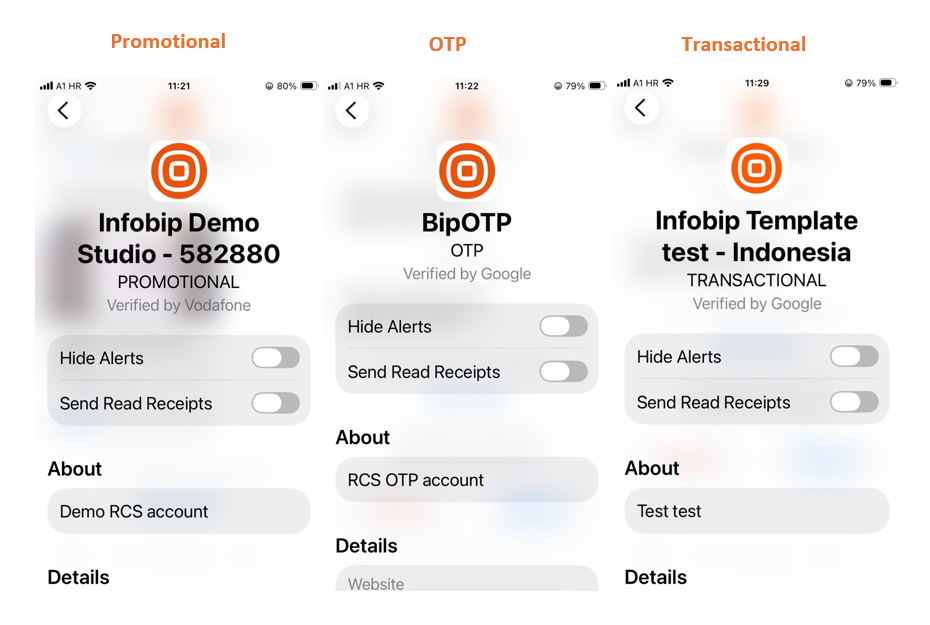
Issue: The agent use case label is visible by default on iOS and cannot be removed or formatted. It always appears in capital letters (OTP, PROMOTIONAL, TRANSACTIONAL) in the Agent details.
Solution: This is expected iOS behavior. Apple displays the use case label prominently for transparency. The label cannot be customized or removed, and always appears in capital letters (OTP, PROMOTIONAL, TRANSACTIONAL).
Agent preview - privacy policy
Issue: In the agent preview, the privacy policy is not visible, only Terms and Conditions.
The privacy policy is not available on iOS devices. Terms and Conditions are only visible in the agent preview for iOS devices.
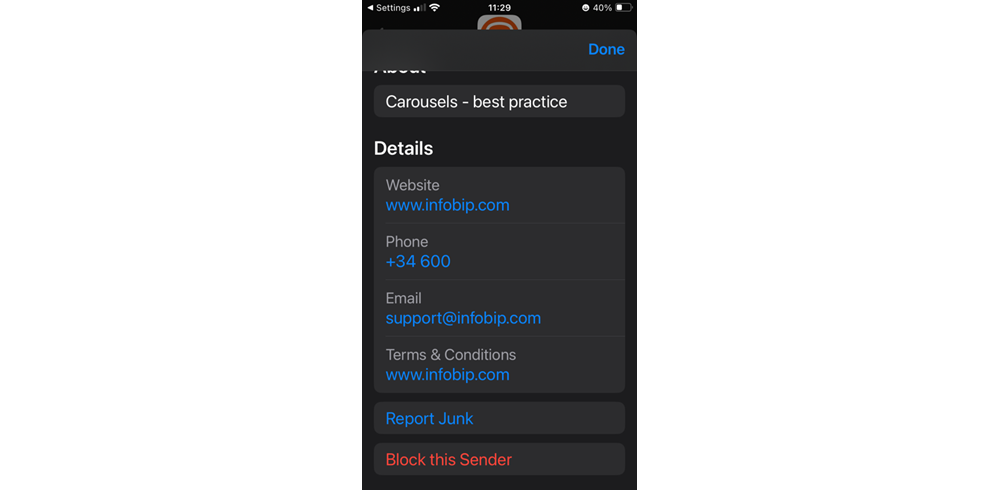
Agent details - multiuse label not visible
Issue: The multiuse label is not visible in the Agent details.
Solution: This is expected iOS behavior. Apple's RCS implementation does not display the multiuse label in agent details. The label is visible on Android devices.
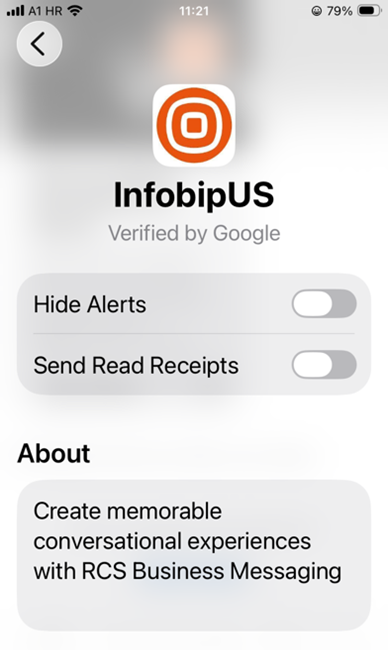
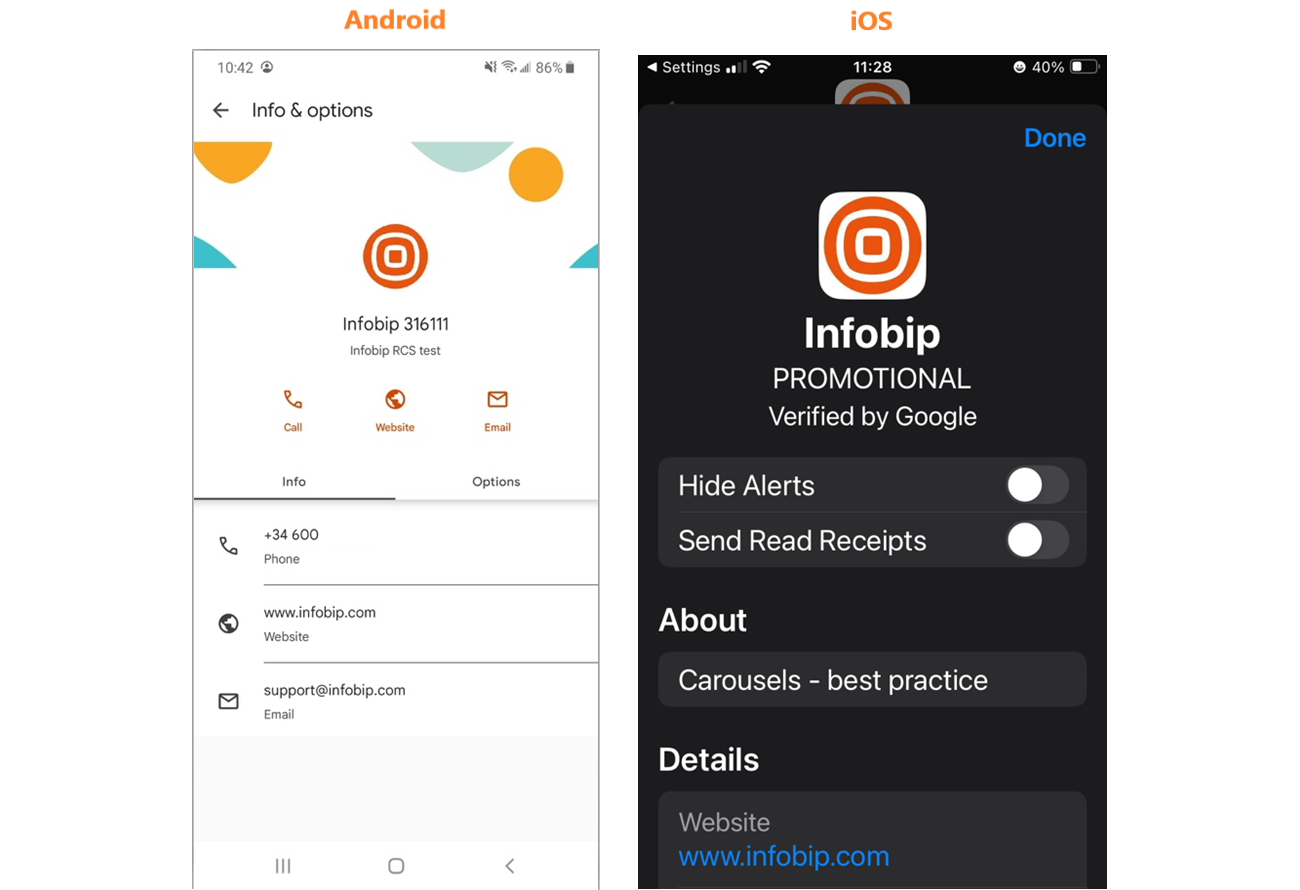
Agent details - Android and iOS
| Feature | Android | iOS |
|---|---|---|
| Banner | Visible | Not visible |
| Agent description | Shown directly under the Agent name | Shown in the About section |
| Billing type | Not visible under Agent details | Visible under the Agent name (for example PROMOTIONAL) |
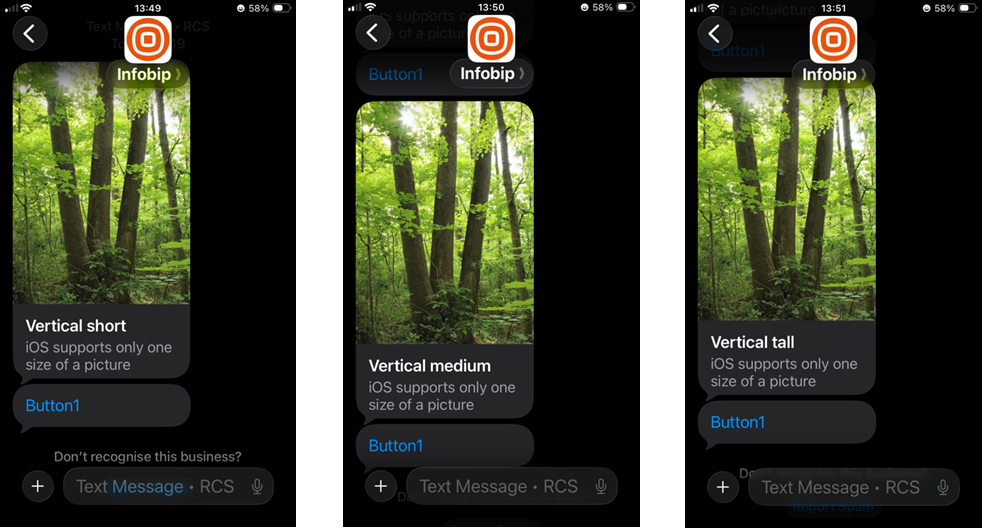
Media preview - vertical card orientation
Issue: iOS only supports one card height (image and video). Regardless of selected vertical card height (short, medium, tall), iOS will display the same size - image or video.
Solution: Always use the vertical tall setup.
Image examples
Video examples:
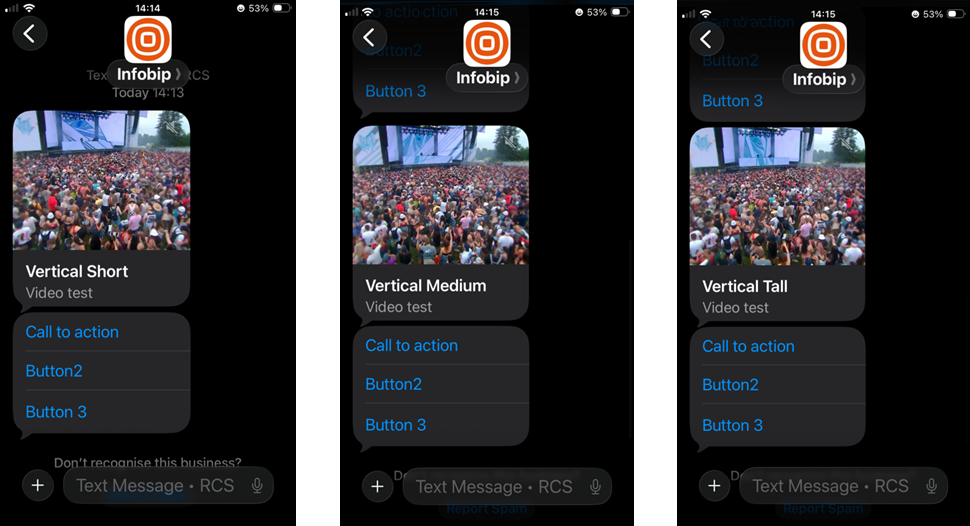
Image preview - horizontal card orientation
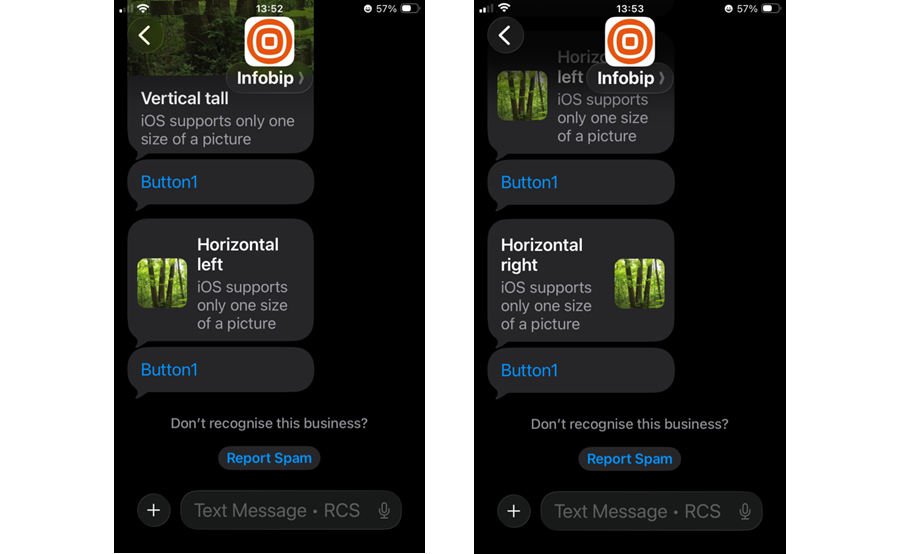
Issue: Image truncation occurs when using horizontal card orientation (left or right).
Solution: Use the vertical tall setup.
Video preview - horizontal card orientation
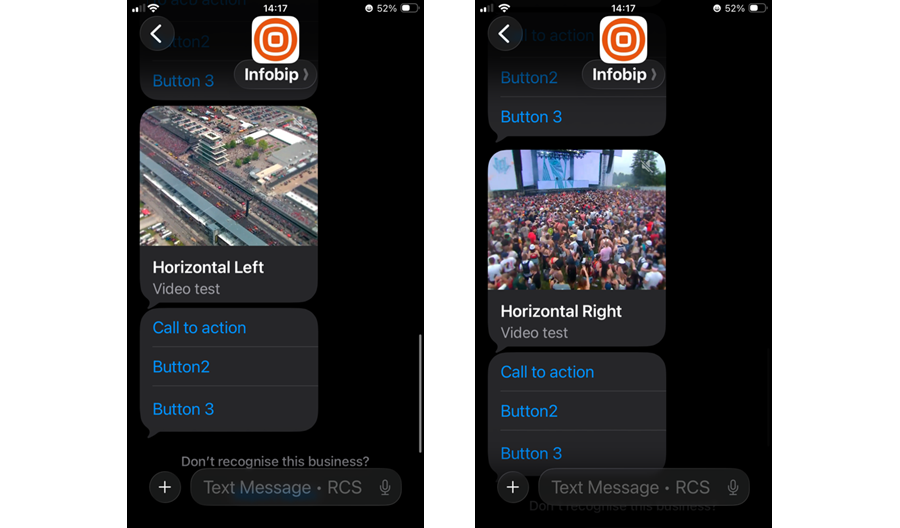
Issue: Videos show as vertical when using horizontal card orientation (left or right).
Solution: Use the vertical tall setup.
URLs in rich cards and carousels
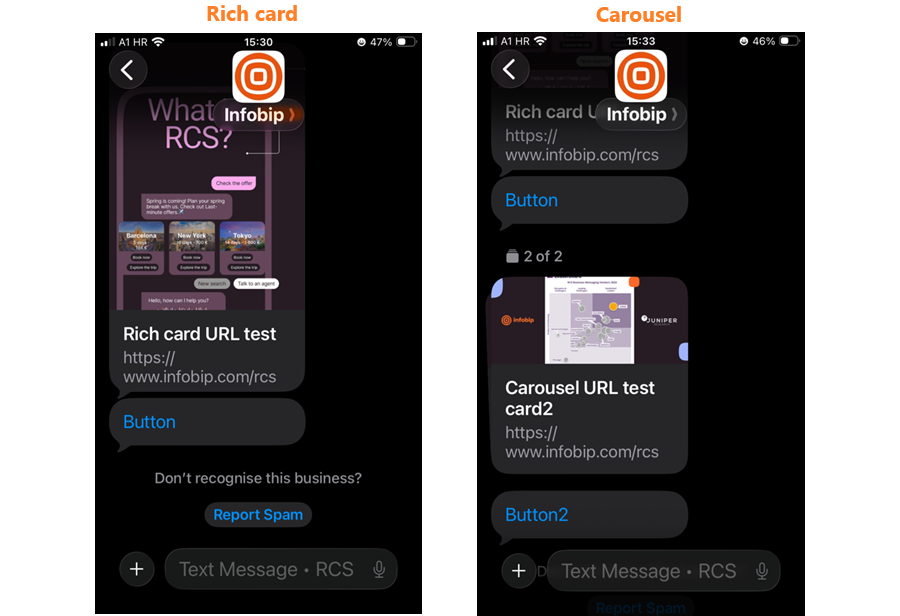
Issue: URLs in the description of a rich card or carousel are not clickable and appear as plain text.
Solution:
Use suggestions with the type OPEN_URL action to redirect users to the specific web page.
OTPs
Issue: If an OTP is sent in the title, description, or both, the OTP cannot be copied from the text.
Solution: Send OTPs in text-only messages.
GIFs in rich cards and carousels
Issue: GIFs only work when sent as a file. In rich cards and carousels, GIFs do not work and appear as static images.
Solution: Not available.
Carousel image cropping
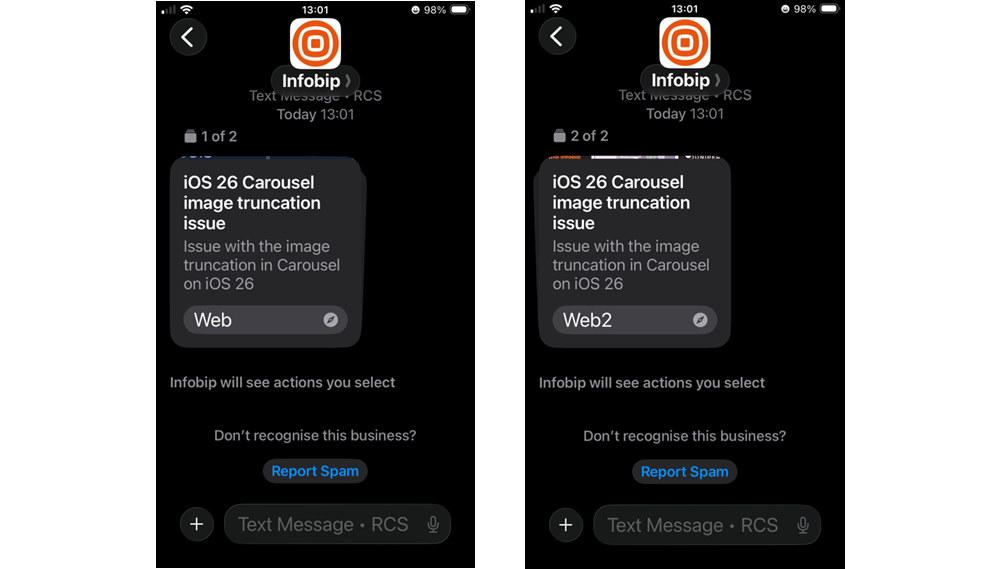
Issue: If larger text sizes are used in iOS, iOS prioritizes rendering the title and action elements over the description text and media, resulting in image cropping.
Solution: Use a maximum of three lines for title and description text, a single CTA (suggested action), and up to three suggested replies. Make sure to use medium media width with medium media height.
Rich card and carousels - text description and font color
Issue: The text color on rich cards and carousels is very light, which can make it difficult to read.
Solution: This is expected iOS behavior. Apple uses a light text color for rich card descriptions to maintain visual consistency with the iOS design system. Ensure your content is readable by using high-contrast media backgrounds.
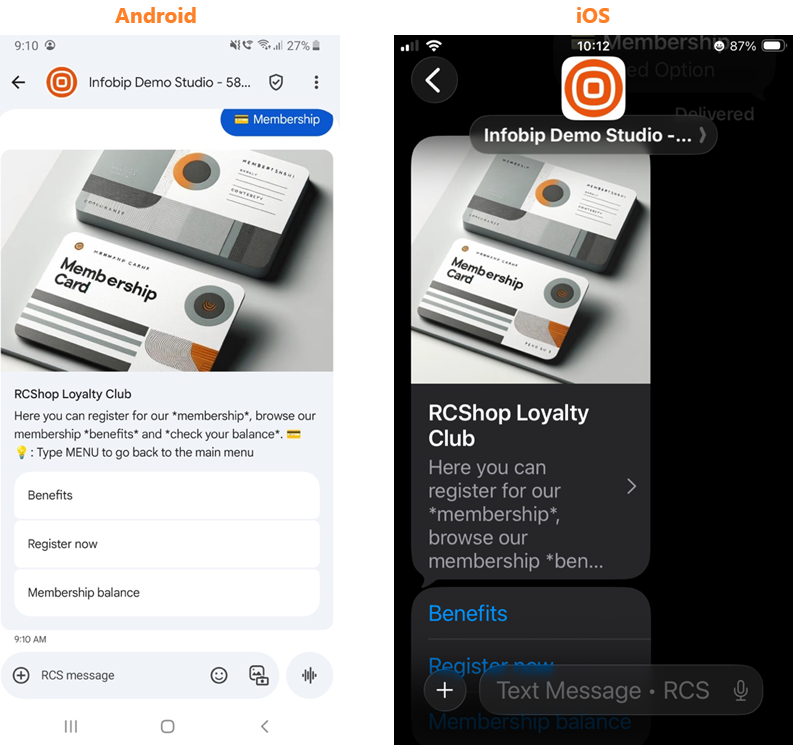
Rich cards and carousels - truncated titles
Issue: The title in rich cards and carousels is truncated when it contains too many characters.
Solution: Limit titles and descriptions to a maximum of three lines.
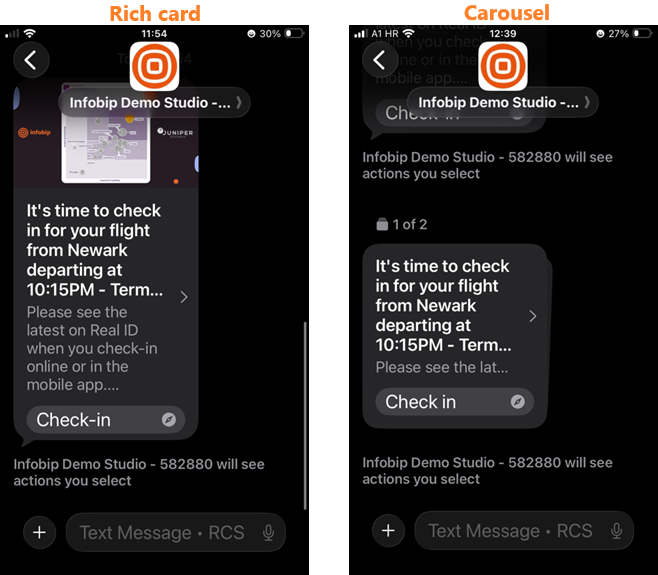
Rich card and suggested actions behavior
Issue: Rich card buttons and Suggested actions (outside of Rich card) are always visible, even after clicking on either Rich card buttons or Suggested actions. This behavior is related to the Suggested actions rendering issue described below.
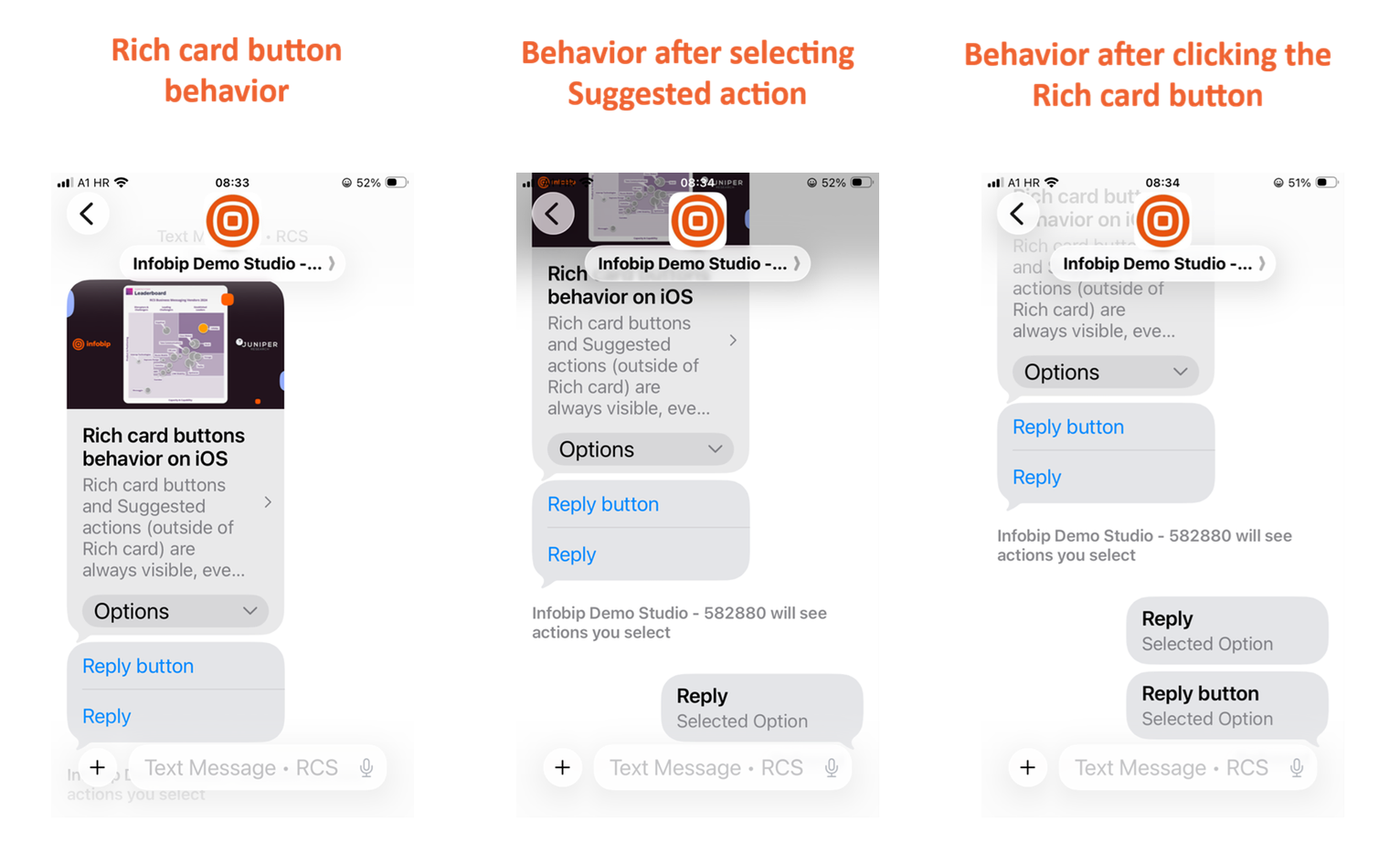
Suggested actions - incorrect sequence
Issue: Suggested replies appear in the wrong order. Suggested actions inside and outside the card are displayed together in one group.
Solution: A solution is not available.
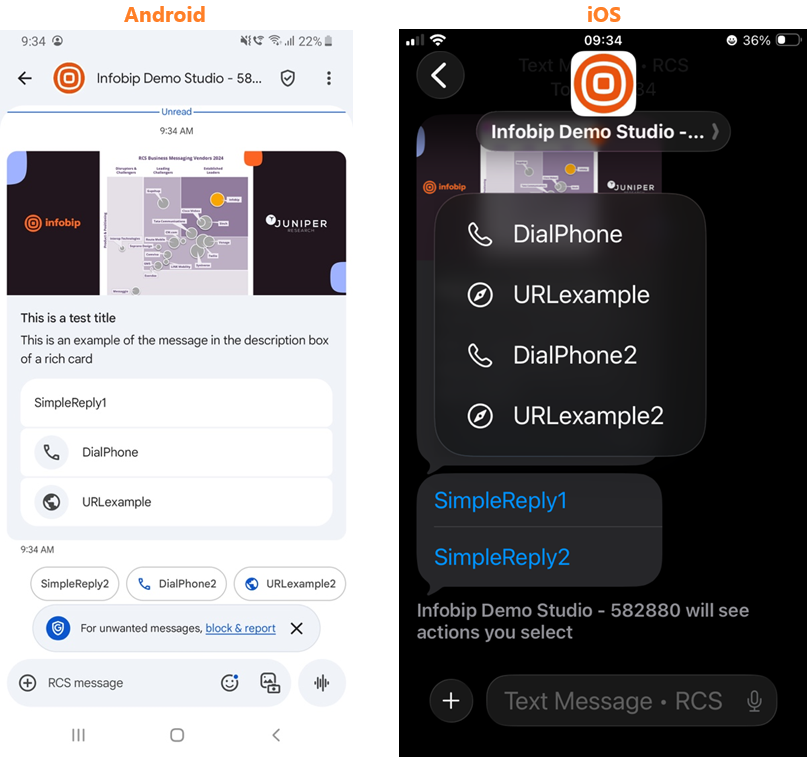
Unknown Senders (iOS 26 only)
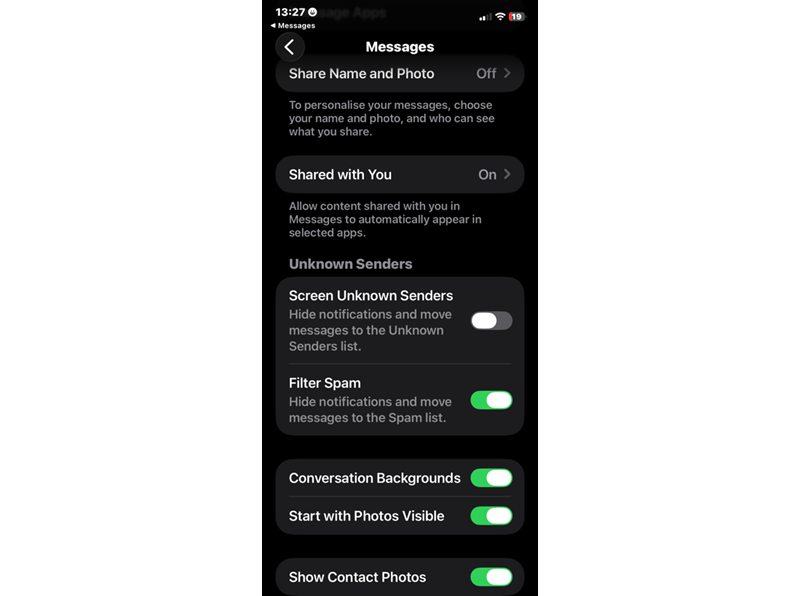
You can prevent unknown senders from texting you directly with iOS 26. Sender messages are filtered to another folder and no notification about the message is prompted. To enable this feature, follow these steps:
- Go to Settings → Apps → Messages.
- Scroll down to Message Filtering.
- Turn on the filter under Screen Unknown Senders.
If you miss a message while this filter is on, check to see if the sender was filtered in Unknown Senders. Tap filters in the top right corner of the conversation list and select Unknown Senders.
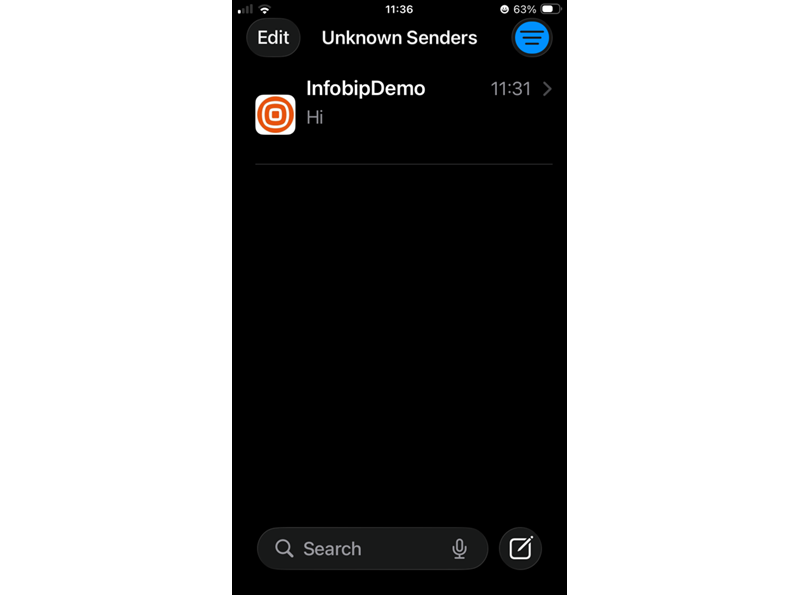
If you enable the Unknown Sender filter:
- Messages from unknown senders are silenced.
- You do not receive any push notification or badges on the iMessage app.
- Senders do not appear in the main inbox, they are moved to the Unknown Sender inbox.