Use RCS message templates
Use RCS message templates to send pre-approved, structured messages that comply with regional regulations and anti-spam policies.
RCS message templates are available only in India and Indonesia. Availability may vary depending on the RCS service provider and local regulatory requirements.
Regional availability and providers
RCS messages cannot be sent directly through Google. Direct traffic through a single gateway carrier (for example, Vodafone India) when sending RCS.
India
- Provider: VI (Vodafone India)
- Coverage: Full nationwide coverage across all mobile operators.
- Routing: Infobip directs all RCS traffic through a single gateway carrier (Vodafone India).
- Limitations:
- Promotional traffic: Limited to 4 messages per month per customer.
- A2P traffic: Must use registered templates (free-form messages are not allowed).
Indonesia
- Provider: RCS delivery operates per mobile operator.
- Supported operators: Telkomsel
- Requirements: All RCS messages must use registered templates approved by the respective operator.
IOH (Indosat Ooredoo Hutchison) is planned as a supported provider in an upcoming rollout.
Template types and requirements
All RCS messages must use registered templates. You can create, manage, and register templates by using the Template Management UI on the web interface, or through the Template Management API.
After registration, the system generates a unique template ID, which you must include when sending RCS messages through API, Broadcast, or Flow.
Do not send RCS messages without a registered template ID. Messages sent without proper template registration fail to deliver.
Templates support the following message types:
- Text: Send a simple text message template.
- Text with PDF: Send a text message template with an attached PDF document, ideal for sharing brochures, policy documents, or catalogs.
- Card: Send a visual message template containing an image, title, description, and call-to-action button.
- An image can have a maximum file size of 2 MB and must have a 2:1 aspect ratio.
- A video can have a maximum file size of 10 MB.
- Carousel: Send multiple rich cards in a single message template, allowing users to scroll through various options.
- An image can have a maximum file size of 1 MB and must have a 4:3 aspect ratio.
- A video can have a maximum file size of 5 MB.
Supported template types vary by region:
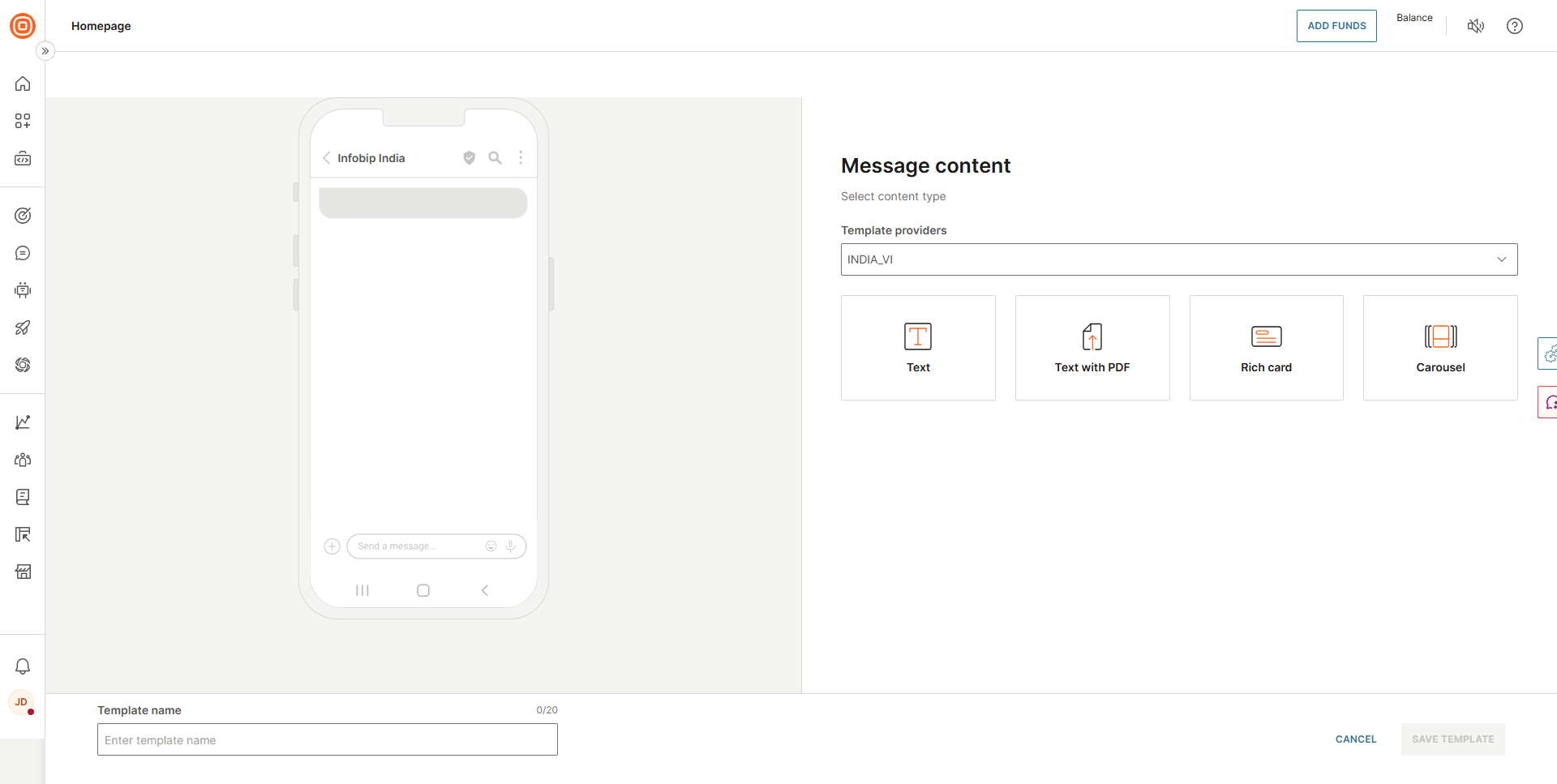
- India (VI - Vodafone India): Text, Text with PDF, Rich Card, and Carousel.
- Indonesia: Text, File, Rich Card, and Carousel. Does not support Text with PDF.
Create and register templates
After your sender has been approved and launched, you can create and register templates. Templates are automatically submitted to your RCS provider for review when you save them.
Template registration and approval are handled by the RCS provider in your region (VI - Vodafone India for India, Telkomsel for Indonesia). Approval times vary by provider.
-
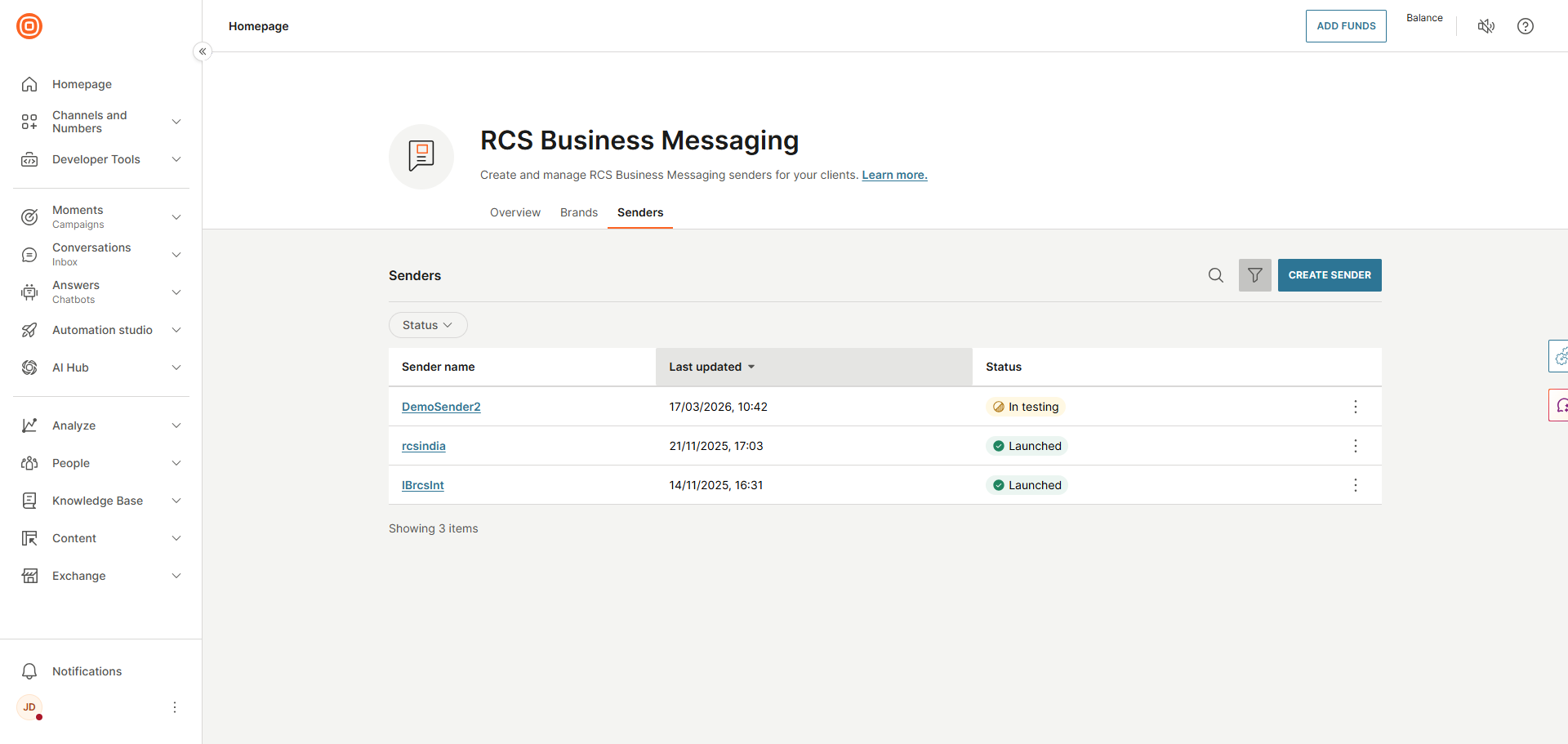
Go to Channels and numbers and select your launched sender.
-
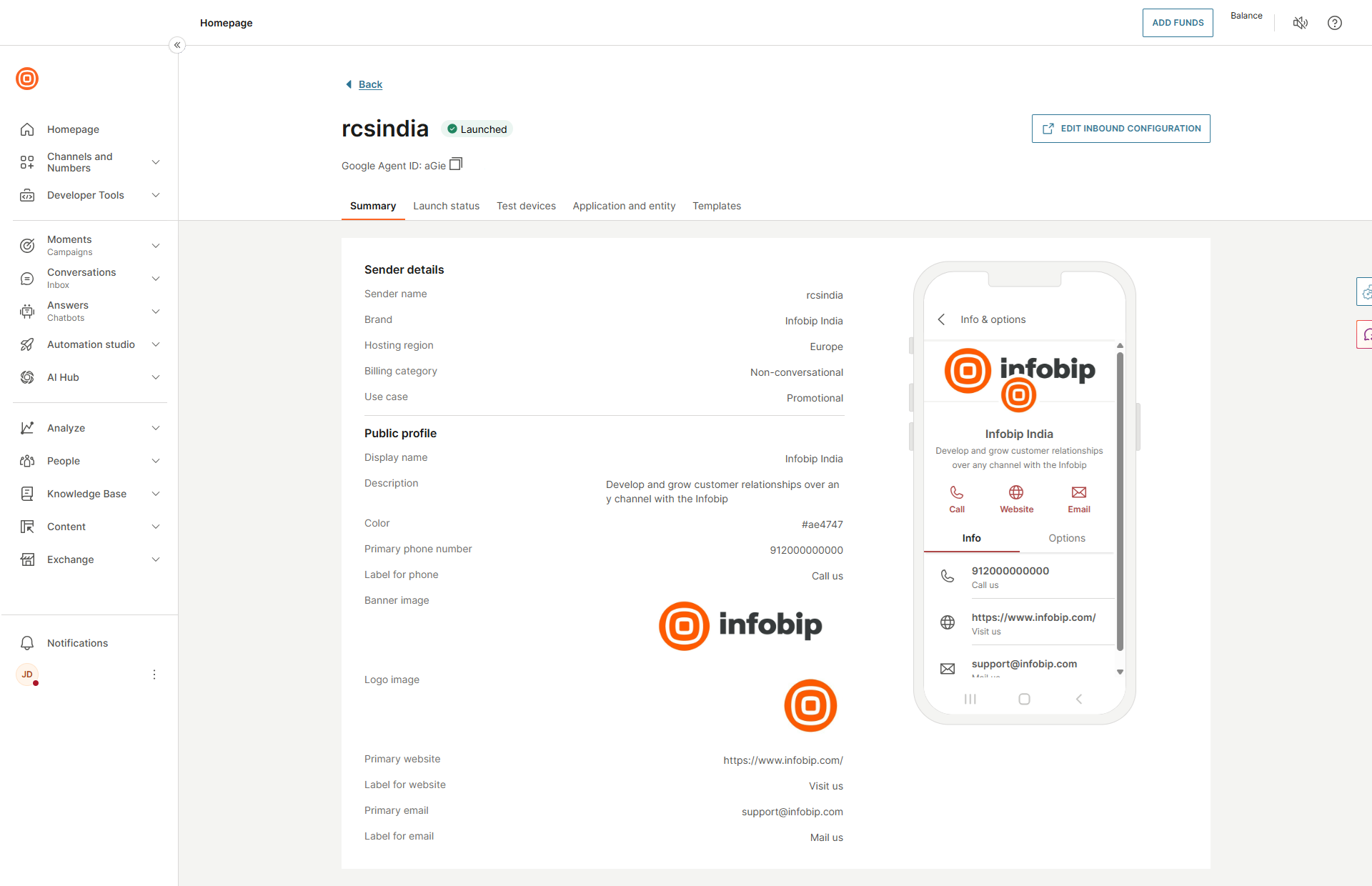
View the sender summary.
-
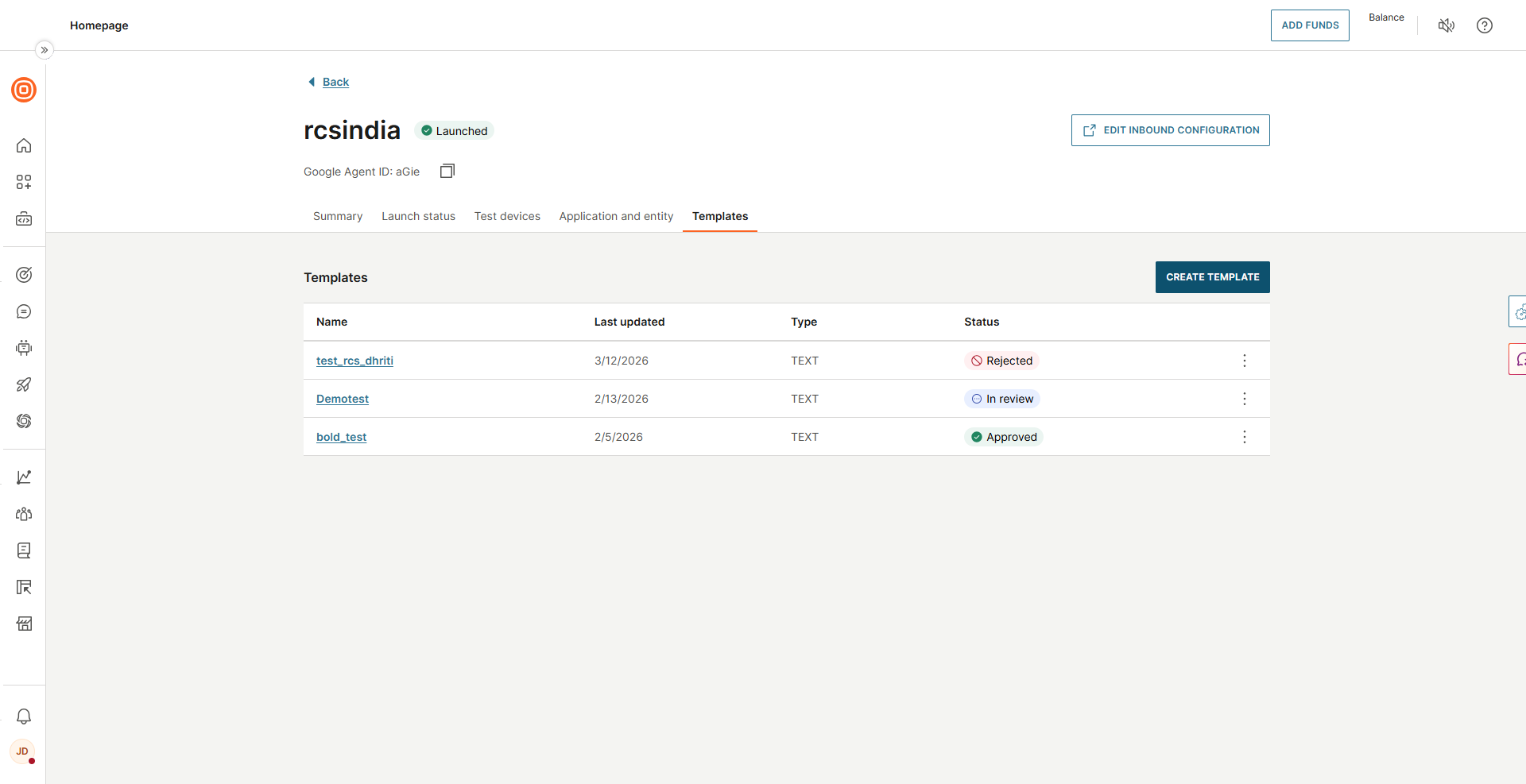
Select the Templates tab and select Create template.
-
Select the appropriate template type for your region.
-
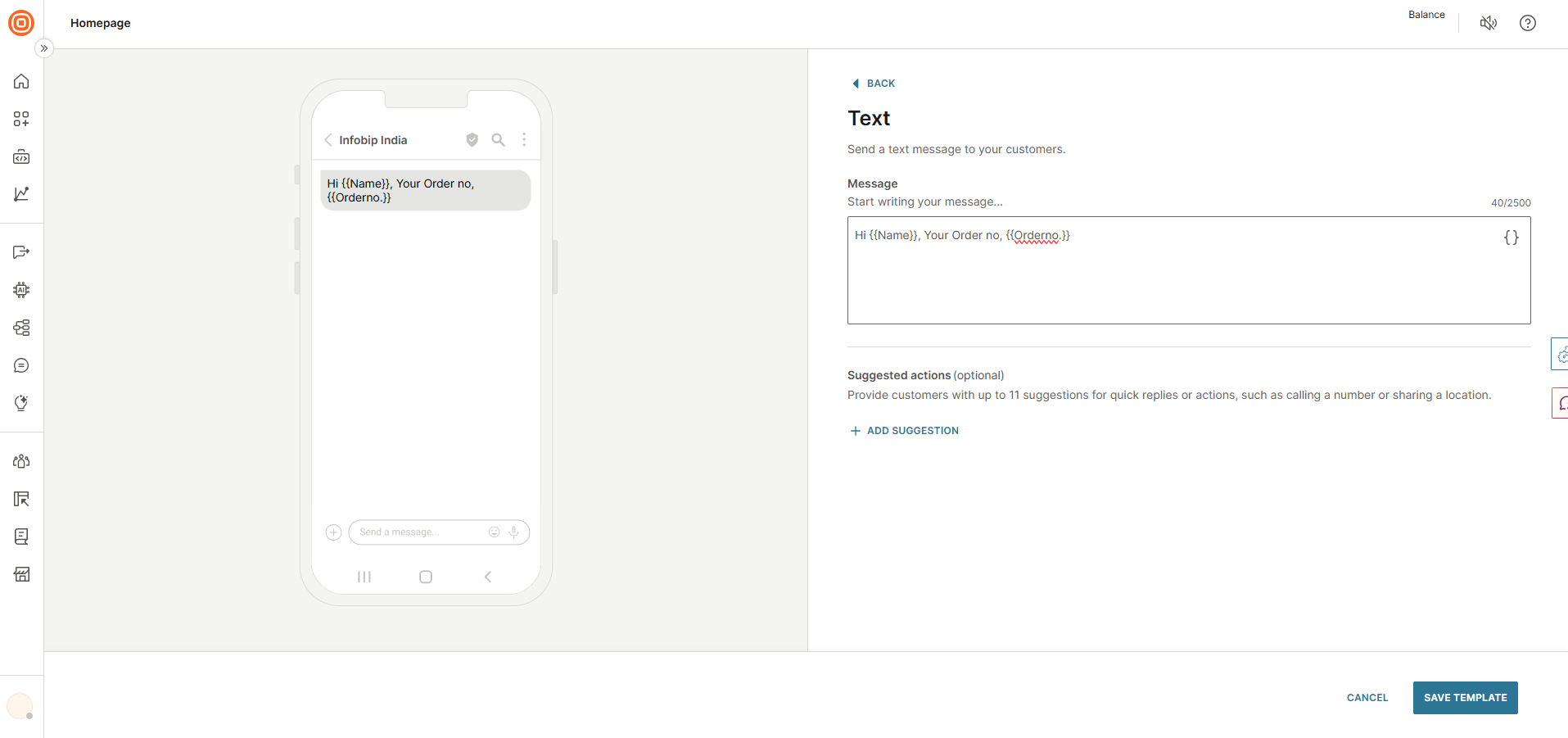
Create your template. You can see the preview on the left side, then save your template. When you save your template, it is automatically sent to your provider for review.
-
After saving, go to the Templates tab to see the status of your template. When your template is in review or active, it cannot be edited.
For more information about RCS compliance requirements, see Guidelines and compliance.
Monitor template status
In the Templates tab, you can monitor the status of your templates:
- Approved: Template is approved and ready to use.
- In review: Template is pending provider approval.
- Rejected: Template was rejected and requires modifications.
Send RCS message templates over API
To send RCS messages by using the API, use a single endpoint that handles both single and bulk message transmissions through templates. You must have an approved template before sending. For template creation instructions, see Create and register templates.
Include the following parameters in your API request:
Content type:
- Value:
PROVIDER_TEMPLATE- This is a fixed value that specifies the type of content being sent.
Template ID:
- Description: A unique identifier for the message template.
- Source: Provided by your account manager or visible in the Templates tab after approval (see Monitor template status) or in the Broadcast section of the web interface. Make sure that you obtain the correct template ID to avoid dispatch issues.
(Optional) Parameters:
- Purpose: To personalize the messaging content.
- Structure:
name: The name of the parameter.value: The value corresponding to the parameter name.
Use optional parameters to personalize messages for each recipient. For more information, see the RCS API documentation.
Send RCS message templates over Broadcast
The Broadcast interface is the same for both India and Indonesia. You must have approved templates before you use Broadcast (see Create and register templates). To send RCS messages by using registered templates through Broadcast:
-
Log in to Infobip and navigate to Moments > Broadcasts > Create Broadcast.
-
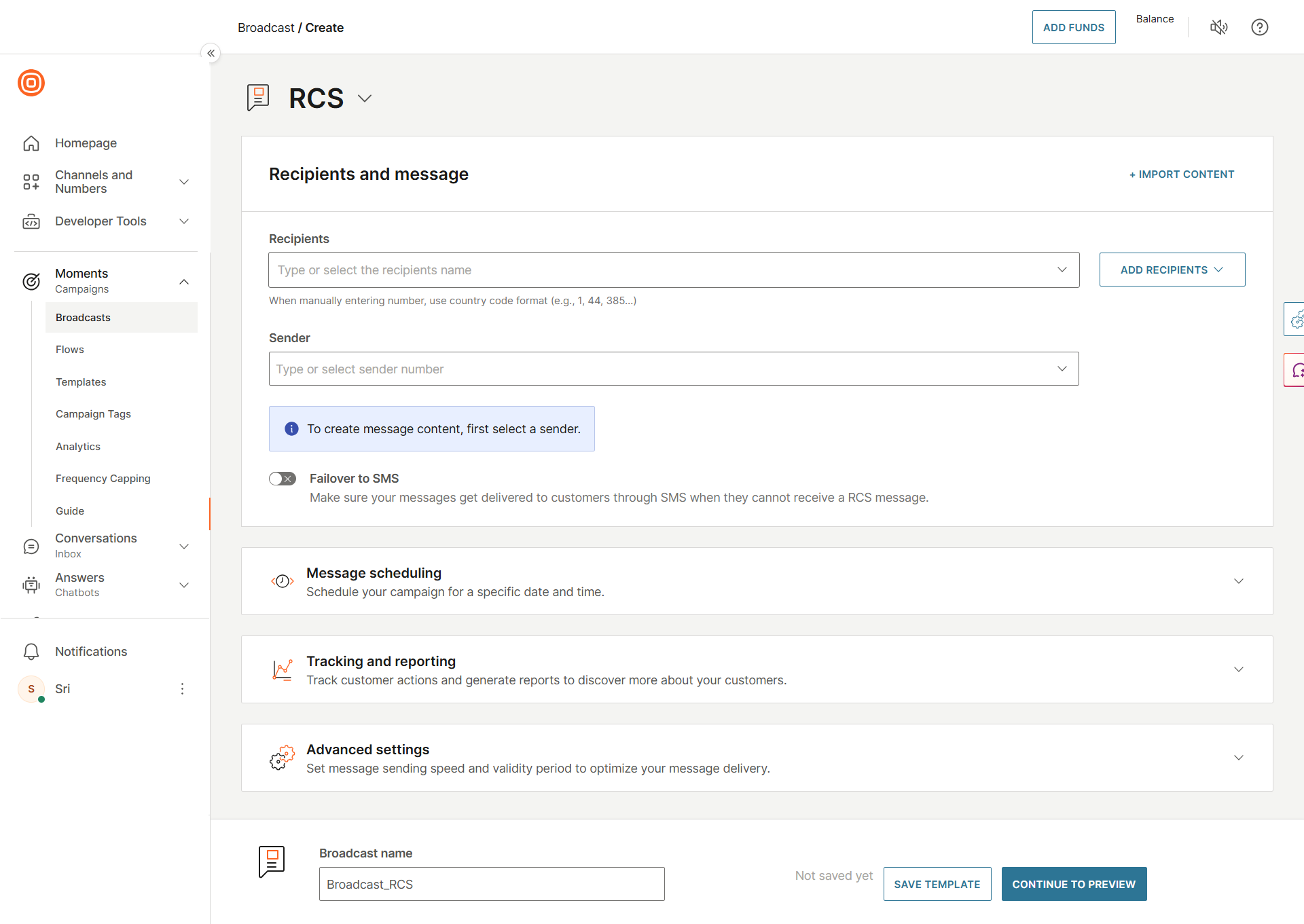
Select RCS as your channel. Enter your Recipients and select your Sender from the list.
-
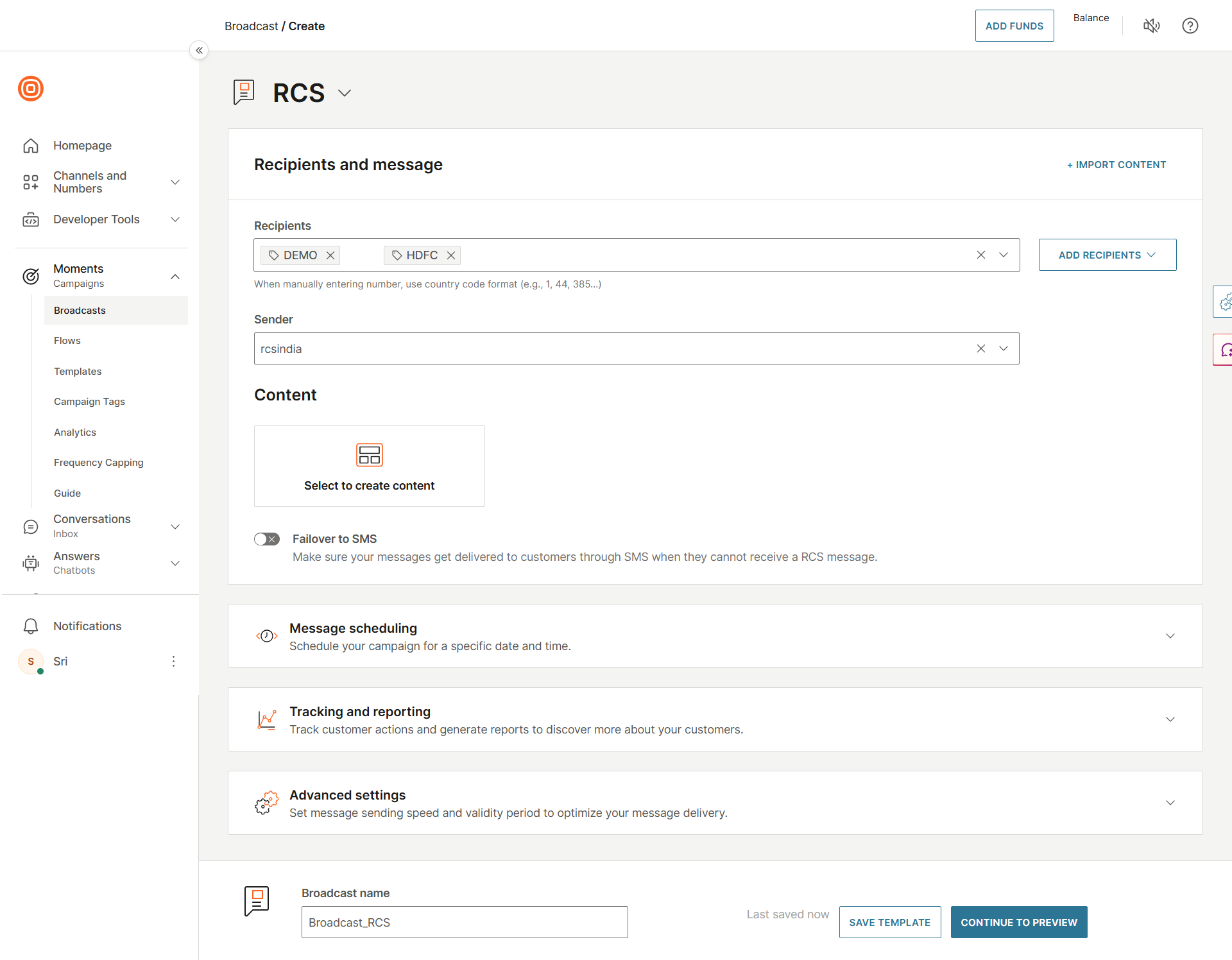
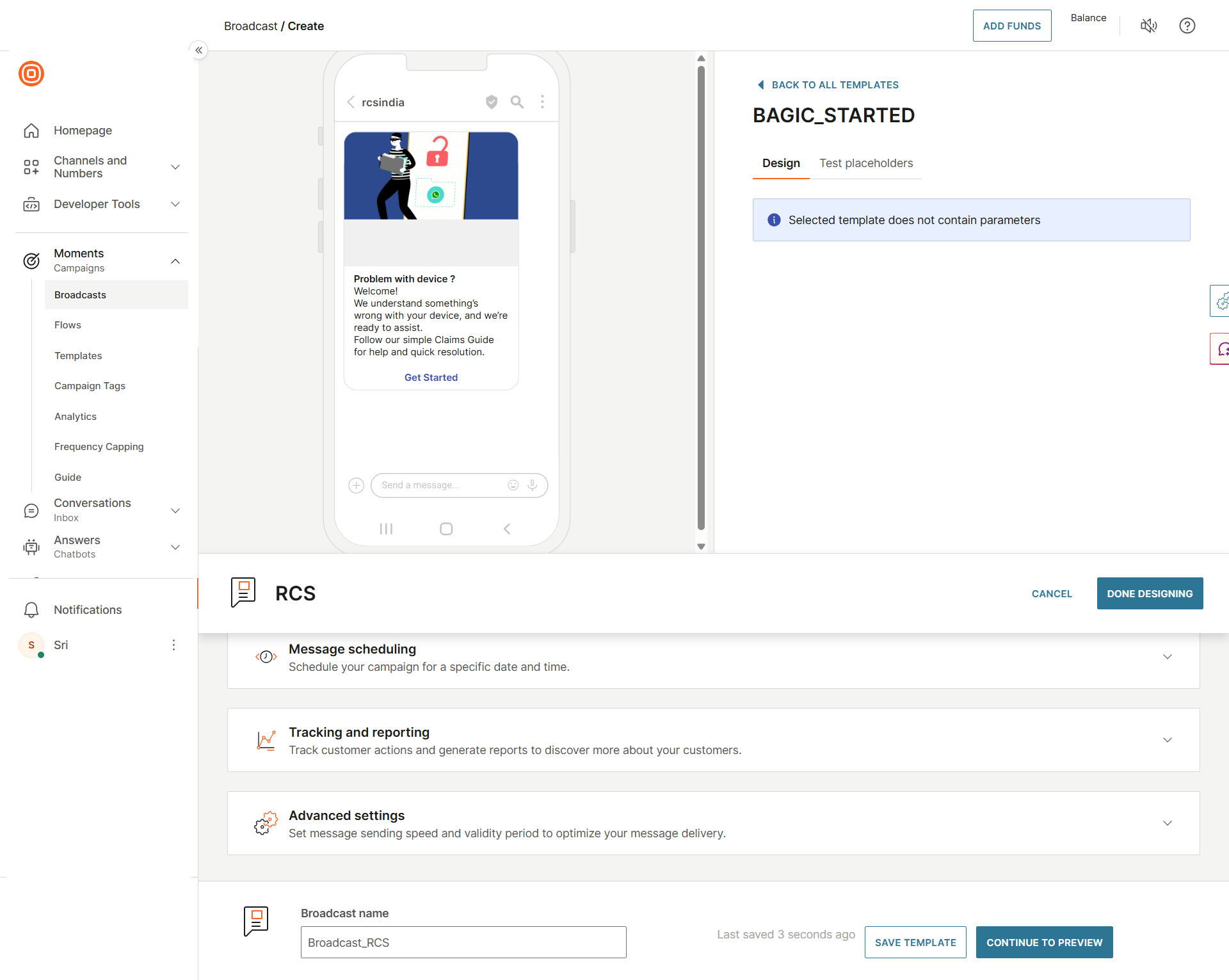
Under Content, choose Select to create content to open the RCS message template editor.
-
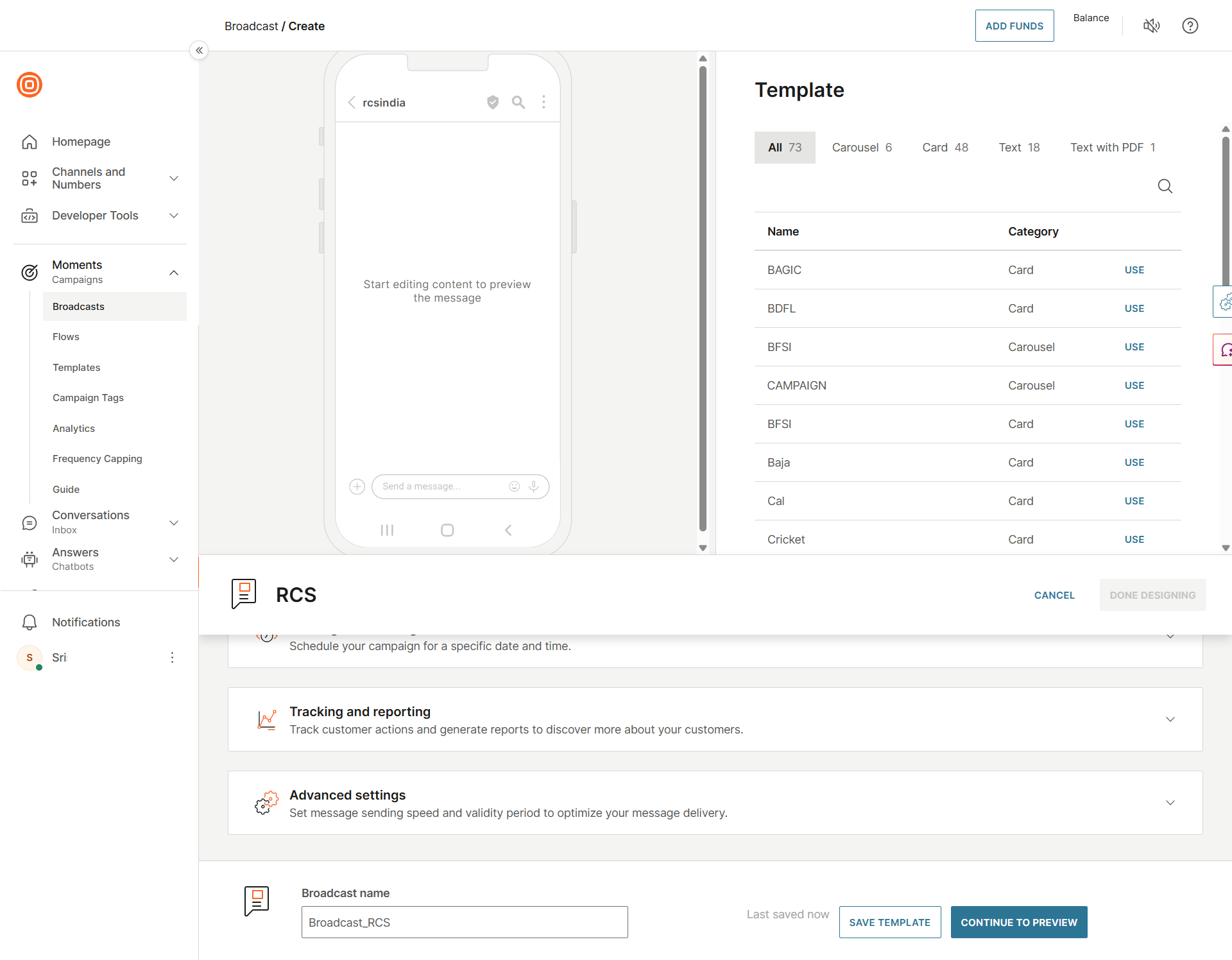
The template editor opens with templates displayed on the right side and a phone preview on the left. Choose your template type.
-
Select the template you want to use to see the preview on the phone mockup.
-
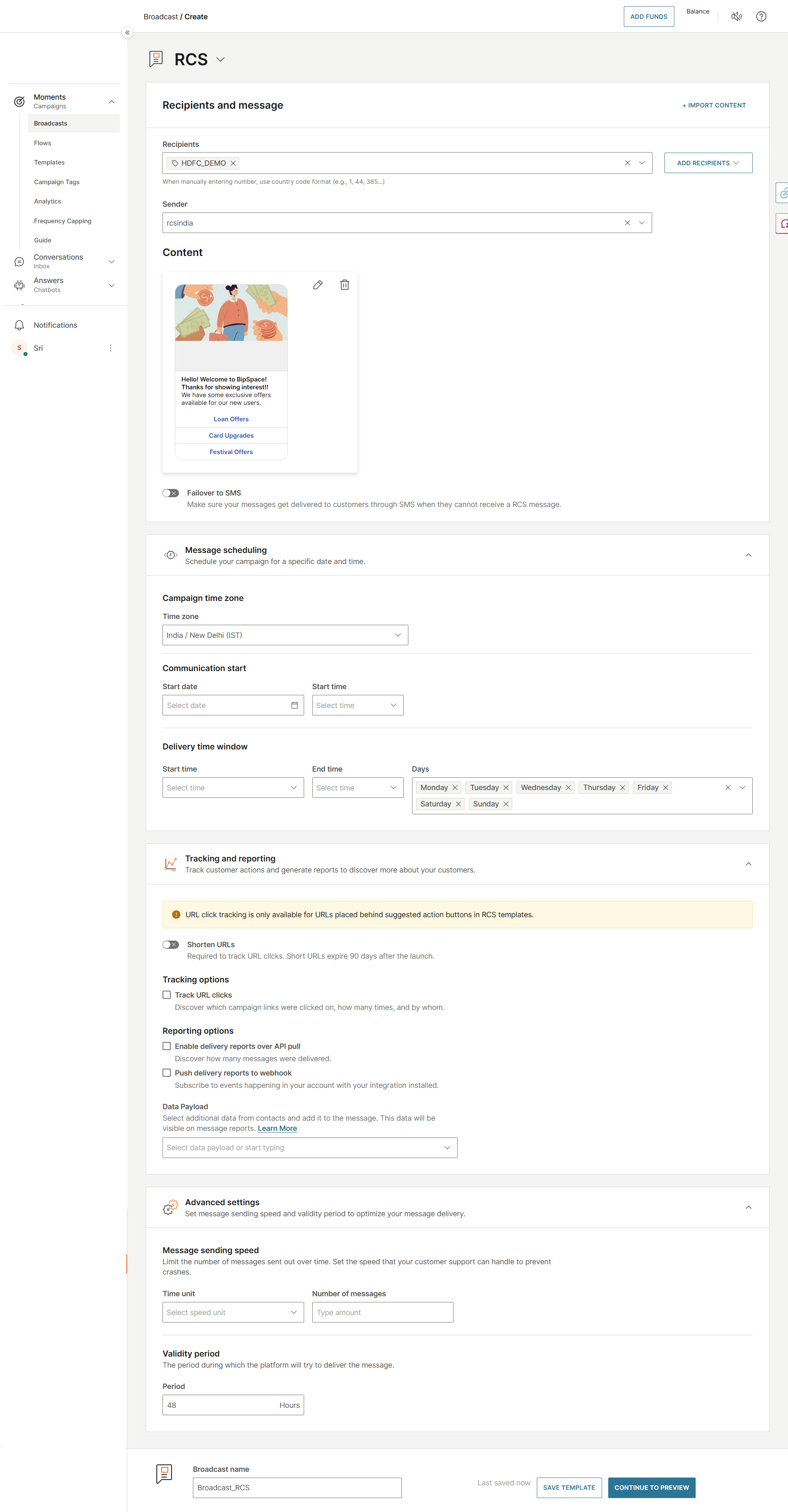
Review your recipients and message preview, then configure your campaign settings:
- Campaign time zone: Select the time zone for message delivery.
- Communication start: Set the date and time to begin sending.
- Delivery time window: Configure the start time, end time, and specific days of the month for message delivery.
-
Set up Tracking and reporting options:
- Track URL clicks: Monitor link engagement.
- Enable delivery reports over API pull: Retrieve delivery status through the API.
- Push delivery reports to webhooks: Receive real-time delivery notifications.
- Data payload: Add contact data to include in message reports.
-
Configure Advanced settings:
- Message sending speed: Set the time unit and number of messages to control delivery rate.
- Validity period: Define how long the platform attempts message delivery.
-
Select Continue to preview to review the broadcast configuration.
-
After verifying all settings, select Launch broadcast.
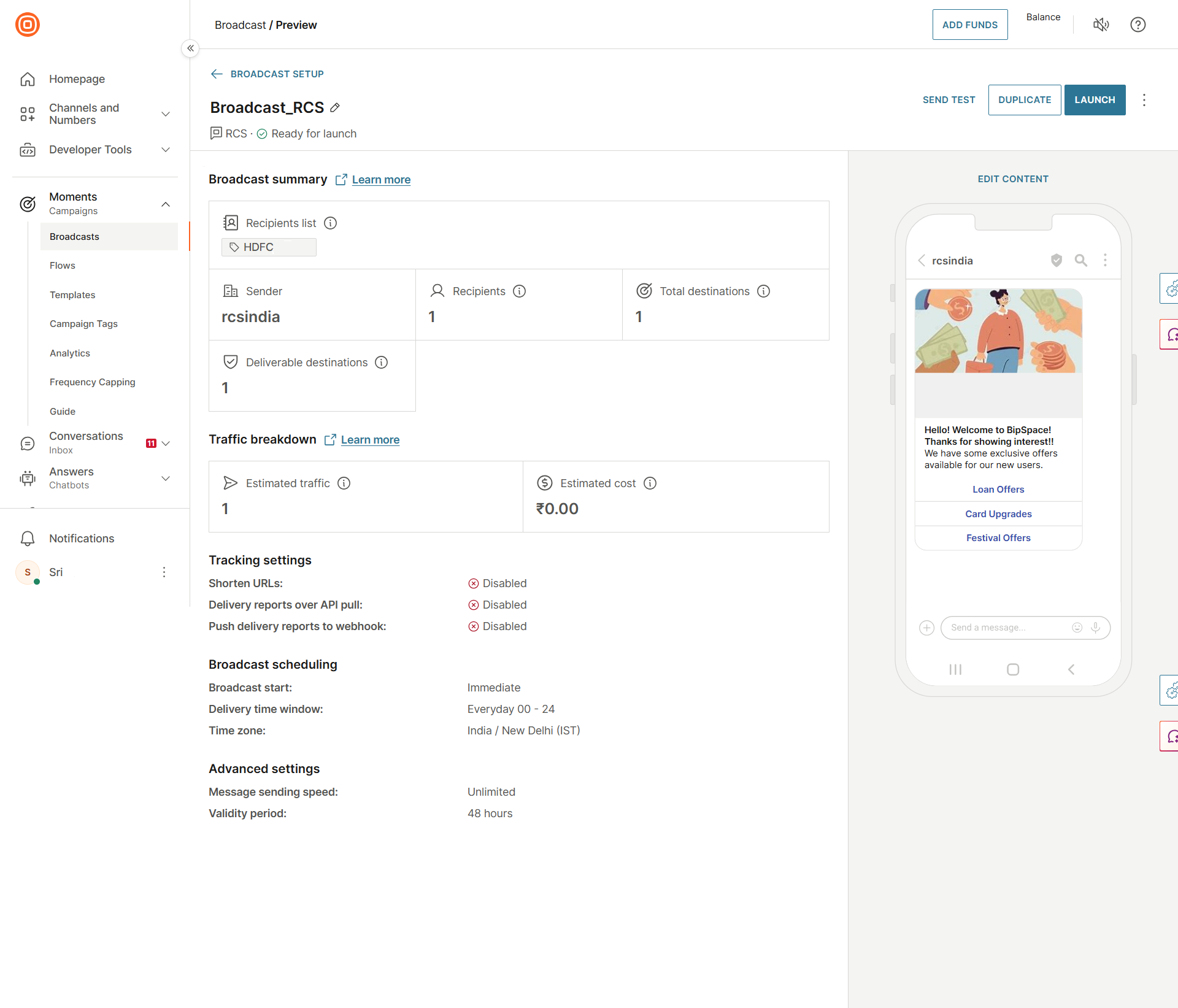
Make sure the account balance can cover the broadcast cost before you start the broadcast. Insufficient funds cause the broadcast to pause. Make sure adequate funds are available for message delivery.
-
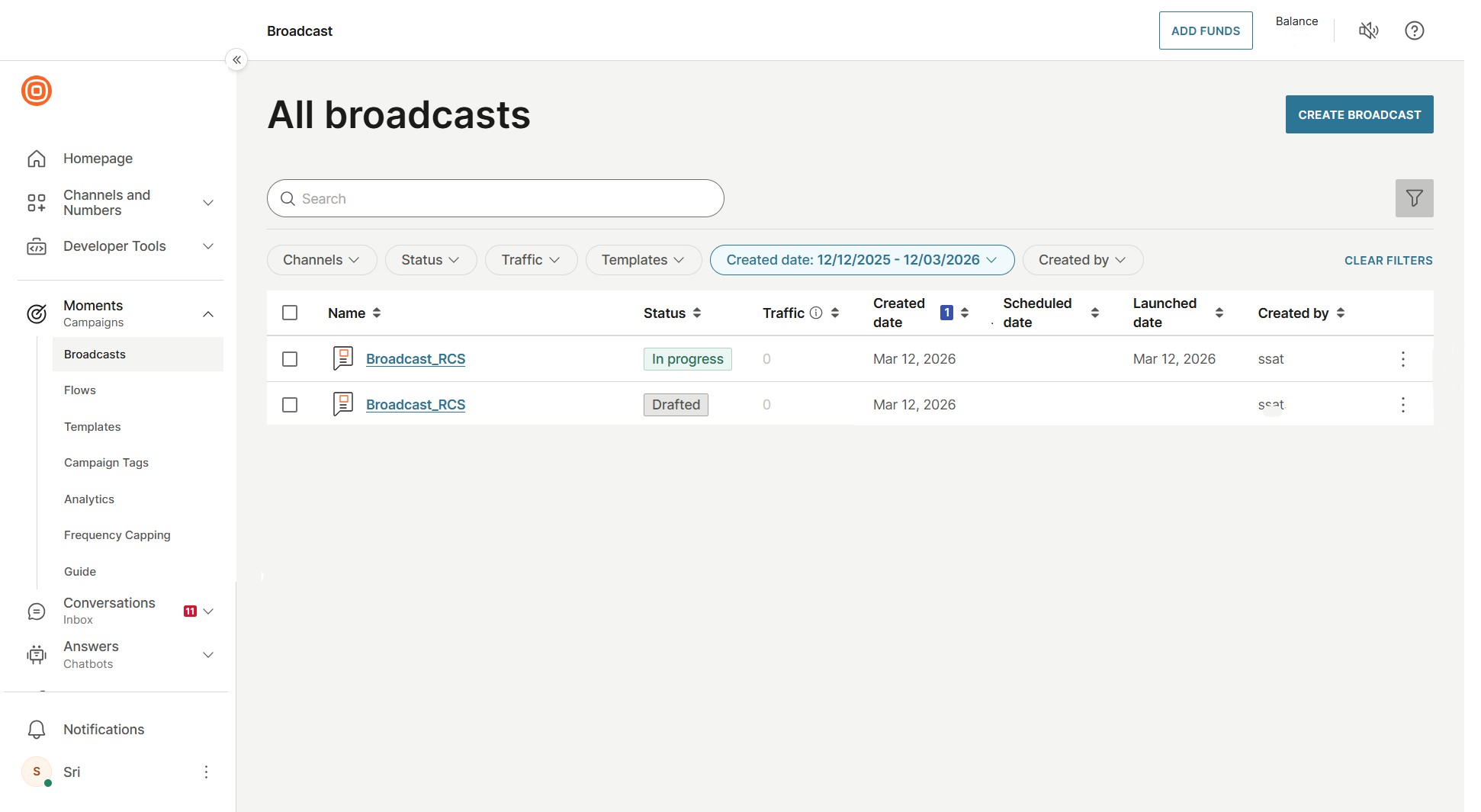
Go to All broadcasts to monitor your RCS message broadcast status:
- Drafted: Broadcast saved but not launched
- In progress: Broadcast is actively sending
- Finished: Broadcast completed delivery
Send RCS message templates over Flow
You must have approved templates before you use Flow (see Create and register templates). To send RCS message templates by using Flow:
-
Log in to Infobip and go to Moments > Flows > Create flow.
-
Select Start from scratch or an existing predefined template and set up your initial flow design.
-
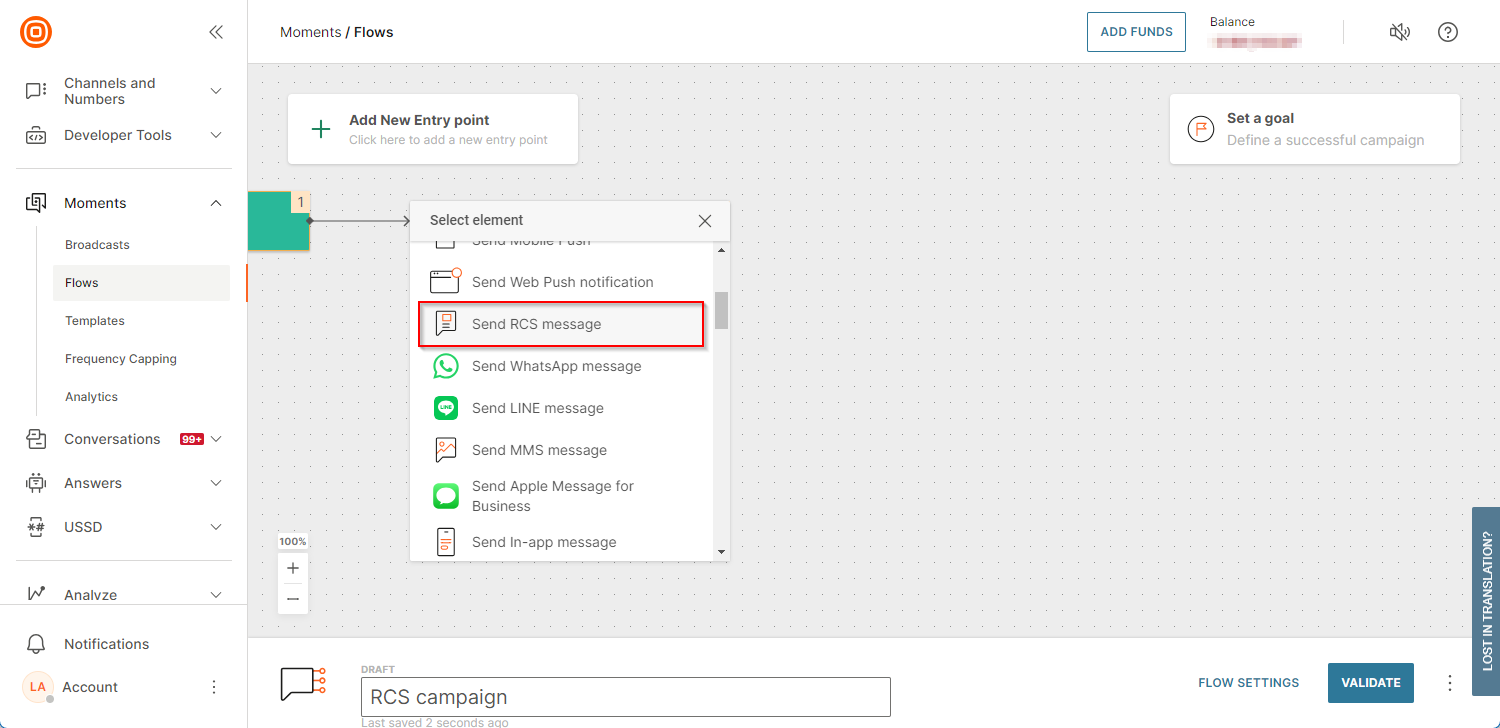
Add the RCS message element by selecting Send RCS message.
-
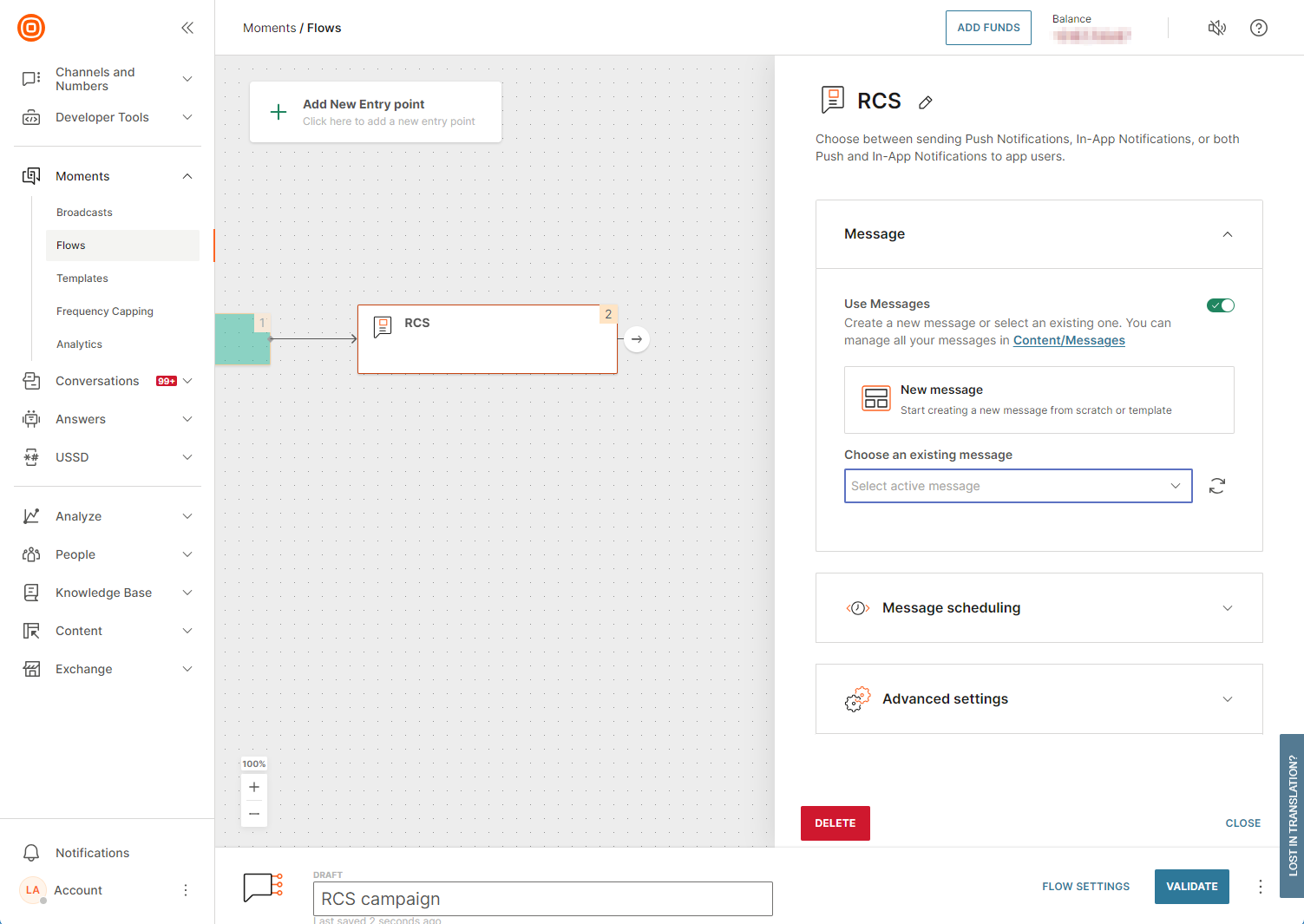
Create or select a predefined message:
- Select New message.
- If you have a pre-created message, select it under Choose an existing message and skip to Step 8.
-
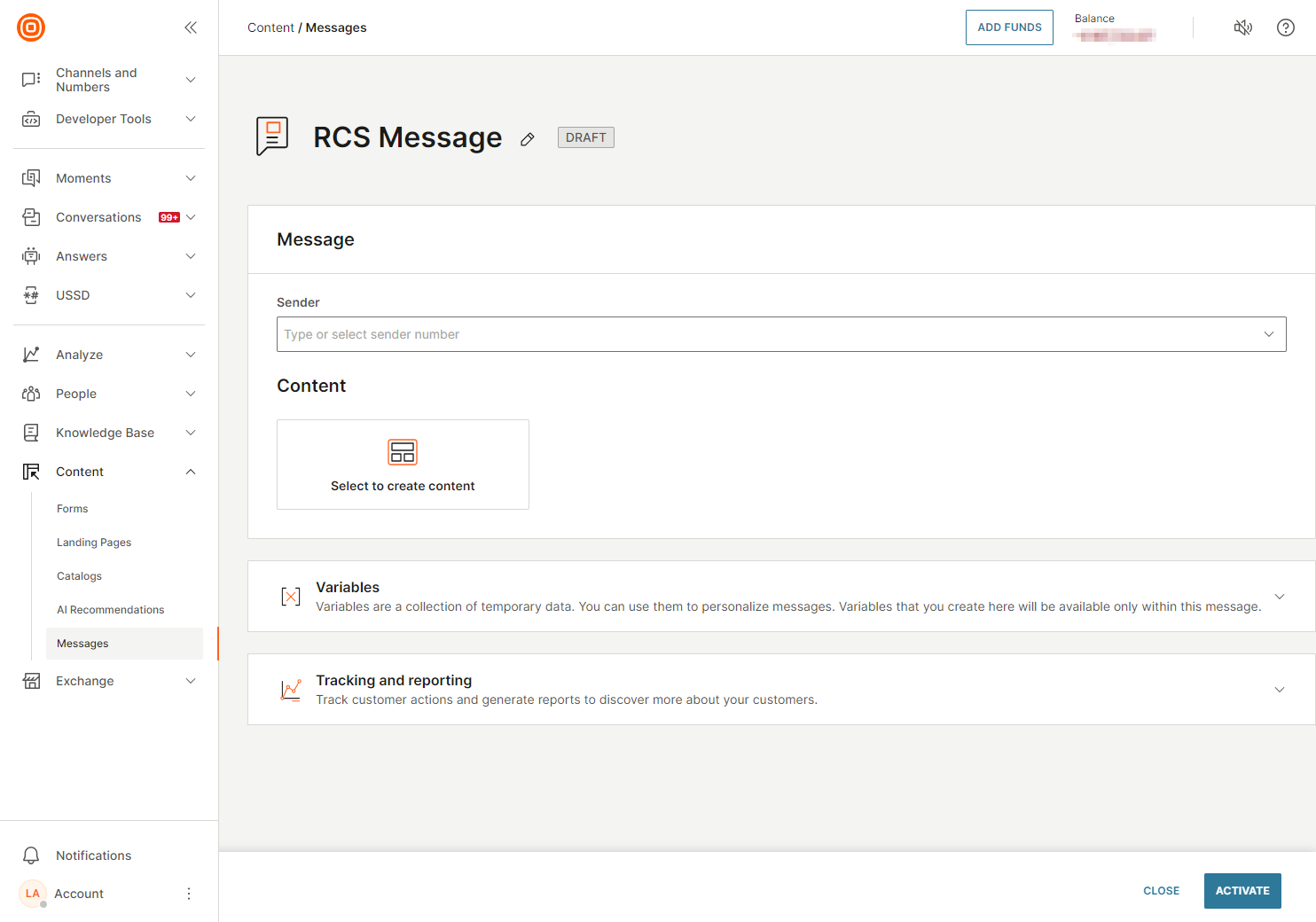
Enter the message name, choose your sender, and select Select to create content.
-
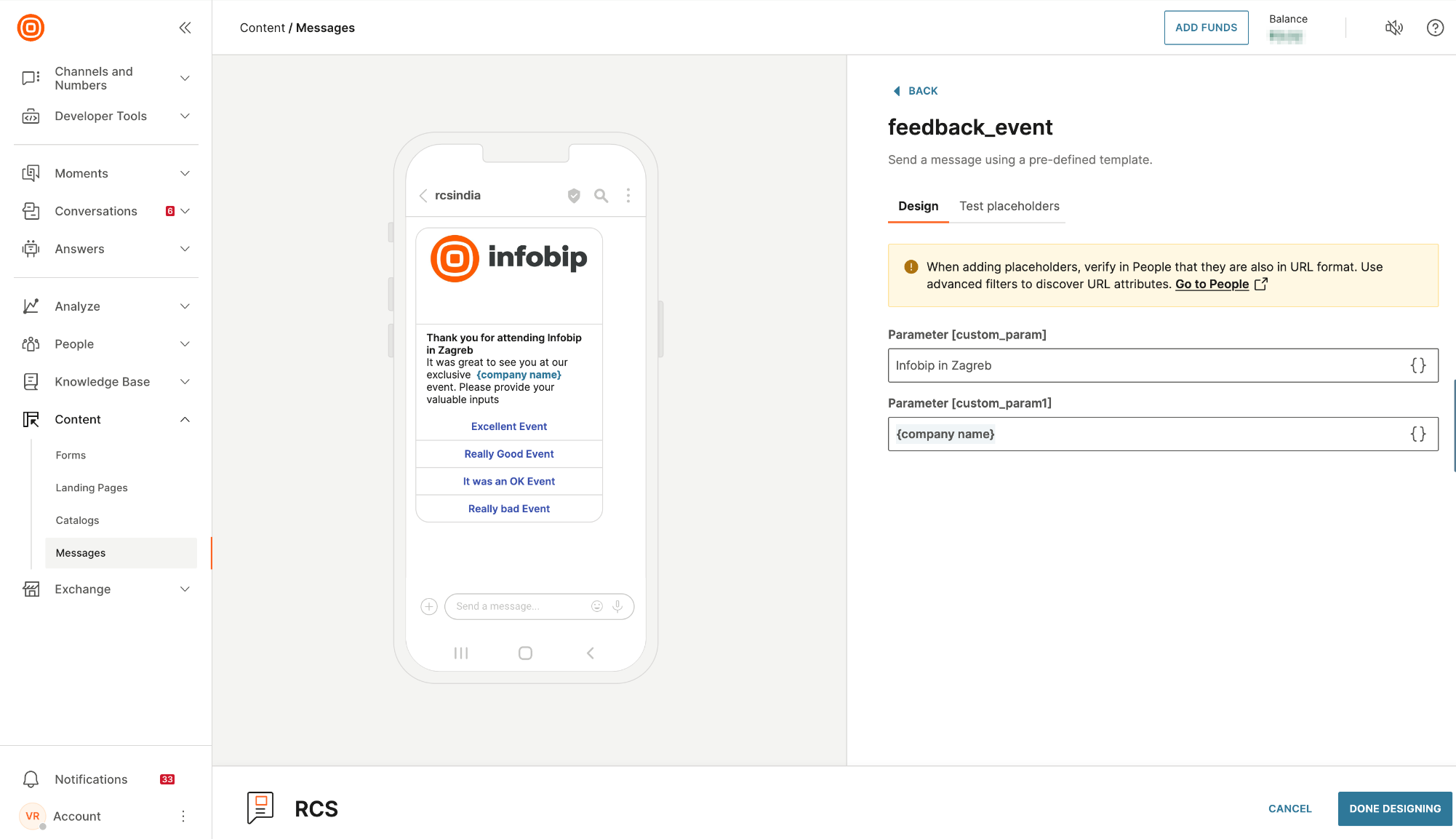
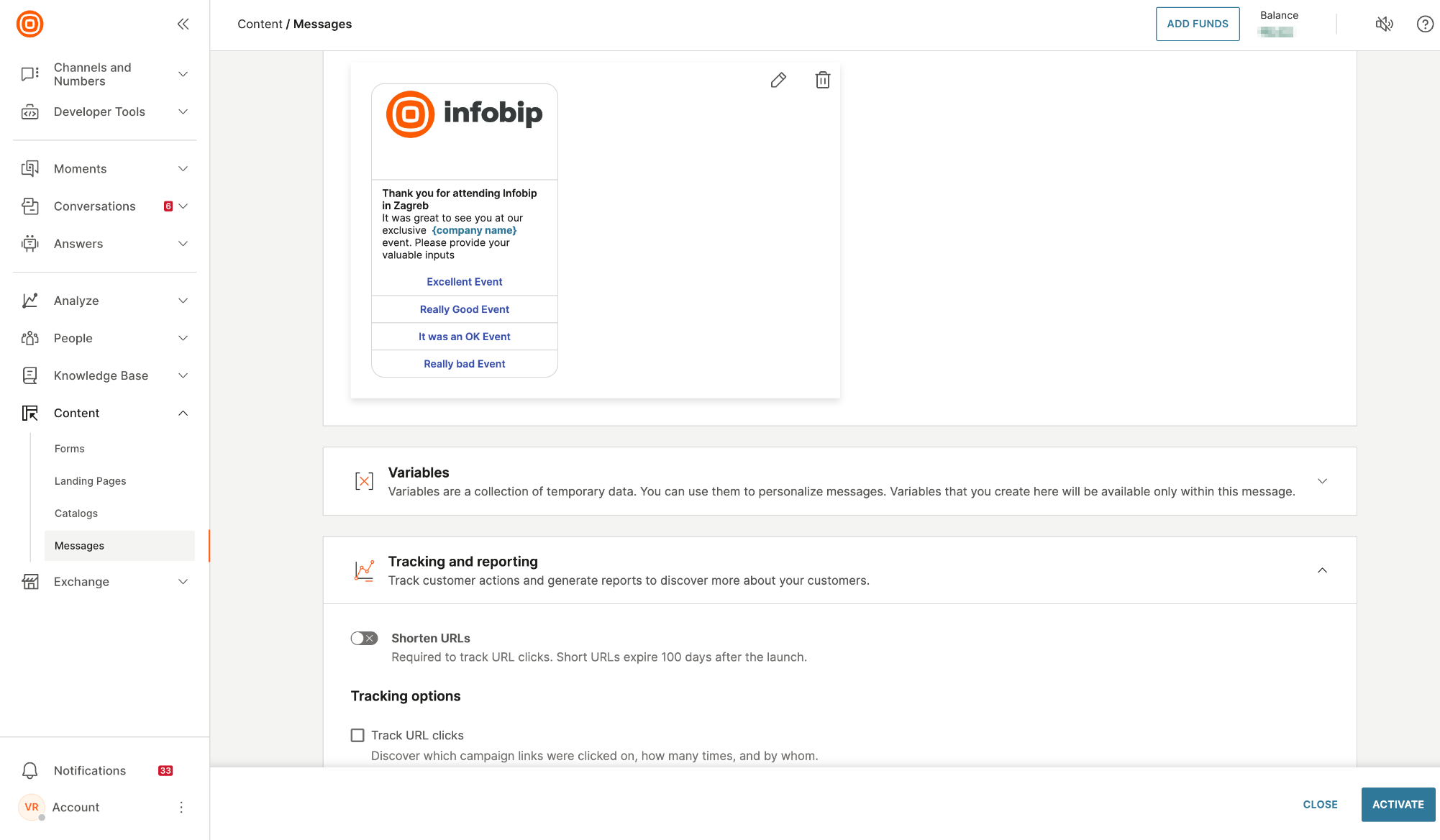
Choose Template as the content type. Select the template you want to use from the list and customize your message. If the template includes custom parameters, fill in the values to personalize the message. Review your message and select Done designing.
-
If needed, enable tracking options and select Activate to complete the message setup.
-
Return to the flow and make sure the selected message is validated. After everything is set, start the flow.