Customer context
View and manage customer information, access conversation history, read the AI customer context briefing, and use the Customer context card to provide personalized support.
Customer data and context
A conversation consists of participants (customer and agents) and the messages they exchange. A customer participating in a conversation can be known or unknown.
A customer is known if their contact number is connected to a Customer Profiles profile. For a known customer, the Customer context card shows the following default customer attributes:
- Customer name: Associated with that destination number/ID in Customer Profiles
- Gender: If associated with a person in Customer Profiles
- City: If associated with a person in Customer Profiles
- Country: If associated with a person in Customer Profiles
To see more customer details in Customer Profiles, use the View and Edit link. You can update customer attributes in Customer Profiles (for example, change name, add destination, add tags, and more).
Link and unlink conversations
If the system linked a conversation to the wrong customer, select Unlink conversation. You can also link a conversation to a customer.
For example, the system links a conversation to an unknown customer by default, but the customer already exists in Customer Profiles. In that case, link the conversation to that customer, and the customer details appear.
Learn more about related conversations.
Conversation history
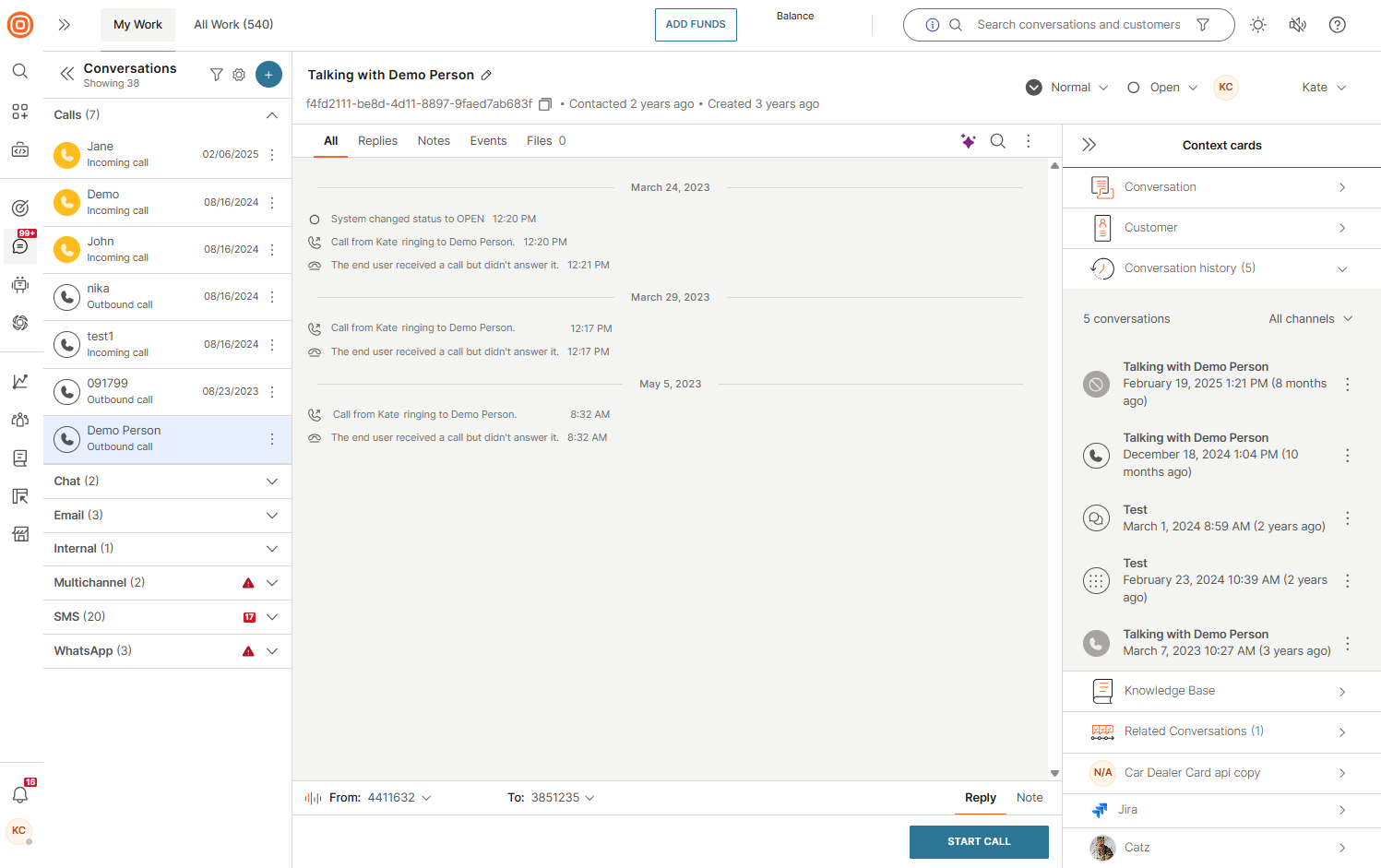
Select the Conversation history context card to see the following:
- You can preview all open and closed conversations associated with a specific customer without leaving the current page. The card brings together all interactions in chronological order, directly accessible in My Work.
- It is a unified view of the complete history of the customer engagement. It helps agents provide more informed and personalized support. The availability of the conversation history depends on the data retention policy.
This feature is in Early access. To get access or learn more, contact your dedicated account manager or Support.
This feature does not support displaying conversation history from Facebook Posts, Instagram Posts, and Google Play Reviews channels.
The system respects the agent access rights for each queue. Agents can view conversations in the context card, but they cannot participate in a conversation from the card. If an agent does not have access to a queue, they see only a subset of conversations from that customer.
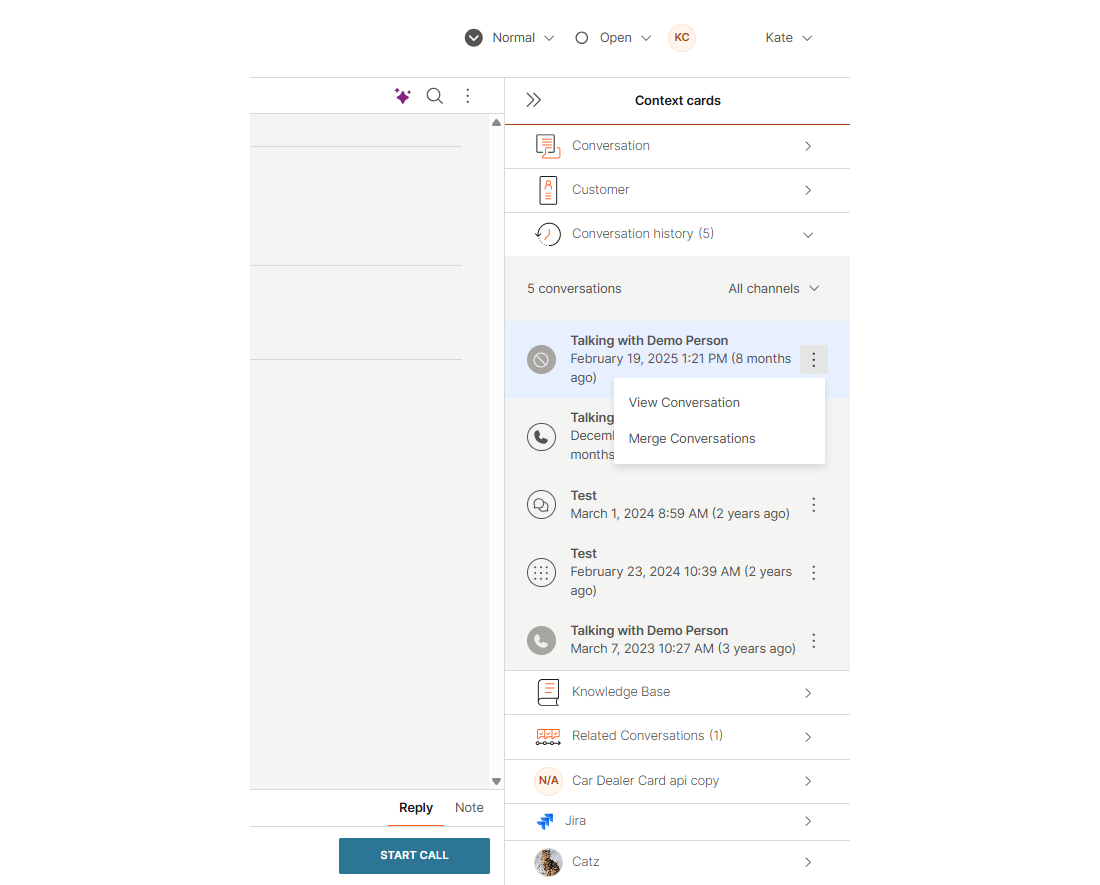
Select the three dots next to a conversation to see two options:
- View conversation: Opens the selected conversation so you can review it in detail.
- Merge conversation: Combines selected conversations if needed.
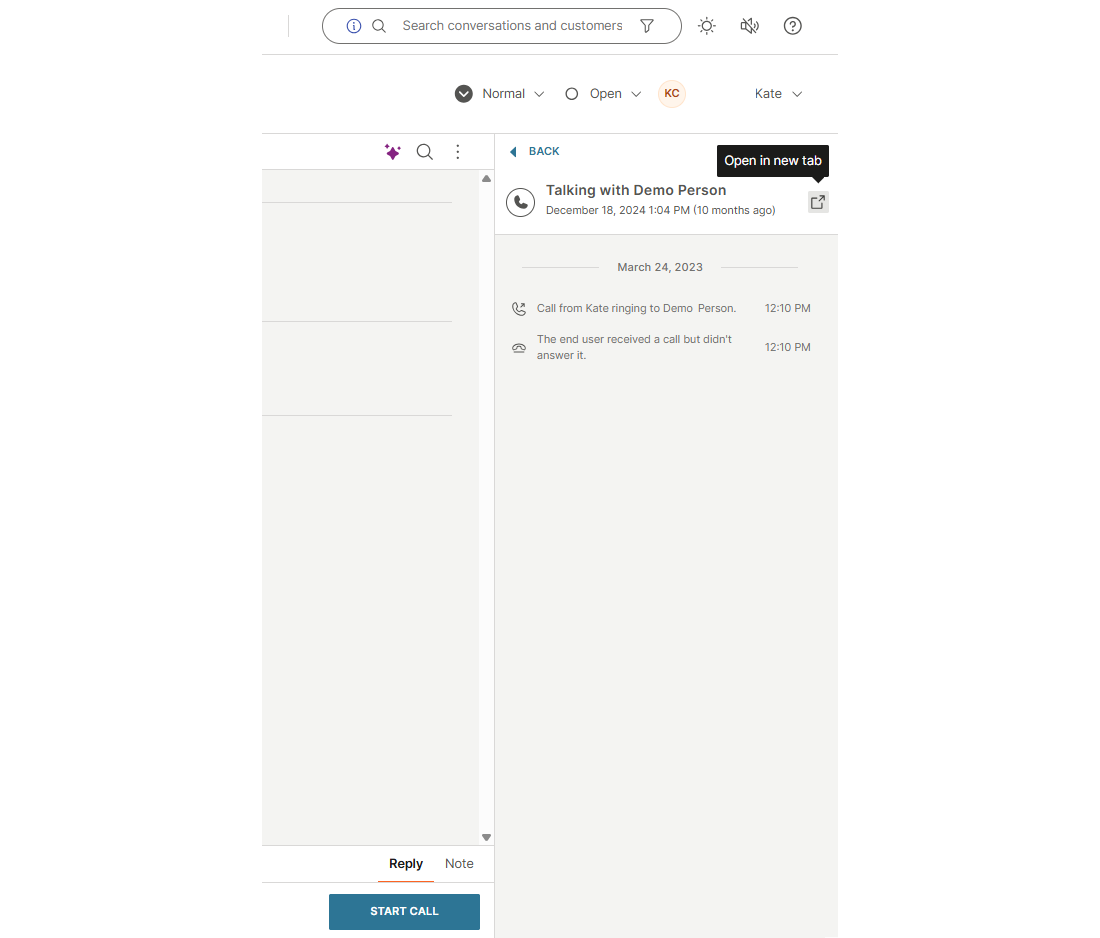
To review a conversation:
- Select View conversation, or select the conversation itself, to open the conversation view. Depending on the channel, the view shows all messages or call events exchanged between the agent and the customer. It also shows internal notes.
- Messaging channels display both messages and notes.
- Call channels display call events (including recordings) and notes.
- Optionally, select Open in new tab to review the conversation in a new tab.
- Optionally, filter conversations by channel to narrow down results. If no conversation history exists, a No conversation history message appears.
AI customer context [#ai-customer-context]
EARLY ACCESSThis feature is in Early Access. To get access or learn more, contact your dedicated account manager or Support.
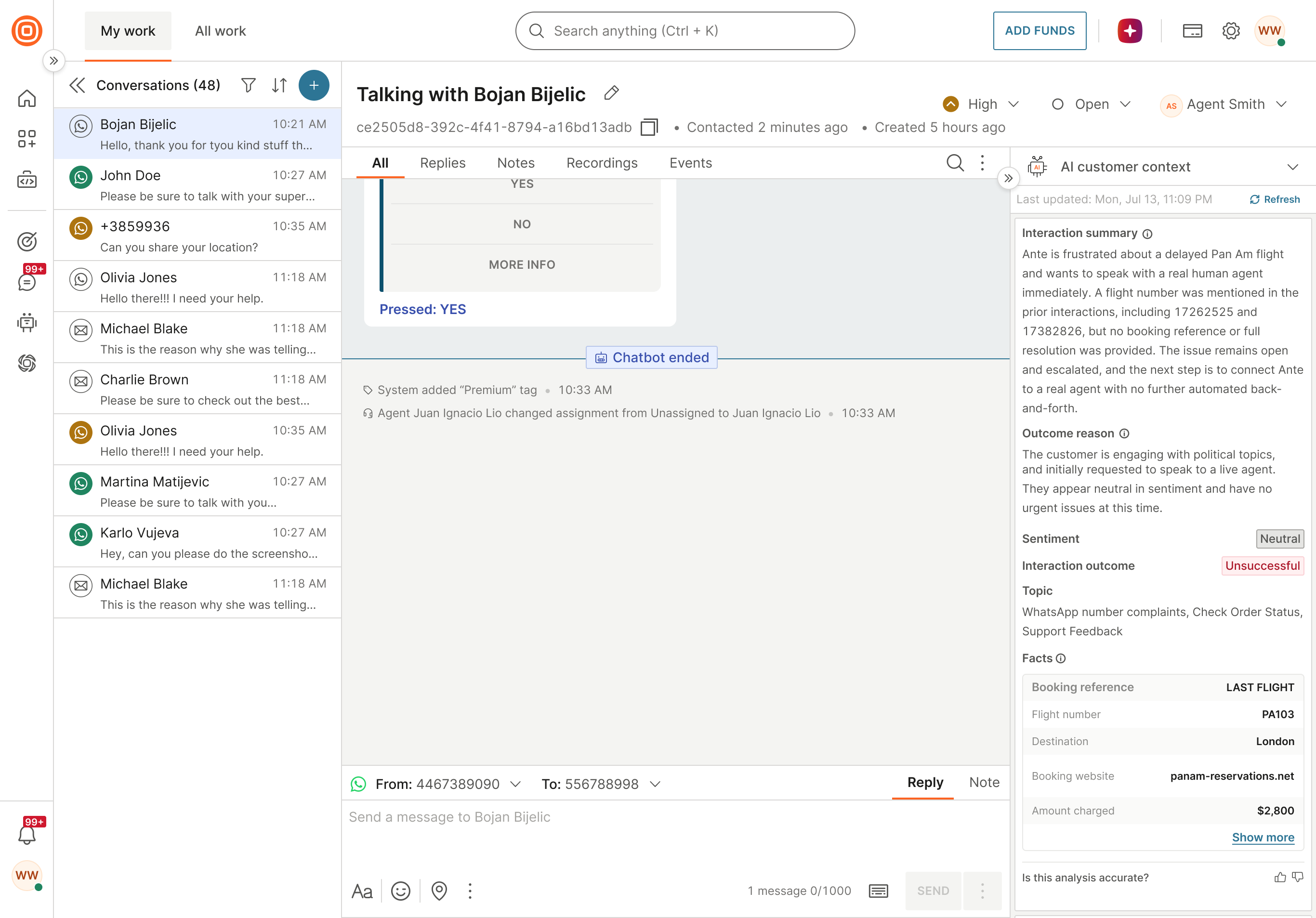
The AI customer context card in My Work shows AI-generated context about the customer, based on the analyzed interactions with the customer, including the current one. The AI customer context card is part of Customer context, which turns conversation history into a reusable customer summary and facts. The card is collapsed by default. When you expand the card, it loads the available customer context.
Last updated shows when the stored context was last updated. To check for updated results, select Refresh. Refresh loads the latest stored results and does not run a new analysis.
The card is read-only and has two parts: an analysis of the current interaction, and context from the customer's past interactions.
Current interaction
- Interaction summary: A summary of the current interaction.
- Outcome reason: Why the interaction ended with its outcome.
- Interaction outcome: Whether the customer's issue was resolved, for example, Unsuccessful. Each interaction has one outcome.
- Sentiment: How the customer felt during the interaction.
- Topics: What the customer contacted you about. The card shows up to 4 topics. To view additional topics, hover over +N.
- Facts: Details that AI found in the current interaction, including the custom facts your business defined, such as a booking reference or a flight number. The card shows up to 5 facts. To see the rest, select Show more.
To learn how AI analysis extracts topics, facts, and sentiment, see What Customer context includes and How topics are detected.
Past interactions
- Customer summary: A summary of the customer's analyzed past interactions. The summary does not include the current interaction.
- Show past interactions (N): The customer's analyzed past interactions from all queues. In the list, each past interaction shows the time of the latest message included in its analysis, the outcome, and the summary. Expand a past interaction to see the same details as for the current interaction, if they are available.
To give feedback on the analysis, select the thumbs up or thumbs down icon next to Is this analysis accurate? For the customer summary, use the icons next to Is this Customer summary accurate?
Keep in mind:
- AI analysis runs when a chatbot, Journey, or AI agent hands off a conversation, and when a conversation closes. The analysis of the current interaction covers the conversation up to the handoff.
- The analysis of a closed conversation can take a few hours. Until the analysis is ready, the interaction does not appear in the customer summary or in the past interactions.
- The summary, facts, topics, and sentiment use only message content, not tags, notes, or status changes.
- The briefing does not include messages sent from Journeys or Broadcast.
- The briefing uses the same language setting as AI analysis in Insights settings.
- The AI customer context card differs from AI conversation summary: AI analysis fills in the card automatically, and agents generate an AI conversation summary on demand with Generate summary.
You see the card when your administrator turns on Show AI customer context to agents in Inbox AI settings for your queue. If Customer context is turned off in Customer Profiles, you still see the card, but it shows only the context collected before Customer context was turned off.
Customer Profiles data integration
Digital channels:
Digital channels include WhatsApp, Viber, SMS, MMS, Voice, Video, Live Chat, In-app Messaging, Messenger, Instagram, Telegram, KakaoTalk, LINE, and Apple Business Messages. In these channels, Customer Profiles data appears differently in the topic in All Work and My Work, depending on the following events:
- Conversation is created (and if the customer does not exist in Customer Profiles): Without a first name, the topic shows a channel ID (Talking with). This ID is the customer number that the gateway fetches.
- Customer exists in Customer Profiles (and is linked to the conversation): The topic shows Talking with.
- Customer info is updated/linked to a different profile: The display name updates only when you expand the Customer context card (Talking with).
- Customer profile is updated while the conversation is closed: The display name updates only when you expand the Customer context card (Talking with).
The Customer context card in My Work changes based on the following events:
- Conversation is created (and if the customer does not exist in Customer Profiles): The card shows the customer name or gateway ID. Other selected attributes show
NULLvalues. - Customer exists in Customer Profiles (and is linked to the conversation): The card shows the name and other selected attributes. They update on expansion.
- Customer info is updated/linked to a different profile: The card expands so you can unlink or link a profile.
- Customer profile is updated while the conversation is closed: The card shows the name and other selected attributes. They update on expansion.
Was this page helpful?