Sensitive data masking
This feature is in Early access. To get access or learn more, contact your dedicated account manager or Support.
Restrict access to sensitive data by masking specific profile attributes and event properties in Customer Profiles. Masking is self-service: define which attributes and event properties to mask directly in the Infobip web interface, without needing to escalate a request.
Masking is tied to your roles. Users without the required permission see masked values as asterisks (********) instead of the actual data. Users with the required permission can view the data in clear text.
To access Data masking, go to Customer Profiles → Configuration → Data masking tab.
Data masking restricts access to sensitive data on the Infobip web interface and through the API, but it does not guarantee full protection against data exfiltration. Specific combinations of permissions and tools might still allow sensitive data to be exposed. Do not rely on masking as your only compliance control, and review your role and permission configuration carefully.
Data masking key capabilities:
- Default access: Only account administrators can view masked data by default.
- Full masking: All values in a masked attribute or event property are replaced with
********for users without permission. - Manage permissions: Grant access to masked data through role settings in Account settings.
Permissions [#permissions]
Two permissions control data masking:
| Permission | Purpose | Identifier |
|---|---|---|
| Manage what is masked | Lets a user select which profile attributes and event properties are masked. | people/sensitive/manage |
| View masked data in clear text | Lets a user see masked values instead of ********. | people/sensitive/view |
By default, the Account manager role has both permissions. All other roles can see only masked (********) values unless you explicitly grant them the view permission.
Users who do not have the required permissions do not see the Data masking tab in Configuration.
How to mask attributes [#mask-attributes]
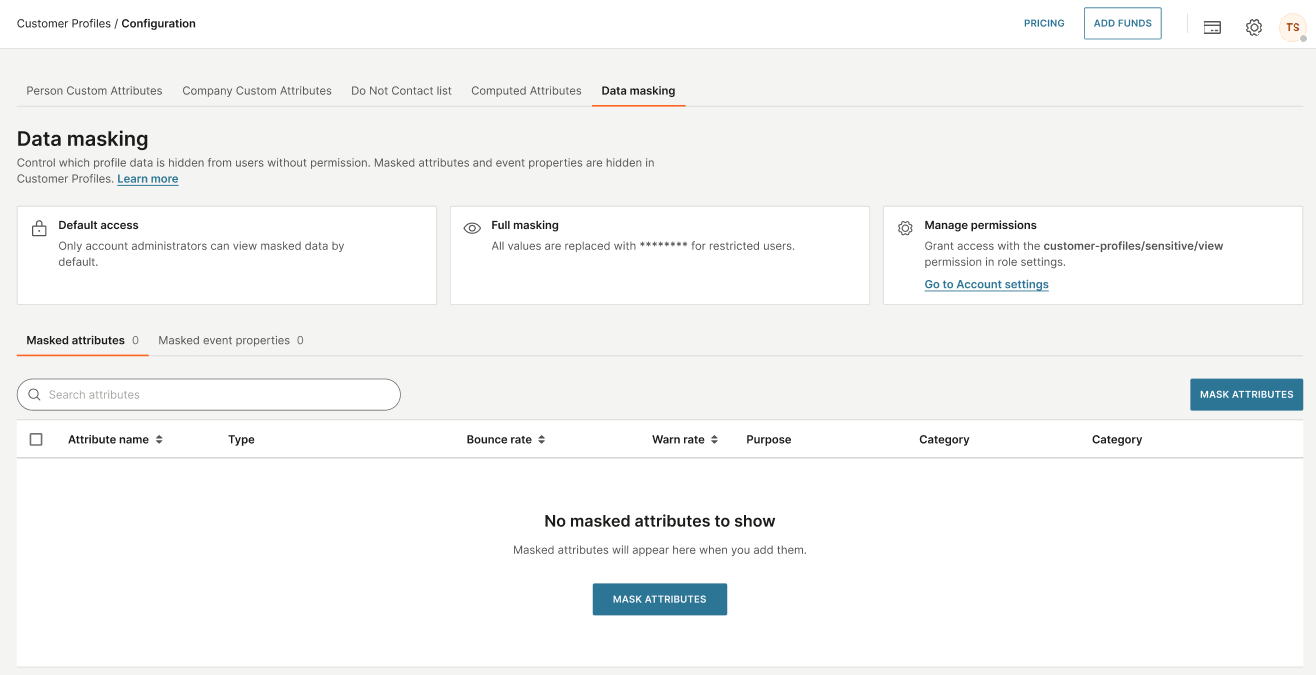
Mask individual profile attributes so their values are hidden from users without permission.
To mask a profile attribute:
- Go to Customer Profiles → Configuration → Data masking tab.
- Select the Masked attributes sub-tab.
- Select Mask attributes.
- Select the profile attributes you want to mask, then confirm your selection.
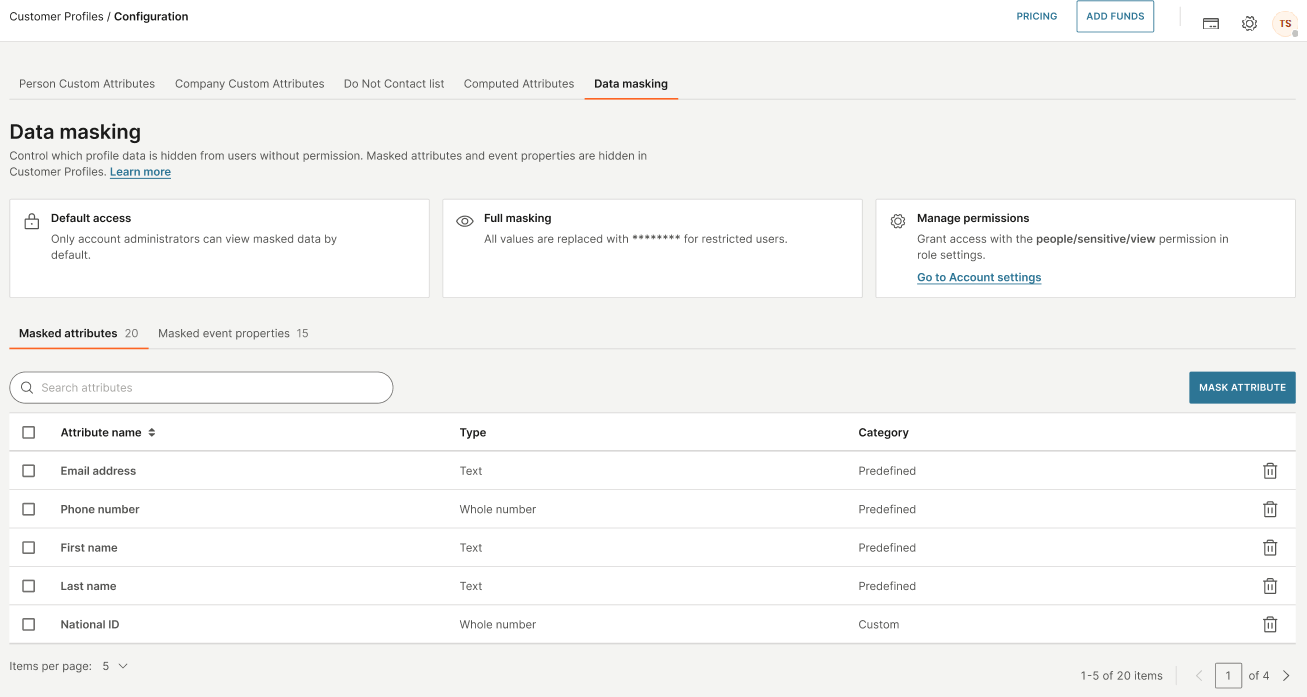
Masked attributes appear in a table with the following columns:
- Attribute name
- Type
- Category
Predefined attributes you can mask include, for example, email address, phone number, first name, and last name. You can also mask custom attributes, such as a national ID field.
To unmask an attribute, select the delete (trash) icon in its row.
How to mask event properties [#mask-event-properties]
Mask individual event properties so their values are hidden from users without permission, across every event that includes the property.
To mask an event property:
- Go to Customer Profiles → Configuration → Data masking tab.
- Select the Masked event properties sub-tab.
- Select Mask event properties.
- Select the event properties you want to mask, then confirm your selection.
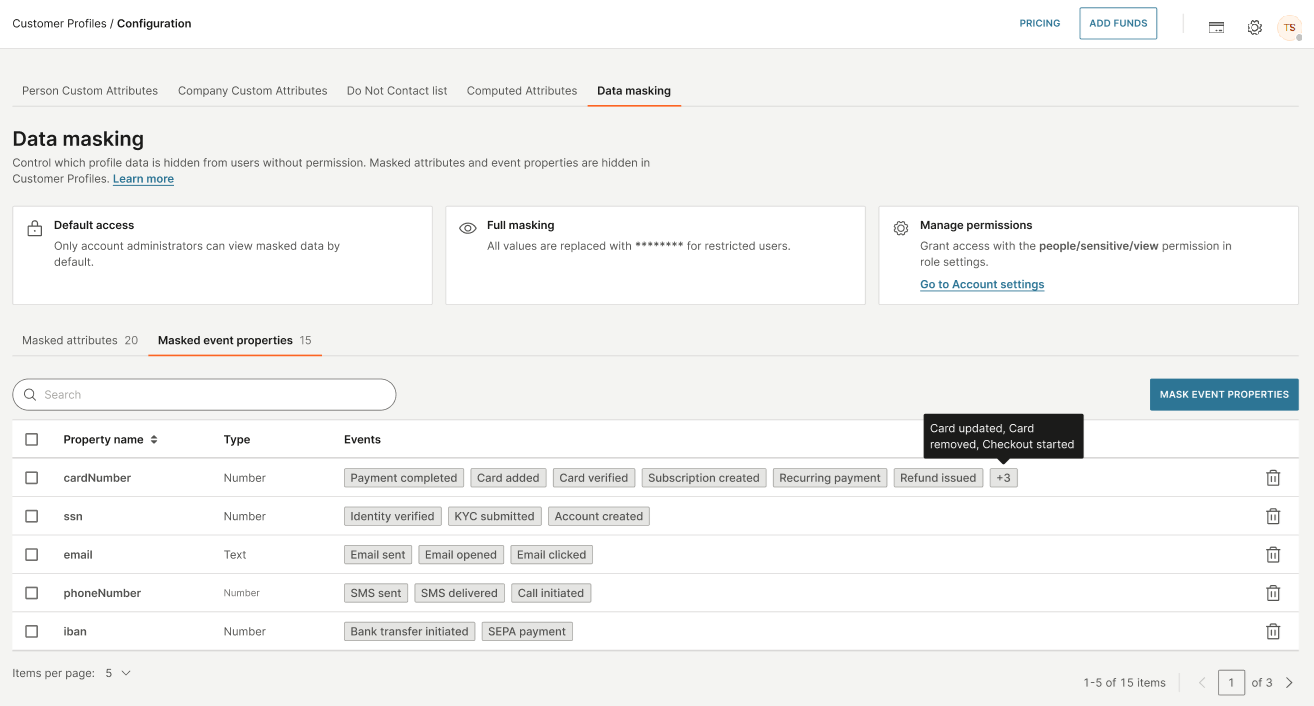
Masked event properties appear in a table with the following columns:
- Property name
- Type
- Category
- Events
An event property can be associated with more than one event. For example, a masked card number property might appear across several payment-related events, such as when a payment completes, a card is added, or a subscription is created.
To unmask an event property, select the delete (trash) icon in its row.
How masking connects with features and products [#how-masking-works]
Masked data is not hidden everywhere with the same behavior. The following table describes how masking applies in the areas where Customer Profiles data is used.
| Feature or product | Masking behavior |
|---|---|
| Segmentation | A user with the view permission can segment on masked attributes and event properties. Users without it cannot. |
| Computed attributes | Computed attributes can use masked data in their calculations, but a computed attribute built on masked data is not itself masked. Testing a computed attribute against a specific profile can reveal enough information to reverse-engineer the underlying masked value. |
| API and exports | The Customer Profiles API and data exports assume the caller has powerful access rights. Masked data is revealed, not masked, through the API and in exports. |
| Journeys | Masked data is excluded from the segment audience element in Journeys, but it is available in preview and is otherwise consumed unmasked through variables and Journey elements. |
| Broadcast | Shows masked data unmasked in preview. |
| Inbox | Consumes profile and event data disregarding masking. |
| Chatbots | Consumes profile and event data disregarding masking. |
| AI agents | Consumes profile and event data disregarding masking. |
Data not covered by masking [#data-not-covered]
Data masking does not cover:
- List attributes, at any level.
- Channel details data, excluding your main channel identifiers.
- Company attributes.