Subscription components
Every webhook subscription relies on supporting components that control where notifications are sent, how they are secured, and how they can be shared. This page explains what each component does and when to use it.

Required
Category and channel/service: Select a category (Channels, Numbers and senders, or Tools), then choose a specific channel or service.
Webhook events: Which events you want to receive: DELIVERY, INBOUND_MESSAGE, CLICK, and more.
Notification profile: Specifies where notifications are sent (webhook URL) and delivery settings. Every subscription must reference one.

Optional
Filters: Narrow down which events trigger webhooks. See Subscription filters and scope.
Authentication settings: Define how the system authenticates when sending notifications. Only needed if your webhook requires Basic, HMAC, or OAuth.
Certificates: Mutual TLS (mTLS) certificates for enhanced webhook security.
Notification profiles [#notification-profiles]
A notification profile defines where event notifications are sent and how they are delivered. Every webhook subscription must include a valid notification profile to function correctly.
A notification profile includes:
- Webhook URL: The endpoint that receives notifications
- Delivery settings: Batch size and response validation
- Authentication (optional): Security settings for webhook delivery
- Certificate (optional): mTLS certificate for transport-layer security
Standalone notification profiles [#standalone-profiles]
A standalone notification profile operates independently and is not linked to a subscription. Use standalone profiles to centrally manage notification behavior when webhook URLs are provided directly in API requests with parameters such as notifyURL or webhookURL.
When you send an API request that includes a webhook URL, the system checks for matching standalone notification profiles. If a match is found, the system applies any advanced settings, certificates, or security configurations defined in that profile. If no matching profile exists, the system forwards the event without additional settings. See Webhook URL override behavior for details.
Types of standalone profiles [#standalone-types]
| Type | Description | Limit | Priority |
|---|---|---|---|
| NULL profile | Standalone profile without a URL | One per account | Used only if no URL profile matches |
| URL profile | Standalone profile with a URL that matches the notifyURL or webhookURL in API requests | Multiple per account | Takes priority over NULL profile when a match is found |
Processing logic [#standalone-processing]
When an API request includes a webhook URL and standalone notification profiles are configured:
- Exact match: System looks for a profile with an exact URL match
- Fallback: If no match is found, uses the NULL profile if it exists
- Default: If neither is found, forwards the event without additional settings
Example [#standalone-example]
A client uses the SMS API and includes a webhook configuration in their request:
With a standalone notification profile: If a profile exists with the URL https://www.example.com/sms/advanced, the system applies any advanced settings, security configurations, or certificates defined in that profile when forwarding delivery reports.
Without a standalone notification profile: The system forwards the delivery report to the URL without additional settings.

Authentication settings [#authentication-settings]
Authentication settings define how Infobip authenticates when sending notifications to your webhook endpoint. These security settings protect your webhook by ensuring only Infobip can deliver notifications to your system.
Authentication methods [#authentication-methods]

Basic authentication
Username and password sent with each webhook request. Suitable for most use cases requiring credential-based security.

HMAC
Cryptographic signing of webhook payloads using a secret key and HMAC algorithm, allowing you to verify that notifications originated from Infobip.

OAuth 2.0
Token-based authentication for integrations with OAuth-compliant systems. Configure a token URL, grant type, and optional client credentials.
Request signing and verification [#request-signing]
When HMAC authentication is configured on a notification profile, Infobip signs webhook requests so you can verify they originated from Infobip. The signature is sent as a header on every request delivered through that profile.
Verification process:
- Get your signing key. This is the secret key set on the HMAC authentication setting, under Developer Tools > Subscriptions Management > Authentication settings.
- Extract the signing header from the incoming webhook request. By default, this is
X-Hub-Signature. - Calculate the HMAC hash of the raw request body using your signing key and the HMAC algorithm set on the authentication setting. Use the entire JSON body exactly as received. Do not parse, reformat, strip whitespace, or remove newline characters before computing the hash. Any modification will cause the signature to not match.
- Compare your calculated signature with the header value.
- If they match, the webhook is authentic.
The default signing header is X-Hub-Signature. Verify the signature with the same HMAC algorithm that is set on the authentication setting, such as HMAC_SHA_256. A hash computed with a different algorithm never matches, even when the secret key is correct.
A notification profile must include either no authentication or a valid authentication setting. An empty or invalid setting prevents webhook delivery. For OAuth, ensure your token URL is accessible and valid. The system requests new access tokens as needed for webhook delivery.
Certificates [#certificates]
Certificates enable mutual TLS (mTLS) for your webhook endpoints, allowing both Infobip and your system to authenticate each other during secure communication.
Understanding mutual TLS [#understanding-mtls]
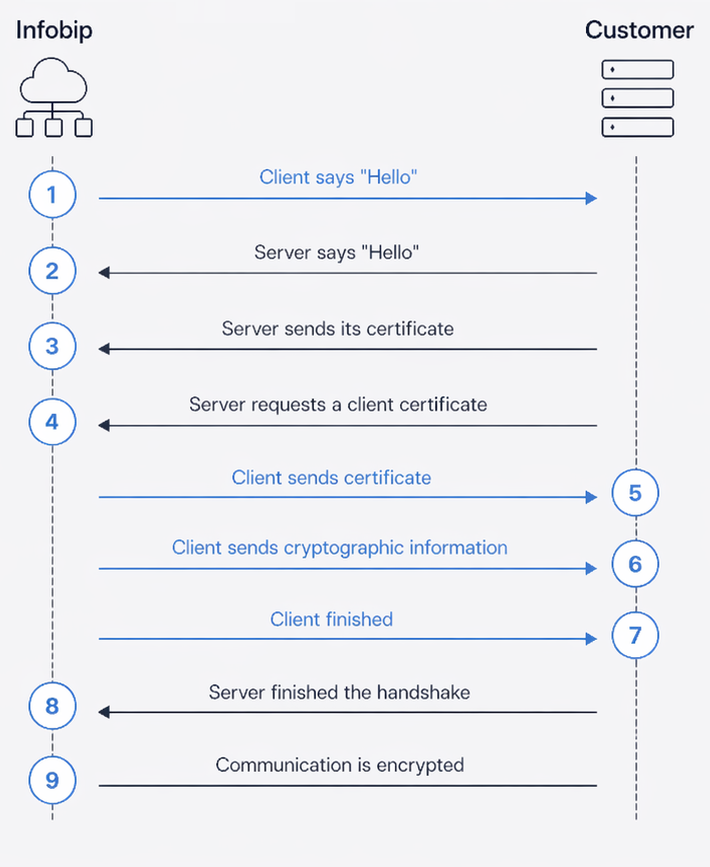
In standard HTTPS/TLS, only the client authenticates the server. With mutual TLS, both parties authenticate each other:
- Server verification: Your system validates the Infobip certificate.
- Client verification: Infobip validates your certificate.
- Encrypted connection: Both parties establish a secure connection only after successful authentication.
This two-way authentication happens at the connection level during the initial TLS handshake, separate from application-level authentication (Basic, HMAC, OAuth).
How mTLS works with subscriptions [#mtls-with-subscriptions]
When mTLS is enabled on a notification profile:
- Infobip acts as the client: Initiates the connection and sends event notifications.
- Your webhook acts as the server: Receives the connection and verifies the Infobip certificate.
- Certificate exchange: Both parties exchange and verify certificates before any data is transmitted.
Upload your client certificate to Infobip and attach it to a notification profile. When events are sent to that webhook, the connection uses the uploaded certificate.
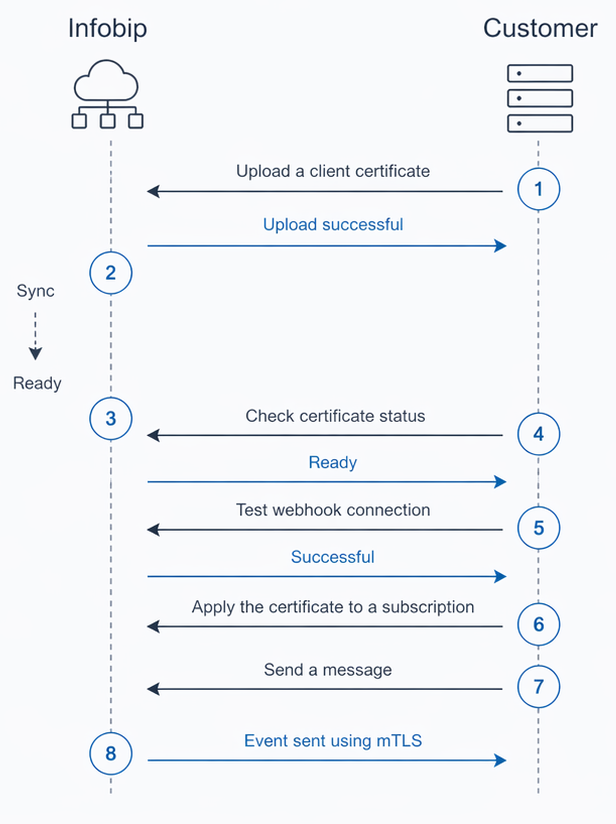
Mutual TLS secures the transport layer. For request-level authentication using Basic auth, HMAC, or OAuth 2.0, see Authentication settings above. Both can be used together for layered security.
How components relate [#how-components-relate]
Notification profiles and event types are independent resources. A subscription binds selected events to a notification profile, creating the delivery configuration. Multiple subscriptions can reference the same notification profile, and the same event types can appear in different subscriptions with different filters.
For the deletion hierarchy (which components block deletion of others), see Subscription hierarchy and deletion rules.
Components can be shared across multiple consumers. Choose between shared or independent setups depending on your needs:

Shared setup
One authentication setting used by one notification profile, which serves multiple subscriptions (SMS, Email, WhatsApp). Deleting one subscription does not affect the others. They continue using the same profile and credentials.

Independent setup
Separate notification profiles per subscription, each with their own authentication settings. Full isolation. Deleting the profile of one subscription does not affect any other subscription.
Decide upfront which approach fits your use case. Shared components reduce configuration overhead but create deletion dependencies. Independent components are easier to manage individually but require more setup.
Managing notification profiles
Create, edit, and delete notification profiles.
Managing authentication settings
Create, edit, and delete authentication settings.
Managing certificates
Upload, manage, and delete mTLS certificates.
Subscription hierarchy and deletion rules
Component hierarchy diagram, deletion constraints, and deletion sequences.