Transfer call to AI agent
EARLY ACCESS
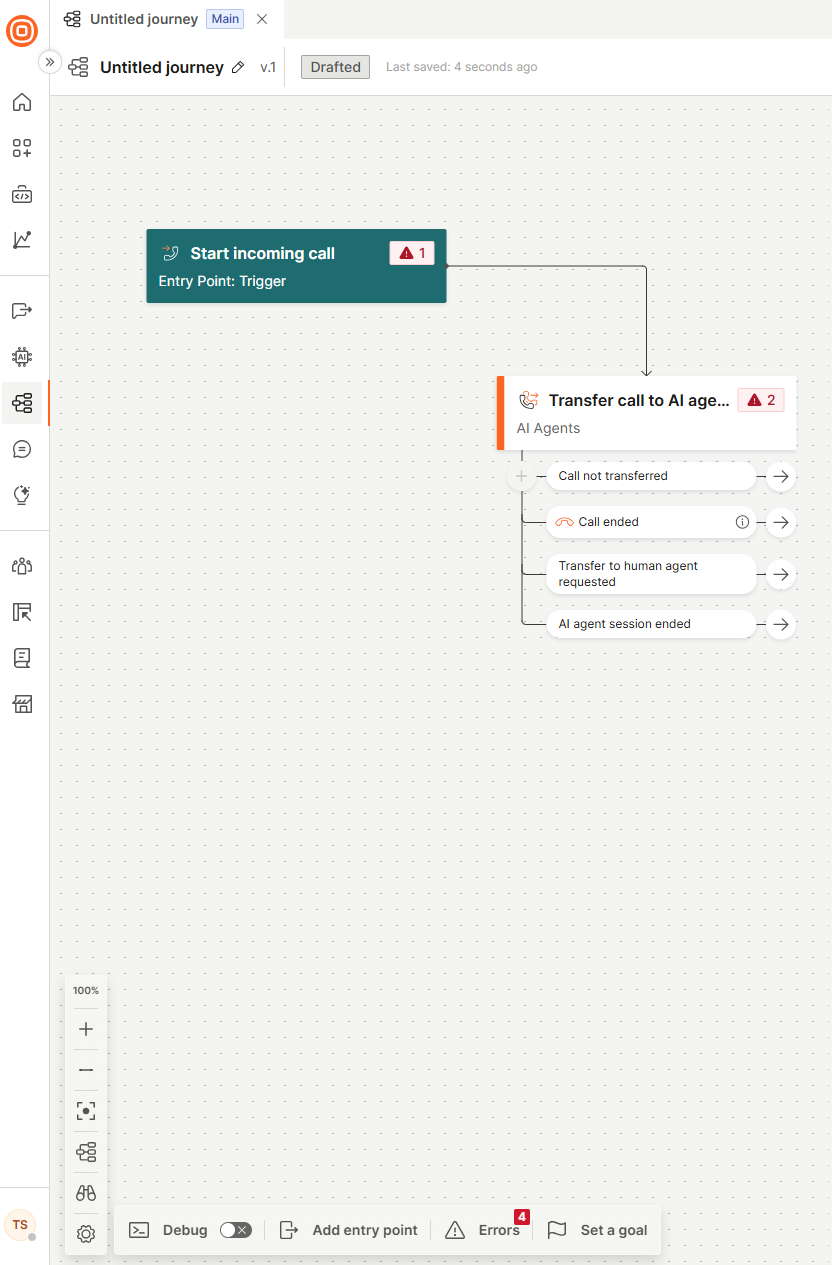
Use the Transfer call to AI agent element to hand over an active call from the IVR flow to a real-time Voice AI agent. This enables natural, conversational handling of the call using speech recognition, intent detection, and Generative AI.
When the call reaches this element in the flow, the IVR transfers control to the selected AI agent. After the agent completes its task, the call always returns to the IVR, with information on why the call returned.
For more information about AI agents, see the AI agents documentation. For an overview of Voice AI agents, see Voice AI agents.
In the side panel of the element, configure the following fields:
Choose AI agent
This is a mandatory field. From the menu, select an AI agent you previously created on the My Agents page.
Select agent version
Select an agent version. The default setting is Always use active version.
Voice processing
Select the processing type for the AI agent:
-
Speech to speech: A single AI model listens and responds in voice directly, without converting to text. This enables faster responses and a more natural tone, but may result in higher per-minute costs.
-
Speech to text to speech: Voice is first transcribed into text, processed by a language model, and then converted back into speech. This approach is more cost-effective and offers greater control and easier debugging, but introduces additional latency due to the extra processing steps.
How to choose between Speech to speech and Speech to text to speech processing
| Consideration | Speech to speech | Speech to text to speech |
|---|---|---|
| Languages supported | English | Wide range. Check the language configuration in the web interface. |
| End-to-end latency | Lowest (approximately 250 to 500 ms) | Good (approximately 500 to 1500 ms) |
| Transcript availability | Available. Useful for quality review. | Available. Useful for quality review. |
| Voice naturalness | Very high. Native audio model. | High. Depends on voice selection. |
| Best for | English-only, latency-critical use cases | Multi-language, cost-sensitive, or compliance-driven deployments |
Speech to speech [#speech-to-speech-agent-type]
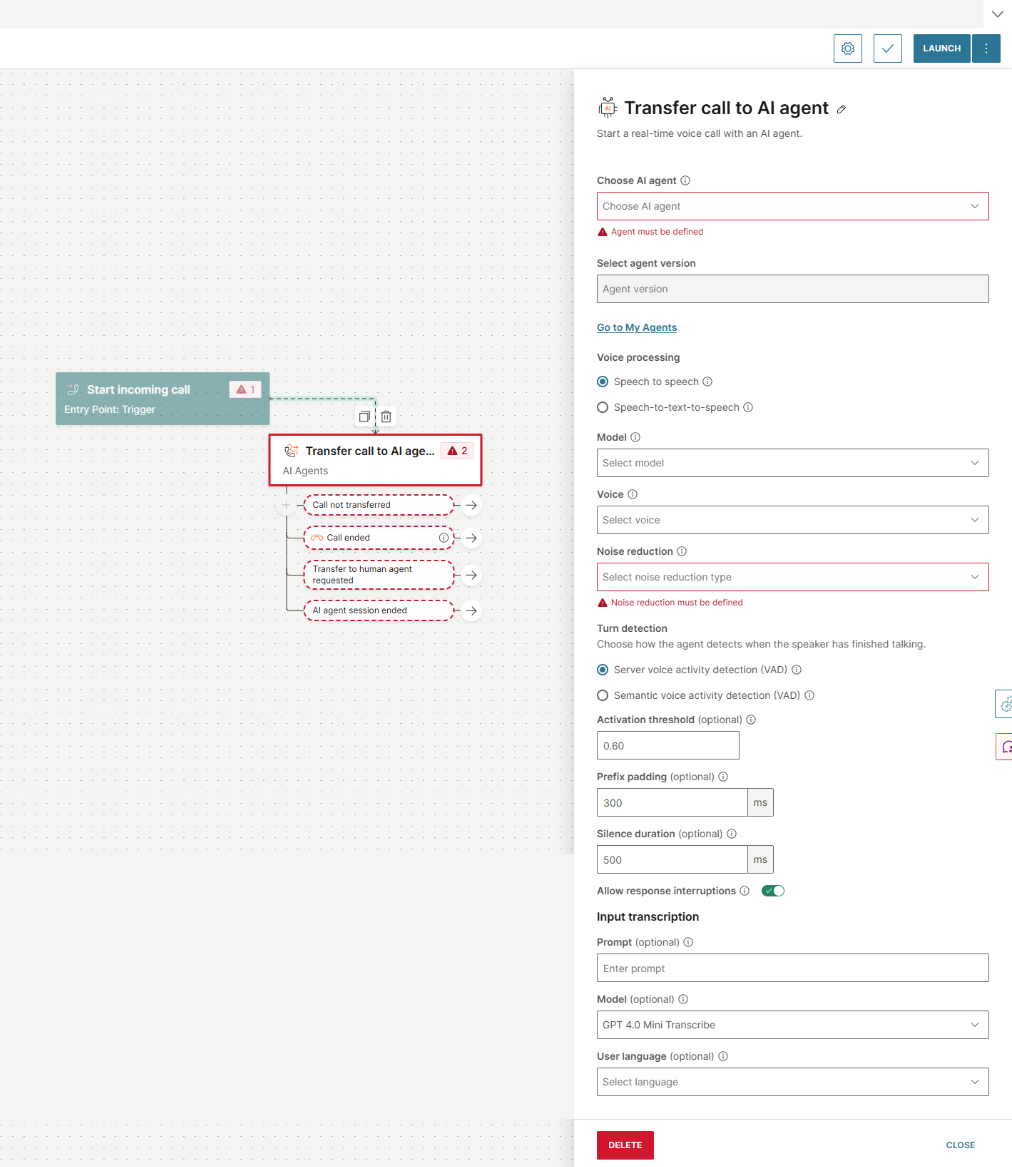
If you selected Speech to speech, configure the following fields.
- Model: Select the model for responses. You may choose from Realtime models, both full and mini versions.
- Voice: This is a mandatory field. Select the voice the model uses for responses.
- Noise reduction: This is a mandatory field. Select the type of noise reduction. Use Near field for close-talking microphones (such as a phone call or headphones) and Far field for microphones used at a distance (such as a mobile speakerphone or conference room setups).
Turn detection
Choose how the agent detects when the speaker has finished talking:
-
Server voice activity detection: Uses server-side voice activity detection to detect when the user has finished speaking. The model monitors audio levels and measures silence duration, then adjusts the response timeout based on the probability that the user has finished speaking. Use this when you need predictable, configurable control over how silence is interpreted.
-
Semantic voice activity detection: Uses semantic analysis to detect when the user has finished speaking. The model evaluates whether the user's words form a complete thought and adjusts the response timeout based on that probability. This approach is more resistant to background noise and less likely to cut off users during natural mid-sentence pauses.
-
Activation threshold (optional): Set the sensitivity of voice activity detection, on a scale from 0.0 to 1.0. Higher values require louder audio to register as speech, which reduces false triggers in noisy environments. Lower values increase sensitivity and are better suited for quiet settings or soft-spoken users.
-
Prefix padding (ms) (optional): Prefix padding solves speech clipping. Because VAD requires time to detect that speech has started, the first milliseconds of audio are lost before detection triggers. Prefix padding rewinds the audio buffer slightly to recapture that pre-detection audio, so the model receives the complete utterance from its actual start.
-
Silence duration (ms) (optional): Set how many milliseconds of continuous silence must occur before speech is considered finished. Lower values cause the agent to respond faster but increase the risk of interrupting natural mid-sentence pauses. For noisy environments or when users need more time to complete a thought, use 700 to 1000 ms. For a faster, more responsive experience, use 200 to 400 ms.
-
Allow response interruptions: When enabled, the AI stop its current response, if the user starts speaking again.
Semantic VAD configuration
-
Eagerness: Control how quickly the agent responds after the user has finished speaking. High responds immediately when a probable end of speech occurs. Low waits longer to confirm the user has finished, reducing the chance of the agent interrupting mid-thought. Medium is the default.
-
Allow response interruptions: When enabled, the AI stop its current response, if the user starts speaking again.
Configure the following fields for both VAD types:
Input transcription
-
Prompt (optional): Enter a text string to bias the transcription model toward the vocabulary, spelling, and phrasing expected in your conversation. This field functions as a hint to the recognition engine only. It influences how audio is decoded into text but does not change the conversational behavior of the model. Use it for terms the model might mishear or transcribe inconsistently, such as proper nouns, acronyms, and domain-specific language.
-
Model (optional): Select the model used to transcribe the end user's speech.
Model Description Use case GPT 4.0 Transcribe Built on the GPT-4o architecture. Achieves a lower word error rate than Whisper 1, particularly for accented speech, overlapping audio, and complex vocabulary. Use for the lowest word error rate when accuracy is the priority. For example, when handling accented speech, technical vocabulary, or poor audio quality. GPT 4.0 Mini Transcribe A lighter, faster variant of GPT 4.0 Transcribe. Latency is reduced and cost is lower than GPT 4.0 Transcribe. Accuracy is lower than the full model. Offers the best balance of speed and cost for high-volume deployments. Use when latency per turn directly affects conversation quality. NOTEFor the best experience, use GPT 4.0 Mini Transcribe. -
User language: The language of the input audio.
After configuring all the fields, select the check mark at the top-right corner to validate your input.
Speech to text to speech
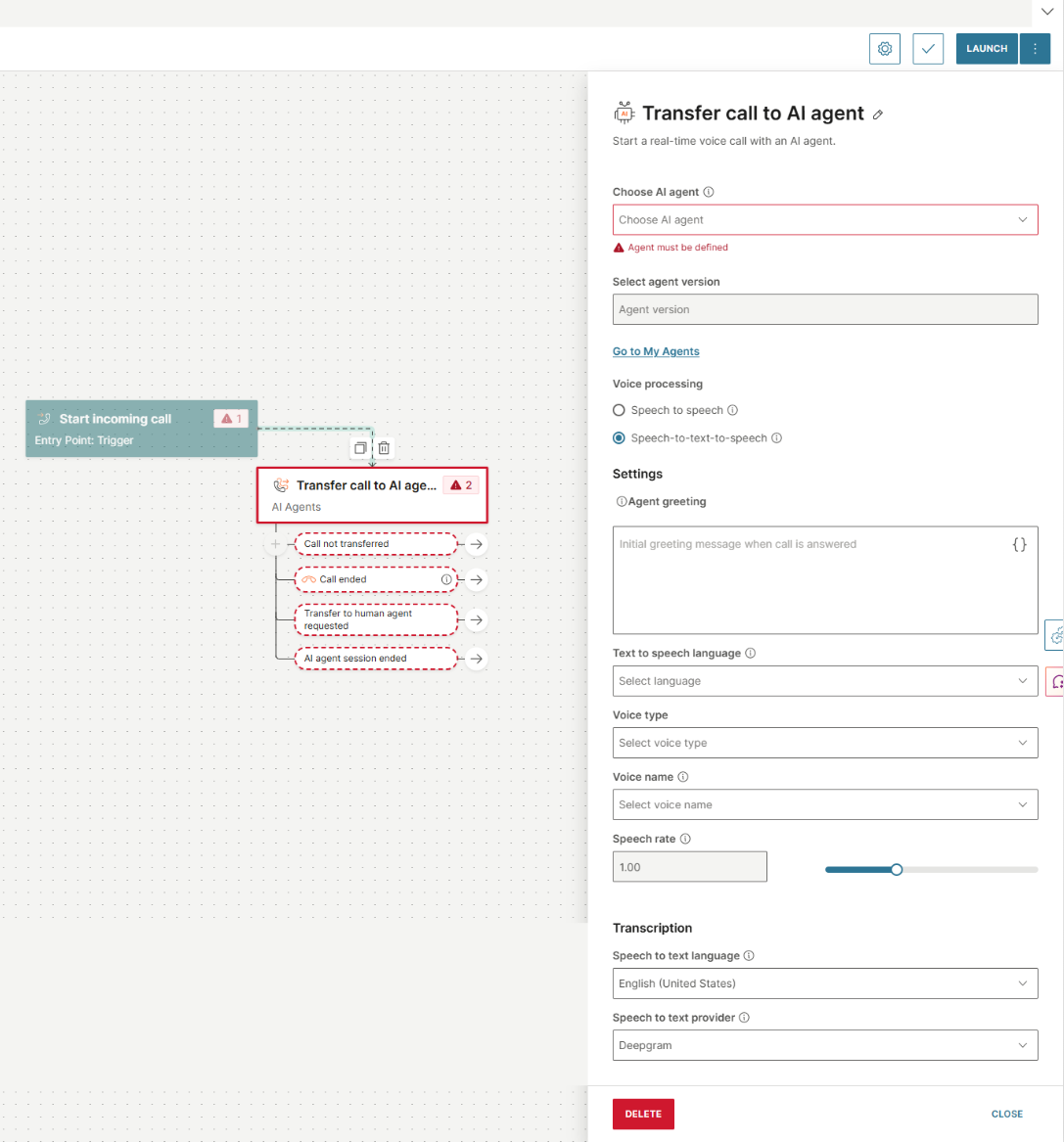
If you selected **Speech to text to speechgit **, configure the following fields.
Settings
-
Agent greeting: Initial greeting message that triggers the agent when the call is answered.
-
Text to speech language: This is a mandatory field. The language used for text to speech conversion.
-
Voice type: The voice used when converting text to speech.
-
Voice name: Select the voice name.
NOTENeural and generative voices have additional charges. If neural and generative voices are not available for your account, contact your Infobip account manager. Use generative voices for the best user experience. -
Speech rate: Adjustable speed of speech. The default value is 1.00.
Transcription
- Speech to text language: This is a mandatory field. The language used for speech recognition.
- Speech to text provider: The provider used for speech recognition.
After configuring all the fields, select the check mark at the top-right corner to validate your input.
Manage call session outcomes
Use the following branches in the Transfer call to AI agent element to manage what happens after the call session ends.
| Branch | Call session status |
|---|---|
| Call not transferred | The flow was unable to transfer the IVR call to the AI agent. A call session was not established between the end user and the AI agent. The IVR session continues between the end user and the flow. For example, the API call failed, so the call was not transferred. |
| Call ended | The call ended either because the end user hung up or because of network issues, after it was transferred. You can only start a new call from this point on. |
| Transfer to human agent requested | An AI agent executes the request for transfer when it recognizes a trigger condition. For example, if a user asks to speak to a human agent, or if the AI agent determines it cannot resolve the user's request, it invokes the configured tool. Specify these conditions in the agent prompt. Define further steps in the journey itself. |
| AI agent session ended | The AI agent does not terminate calls independently. It recognizes specific user inputs as end-of-session signals and then ends the call. For example, a user might say Bye or That is all, thank you. The agent treats these inputs as termination signals and closes the call session. Define further steps in the journey itself. |
For voice prompt writing, pre-launch verification, and testing guidance, see Prepare Voice AI agent for launch.